Conditional migration and data filters
Transfer only the rows that match a condition instead of copying the full table.
Last updated July 10, 2026
Data filters let you transfer a subset of rows instead of copying the full table. Useful for large tables, partial exports, date-bounded loads, or any migration where only a subset of the data is relevant.
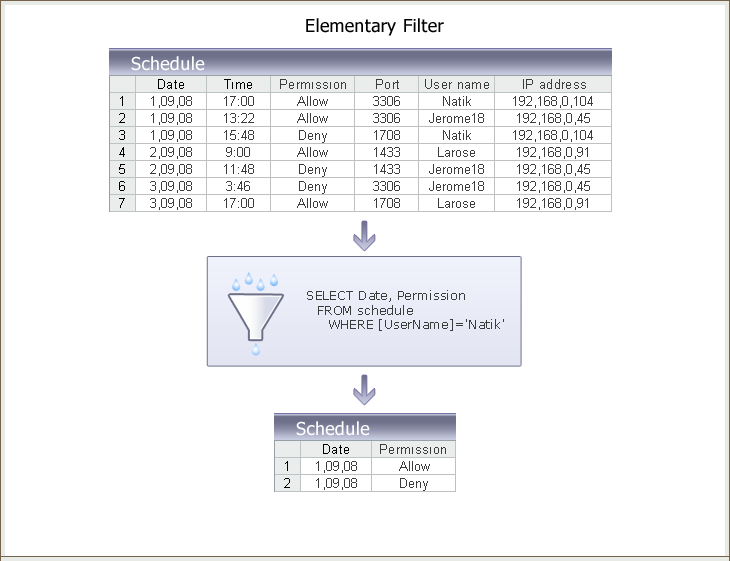
A simple filter can pull rows where Date and Permission are grouped by user name:
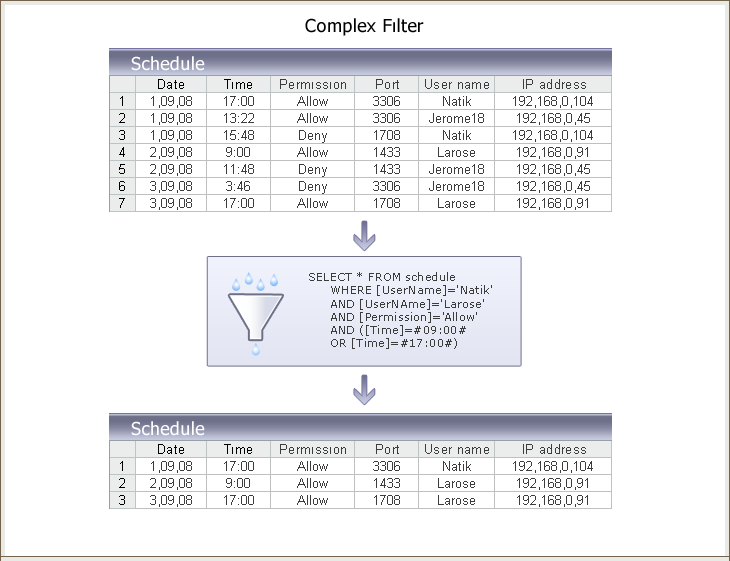
A compound filter can combine conditions on Permission and a Time column:
Building a filter
On the Customization stage, select a table and click the Filter button.
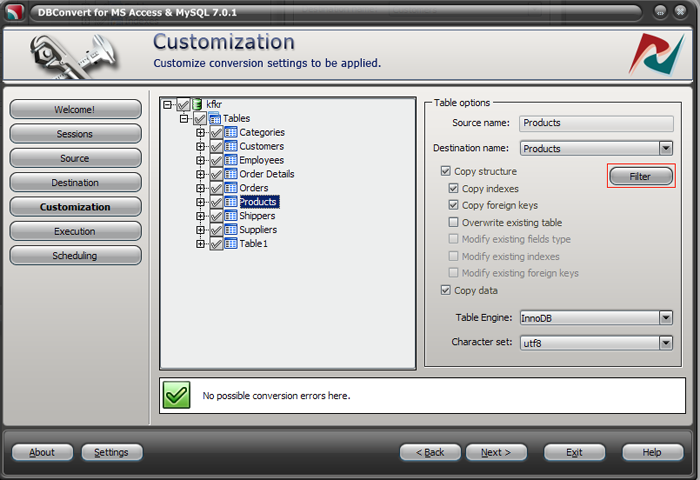
The Filter window has three panels.
1. New condition
Define one or more conditions. For each condition:
- Pick the table field.
- Pick the operator (not null, equal to, less than, etc.).
- Enter the value.
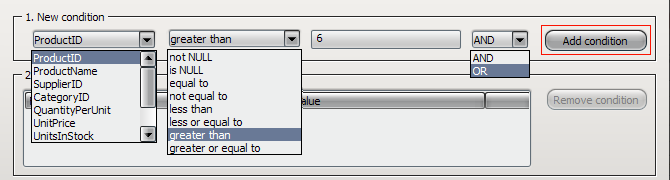
Click Add condition. Multiple conditions can be combined with AND / OR.
2. Selected conditions
Lists every condition already added.

To delete a condition, select it and click Remove condition.

3. Preview
Shows the resulting query and a sample of returned rows. Click Refresh to apply the current filter.
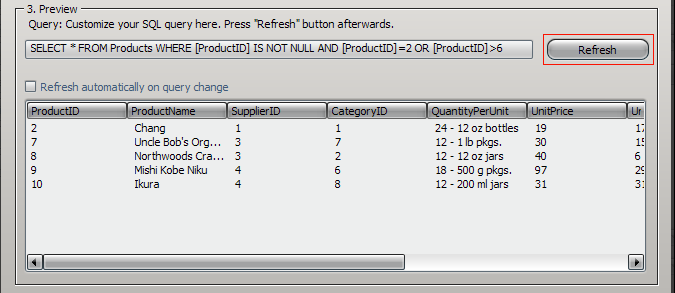
With Refresh automatically on query change enabled, the preview updates after every edit.

The Query line shows the generated SQL. Editing a condition rebuilds the query automatically.
Date and text values
Values are written in the SQL dialect of the source database, the same way you would write them in a query against that database. The most common question is how to enter a date.
- MySQL / MariaDB, MS SQL Server, PostgreSQL, Oracle, SQLite: wrap the date in single quotes using ISO format -
'2025-12-31'. For example, a condition on acreated_atfield with the operator less than and the value2025-12-31producescreated_at < '2025-12-31'. - MS Access: dates use
#delimiters instead of quotes -#2025-12-31#.
To select a date range, add two conditions and combine them with AND - for example order_date >= '2025-01-01' AND order_date < '2026-01-01' to pull a single year.
Text values follow the same rule: quote them as the source database expects, for example country = 'Germany'. Use the Preview panel to confirm the generated query and that rows come back before running the migration.
Notes
You can build a filter from the UI, adjust the generated SQL manually if needed, and rerun the preview to verify the result. Filters keep the migration focused on the rows you actually need - useful for cutting transfer time on large source tables. See Speeding up large transfers for the broader context.