Table options
Set copy and rebuild behaviour for selected tables, then override one table where needed.
Last updated October 19, 2026
Applies to Firebird & SQL Server, Firebird & PostgreSQL, SQL Server & MySQL, SQL Server & PostgreSQL, MySQL & PostgreSQL, SQLite & SQL Server, SQLite & MySQL. For any other pair, read Database and table options for the previous interface.
For table selection, names and worker threads, see Job options.
- Set options for all selected tables
- Handle existing destination tables
- Bring existing tables in line with the source
- Change a column type in every table
- Override one table
- Columns, indexes and foreign keys
- Choose which row changes to synchronize
Problems with the mapping are listed in the line at the bottom of the step. See Pre-migration checks.
Set options for all selected tables
Under Default table options, a change applies to every selected table. If tables have different settings, the option shows Mixed. Pick a value to give them all the same.
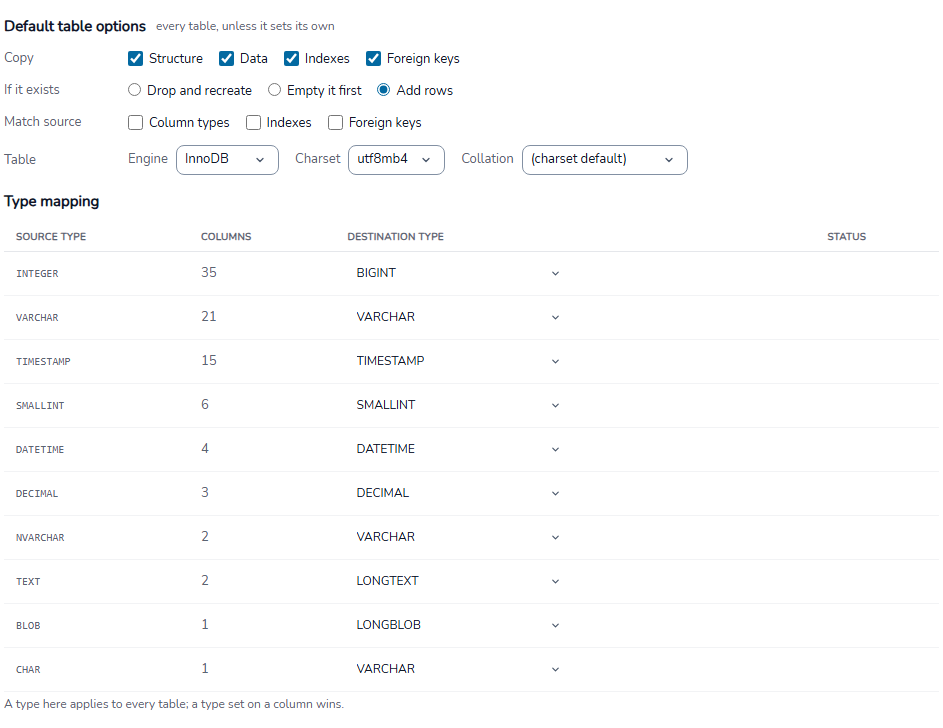
Copy structure and data
| Option | What it copies |
|---|---|
| Structure | Creates the destination table. |
| Data | Copies the rows. |
| Indexes | Copies indexes for tables that have them. |
| Foreign keys | Copies foreign keys for tables that have them. |
Clear Data to create structure without rows. Clear Structure when destination tables already exist and only their rows should be copied.
Table engine, character set and collation
For a MySQL destination, the Table row sets Engine, Charset and Collation. Set one charset before choosing a collation. Other destinations do not show settings they cannot apply.
Handle existing destination tables
Under If it exists, choose what happens when a destination table already exists. The line under the choice turns orange when it removes data.
| Choice | What happens when the destination table exists |
|---|---|
| Drop and recreate | Drops the table and creates it again. Its rows are lost. |
| Empty it first | Keeps the structure and deletes its rows before the copy. |
| Add rows | Keeps the structure and rows, then adds the copied rows. |
A run that drops or empties a destination table asks you to confirm.
Add rows fails on a row whose key is already in the destination. Use one of the other two when a fresh copy is required.
Bring existing tables in line with the source
When a destination table exists and is not dropped, DBConvert can change its definitions to match the source. Under Match source, select what to change:
| Option | What it does to an existing destination table |
|---|---|
| Column types | Alters each column to the source type, for example CHAR(5) to VARCHAR(50). |
| Indexes | Drops and recreates indexes that the source defines differently. |
| Foreign keys | Drops and recreates foreign keys that the source defines differently. |
Column types changes columns that already hold data. A narrower type can truncate or lose values. DBConvert asks before turning it on for every table.
In synchronization, Column types is not offered for a table whose columns are mapped onto existing destination columns. Their types are kept.
Change a column type in every table
Under Type mapping, the Tables node lists each source type in the selected tables, with how many columns have it. Next to it is the destination type they get.
- Find the source type, for example
CHAR. - In its row, choose the destination type, for example
VARCHAR. Types that keep every value are listed first, under Safe for this type. - For a type with a length, leave the length box empty to keep each column's own length.
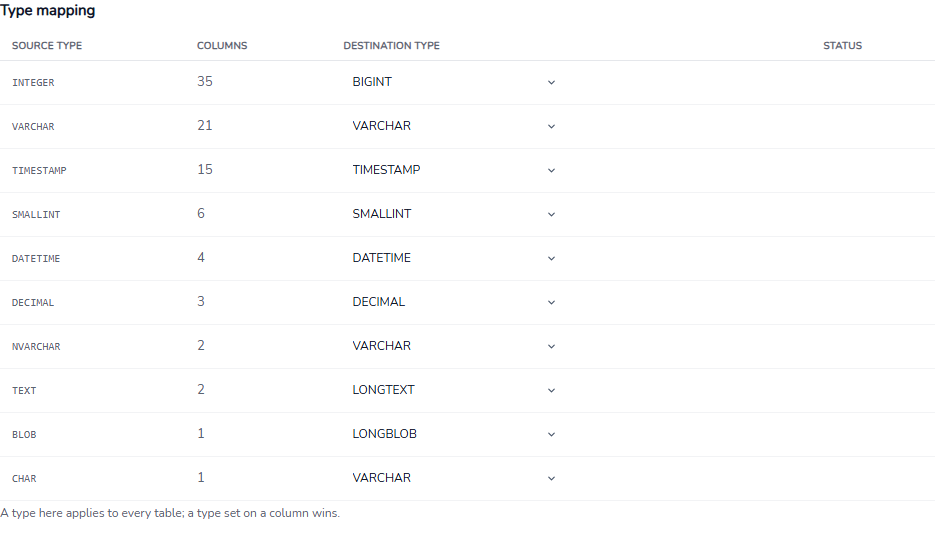
The row's status says Mapped, or Lossy when the type can lose part of a value. Hover Lossy to see why.
A type chosen on a column wins over the row. The row shows how many columns have their own type; click it to give them the row's type too.
The rule is saved with the job. Columns the source gains later, and scheduled runs, get it too.
Override one table
Select the table in the Customization tree. Its Copy, If it exists, Match source and, where available, Table settings change only that table. The overrides defaults label shows that it differs from the Tables settings.
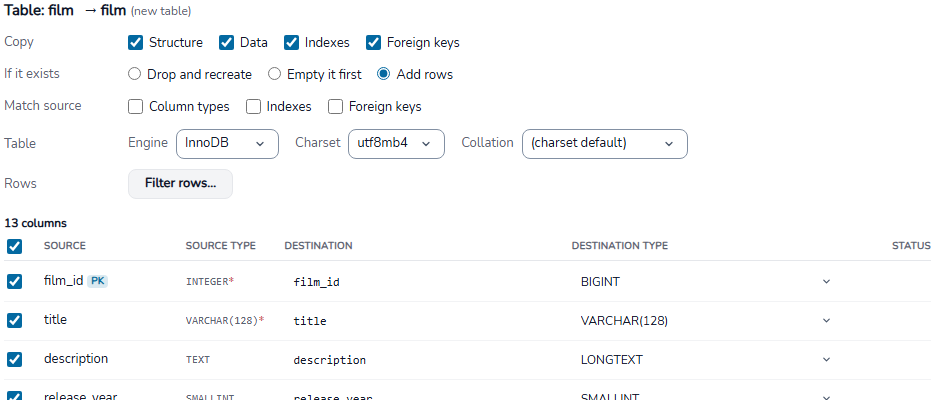
An option the table cannot use is greyed out. A table without indexes cannot copy them; hover the box to see why.
Click Reset to defaults to use the Tables settings again. This does not change the table rename, row filter or column mappings.
Copy a subset of rows
Under Rows, click Filter rows… to set a SQL WHERE condition. Only rows that match it are copied, and the line under the button shows the condition. See Conditional migration and data filters for the syntax and examples.
Columns, indexes and foreign keys
Below a table in the tree are three nodes. Each shows a list with one row per item, and you edit in the row.
| Node | What you change in a row |
|---|---|
| Columns | Whether the column is copied, its destination name, and its destination type and length. |
| Indexes | Whether the index is copied. Primary and unique indexes are always copied: the data copy relies on them. |
| Foreign keys | Nothing per key. They are copied when Copy has Foreign keys on. |
In Columns, a type left as (auto) is converted by DBConvert or by Type mapping. The Status column says which. Reset mappings clears the table's renames and types.
For a foreign key, both tables must be in the run, with the referenced columns and their key. Otherwise the destination rejects the key and the run reports it skipped.
Choose which row changes to synchronize
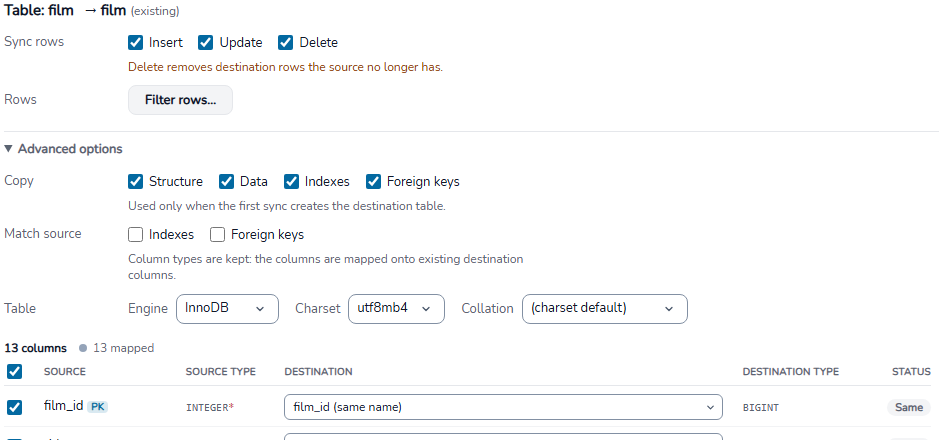
For a synchronization job, the Tables node shows Sync rows instead of If it exists. The settings apply to every selected table:
| Option | What it does |
|---|---|
| Insert | Inserts source rows missing from the destination. |
| Update | Updates destination rows that differ from the source. |
| Delete | Deletes destination rows that no longer exist in the source. |
A selected table can override these settings. For synchronization methods and direction, see How database synchronization works and Trigger-based synchronization.
Change structure during synchronization
On a single table, open Advanced options. Copy is used only when the first synchronization creates the destination table.
Under Match source, select what to change in a destination table that already exists. See Bring existing tables in line with the source.