Excel Database Configuration
Define tables, ranges, and field types when MS Excel is used as a source.
Last updated July 10, 2026
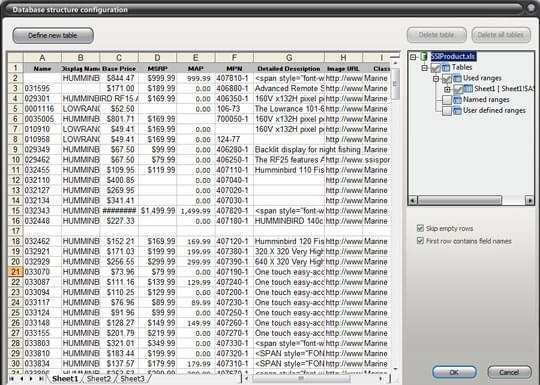
When you pick an Excel file as the source and click Config, the Database structure configuration window opens. Use it to define new tables from the sheets, or to configure tables that already exist.
Creating tables from a sheet
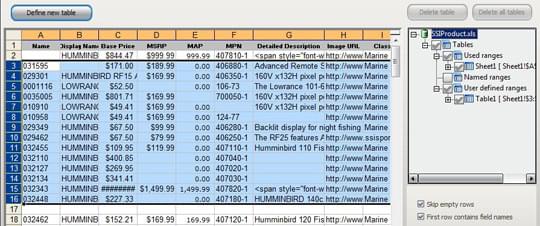
Click New table after selecting a range of cells in the sheet.
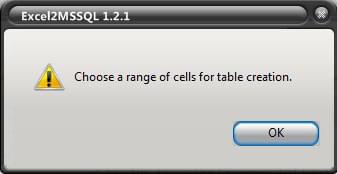
If no cells are selected when you click the button, DBConvert shows an error.
All defined tables appear in the right panel.
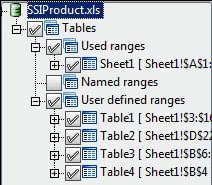
Useful checkboxes
- Skip empty rows - ignore rows without data.
- First row contains field names - treat the first row of the range as the column header.
Deleting tables
Select a table and click Delete to remove it. To remove all defined tables, click Delete all without selecting anything.
Editing table properties
Select a table in the right panel. The Table properties panel lets you rename the table and change its data range.
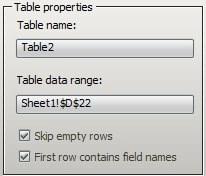
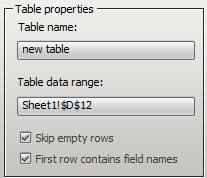
If a table range is already defined, you can adjust it by dragging the selection edges in the sheet.
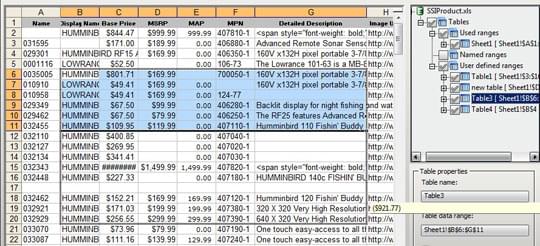
Click OK to save changes.
Changing field types
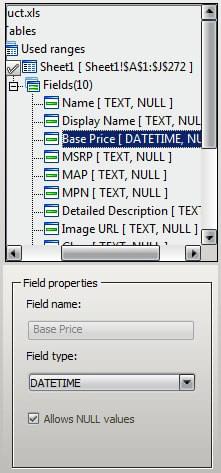
You can override the data type for each field on the target sheet.
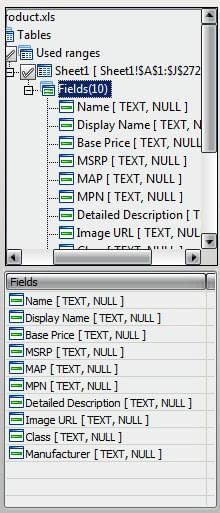
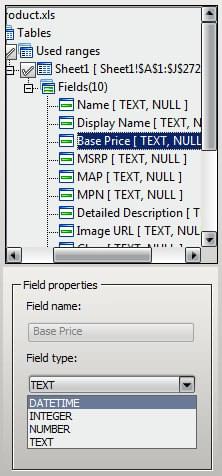
Pick a field. Its information appears in the Field type box. Select the new data type from the dropdown.
Changes to type mappings are saved as you make them.