Running on macOS and Linux
DBConvert is a Windows application. To run it on macOS or Linux, use WINE.
Last updated August 19, 2026
Limitation: MS Access, MS FoxPro, and MS Excel-based products depend on Office libraries and are not supported under WINE. Use them on a real Windows host or in a Windows VM.
macOS
Pick a WINE-based wrapper:
- CrossOver - commercial, easiest to set up.
- Wineskin / Whisky - free, more configuration.
- WineBottler - older free tool used in the screenshots below.
Alternatively, run a full Windows VM (Parallels, VMware Fusion, UTM) or a Boot Camp partition.
Steps (WineBottler-style)
1. Install WineBottler from winebottler.kronenberg.org.
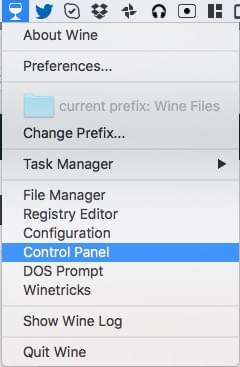
2. Open Wine.app and click Control Panel.
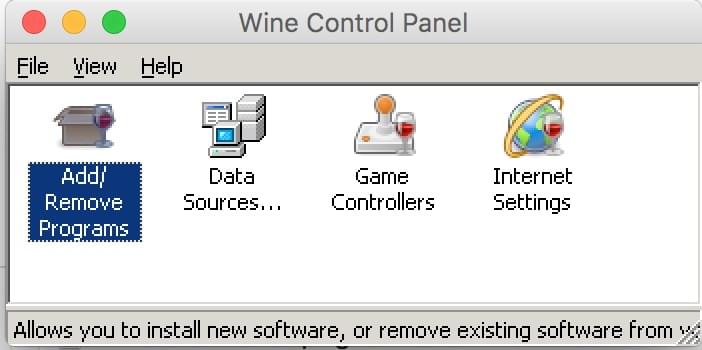
3. Click Add/Remove Programs.
4. Run the DBConvert installer downloaded from dbconvert.com/download/.
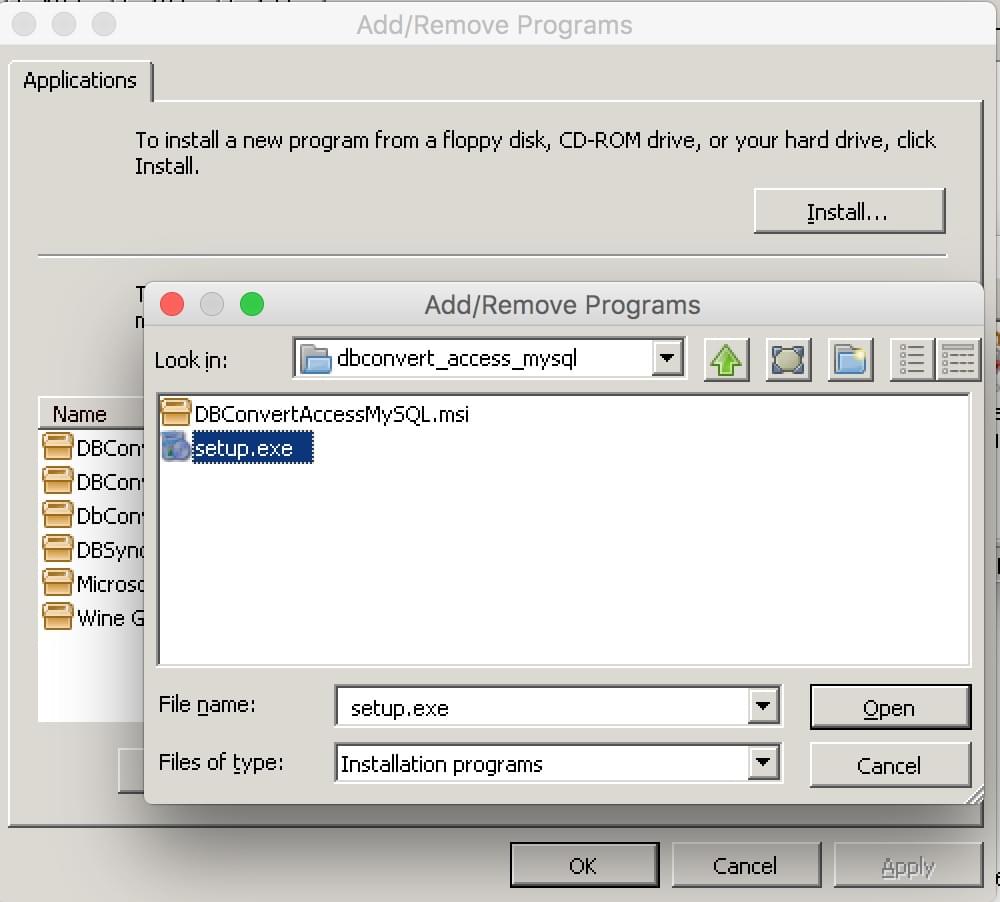
5. Open Wine Menu → File Manager and launch the installed DBConvert binary.
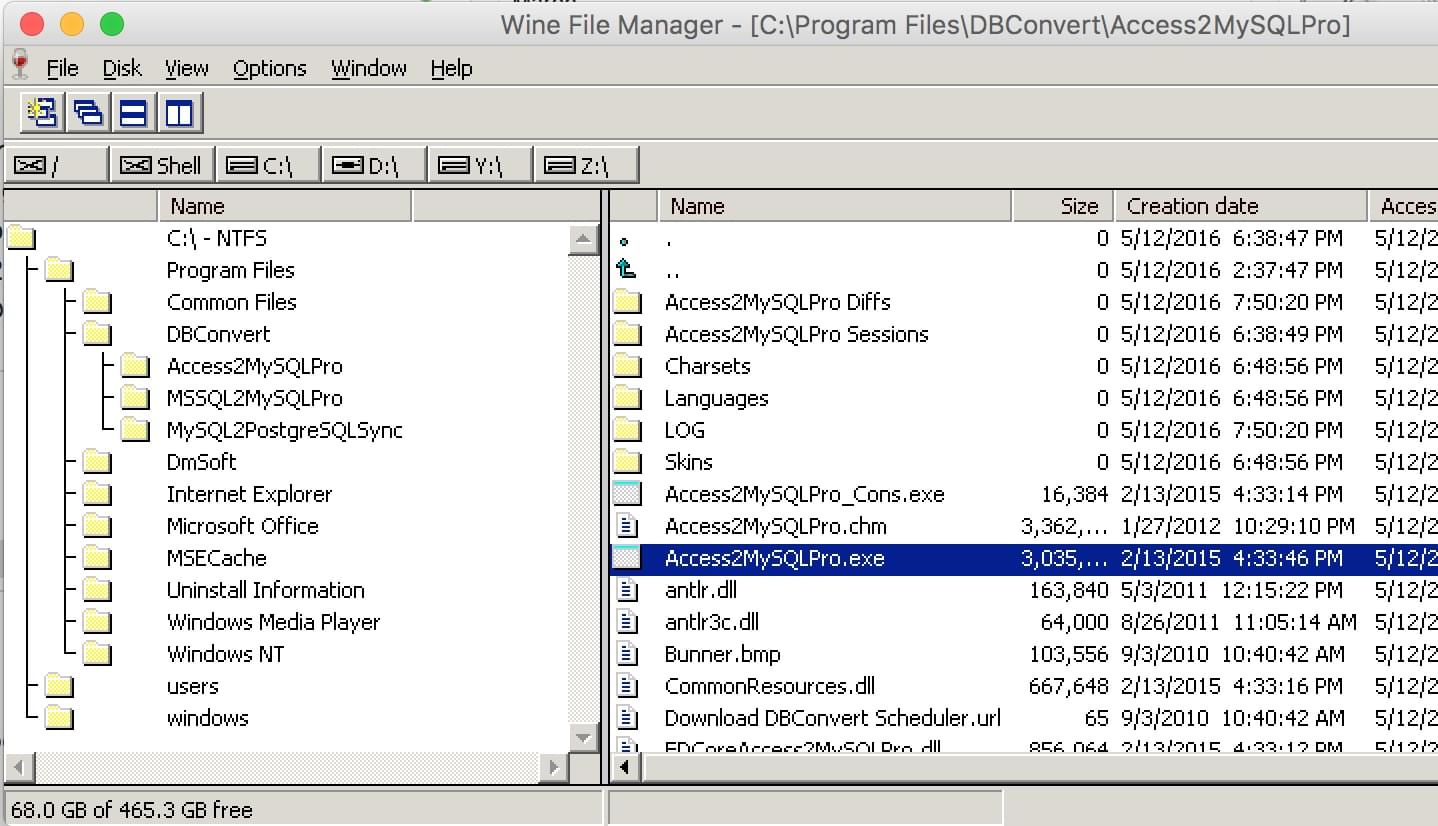
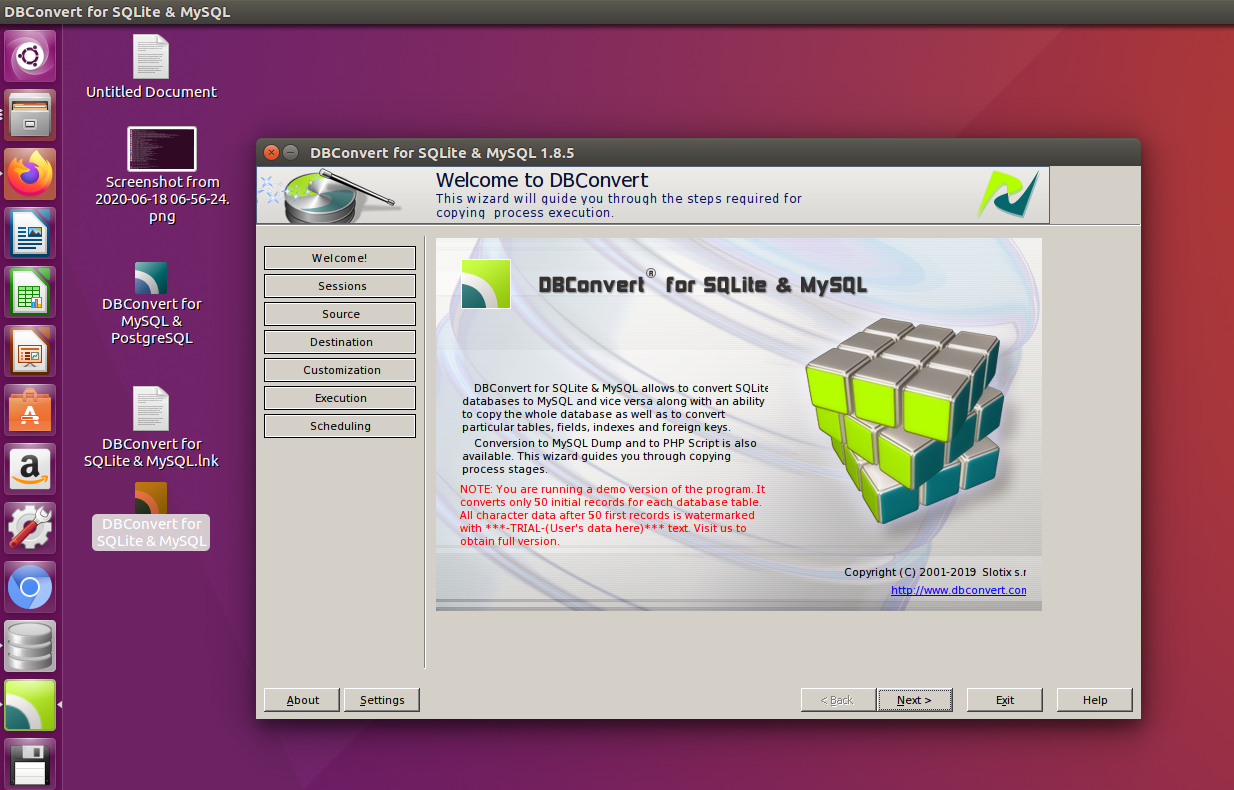
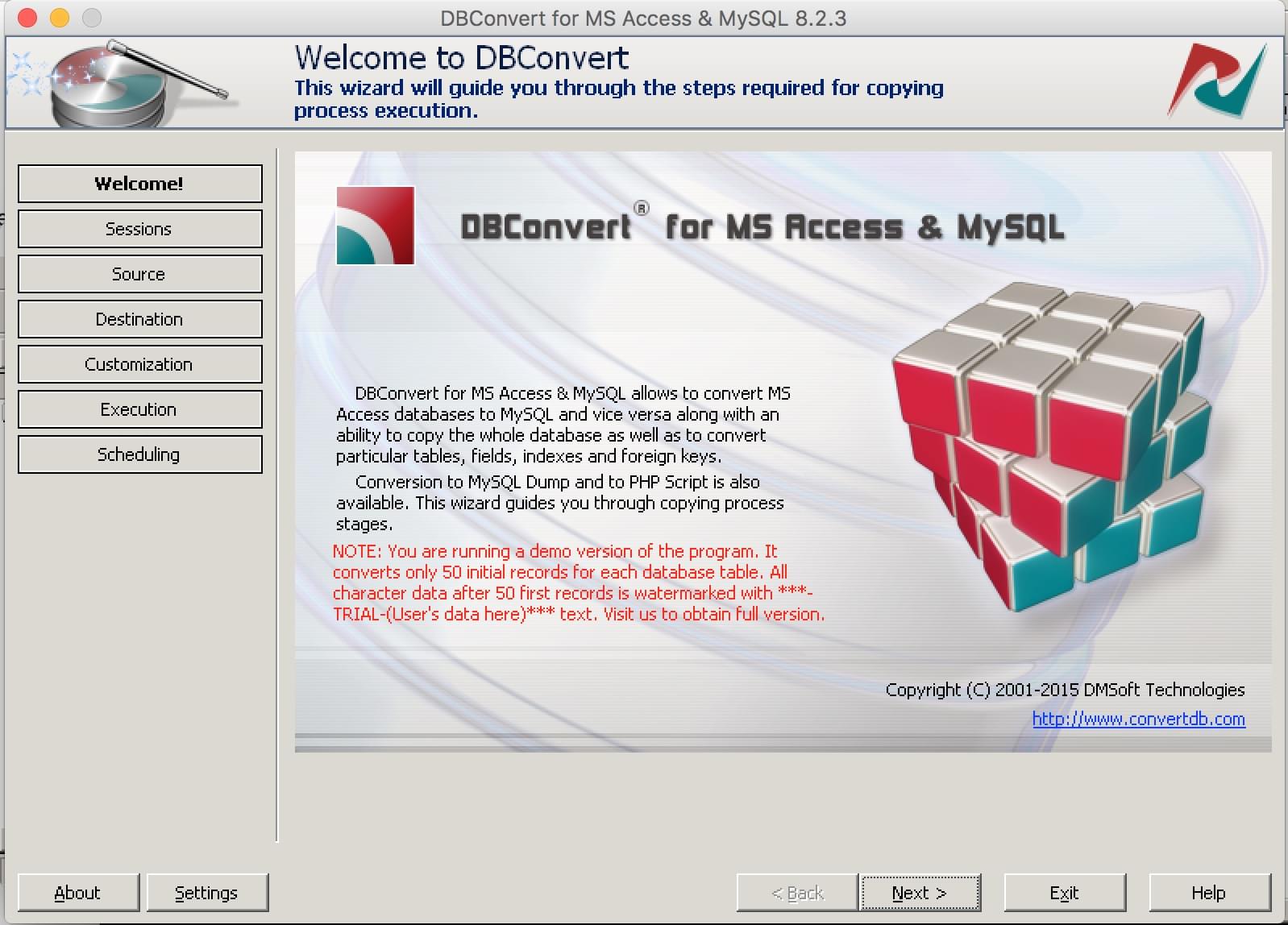
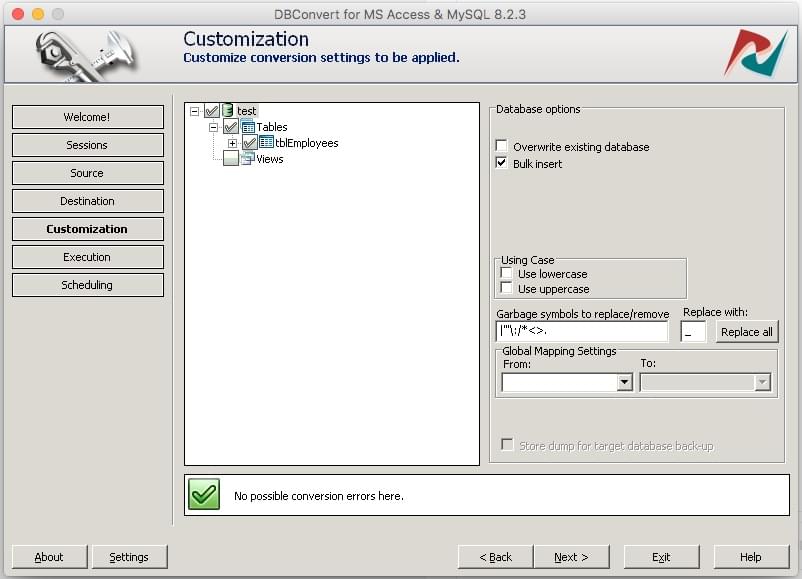
6. DBConvert runs under the WINE environment.
Linux (Ubuntu shown)
1. Install WINE
Open Ubuntu Software Center, search for WINE, click Install.
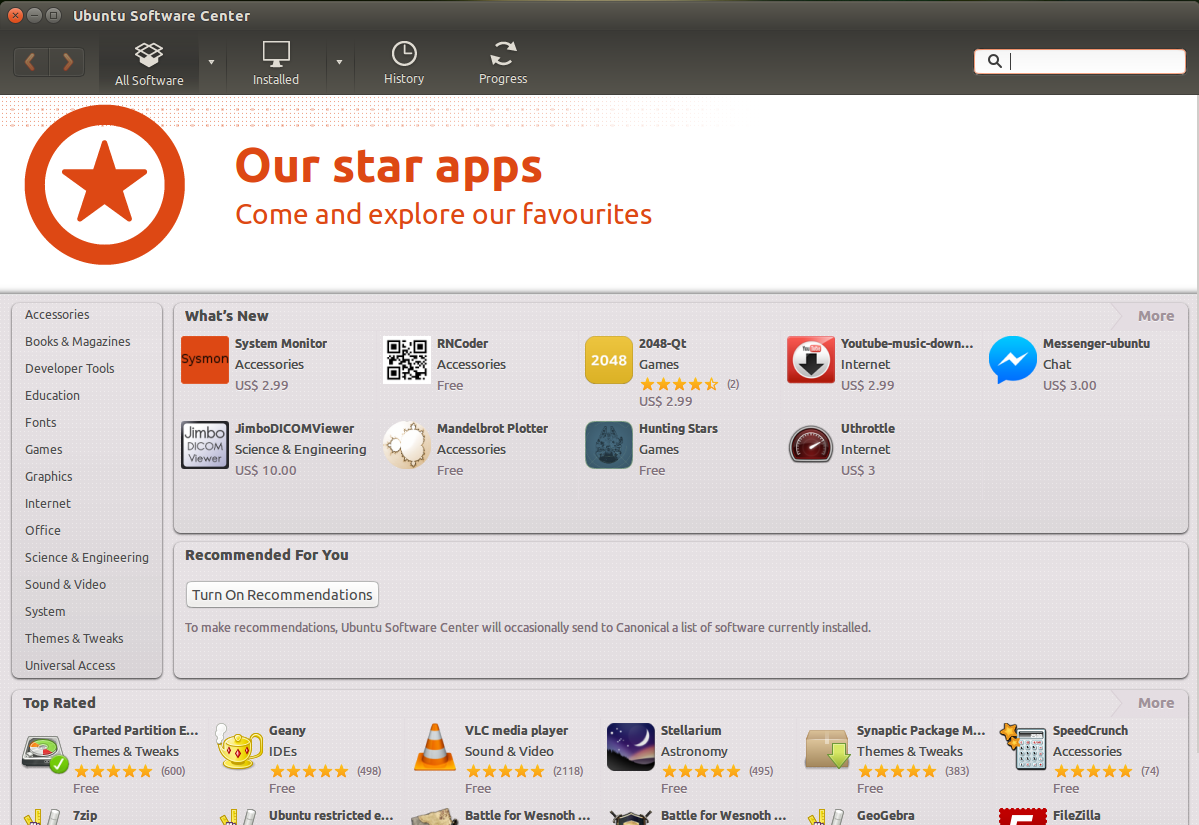
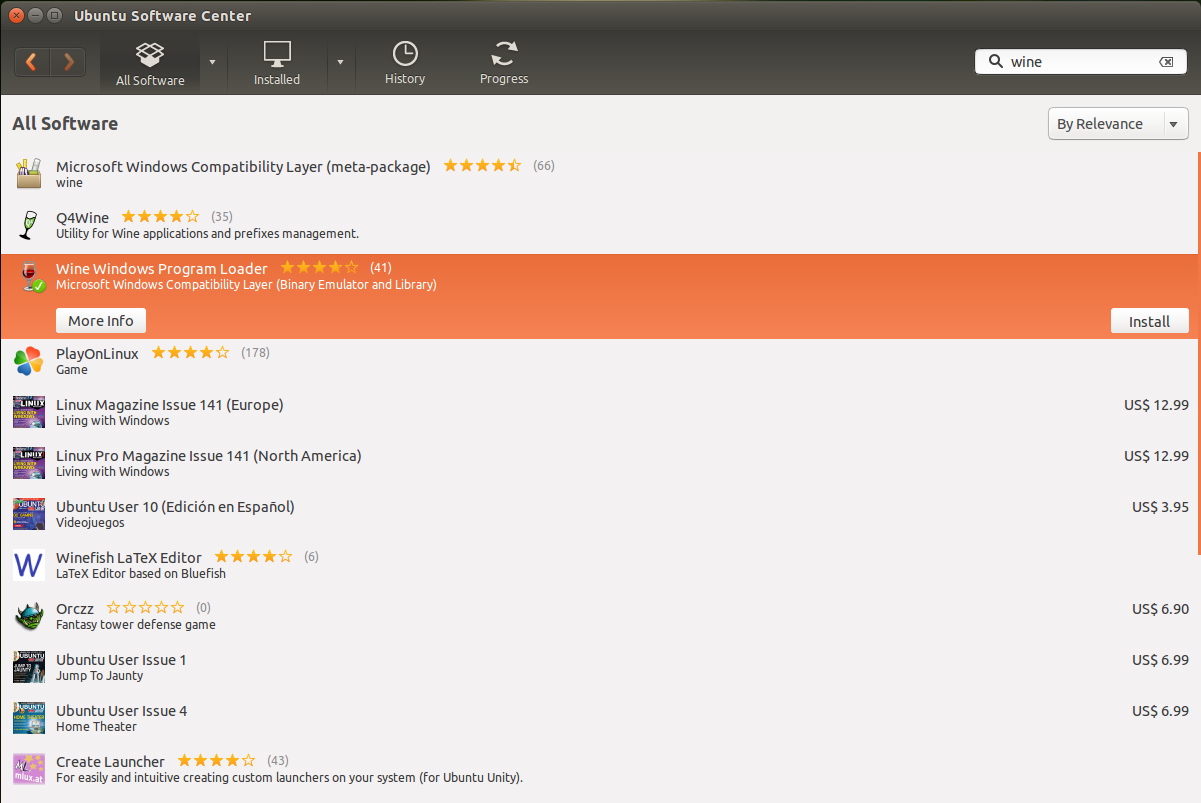
For other distributions, see the official guide at wiki.winehq.org/Download.
2. Install DBConvert
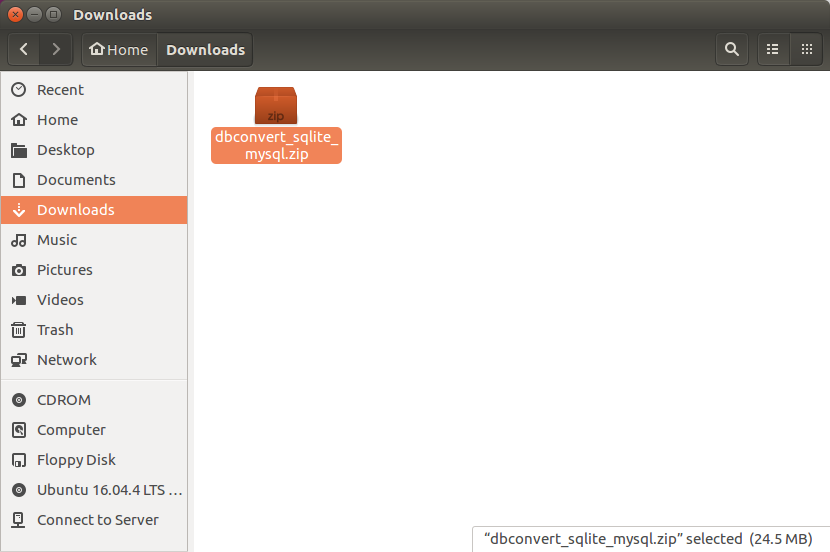
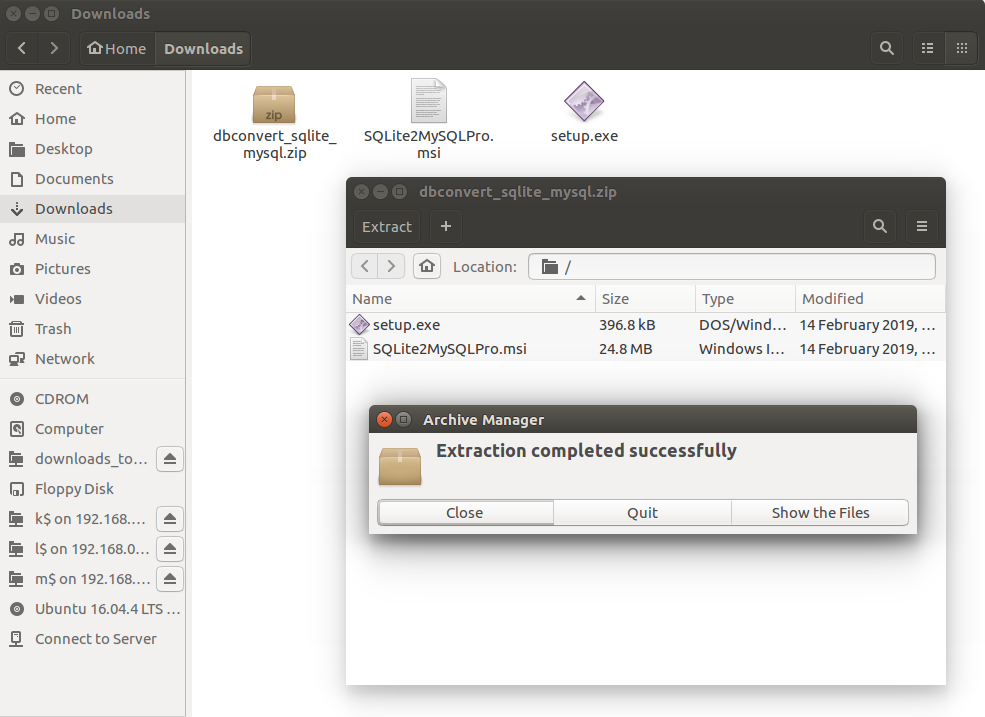
Download the installer from dbconvert.com/download/ and find it in Downloads:
Extract the archive:
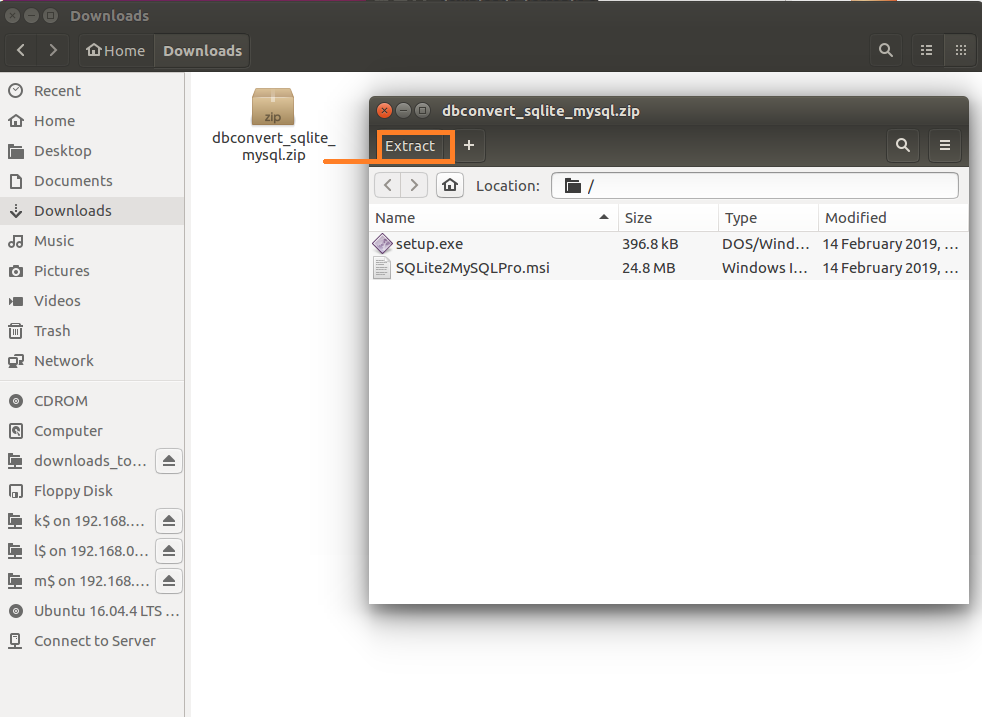
Run setup.exe through WINE:
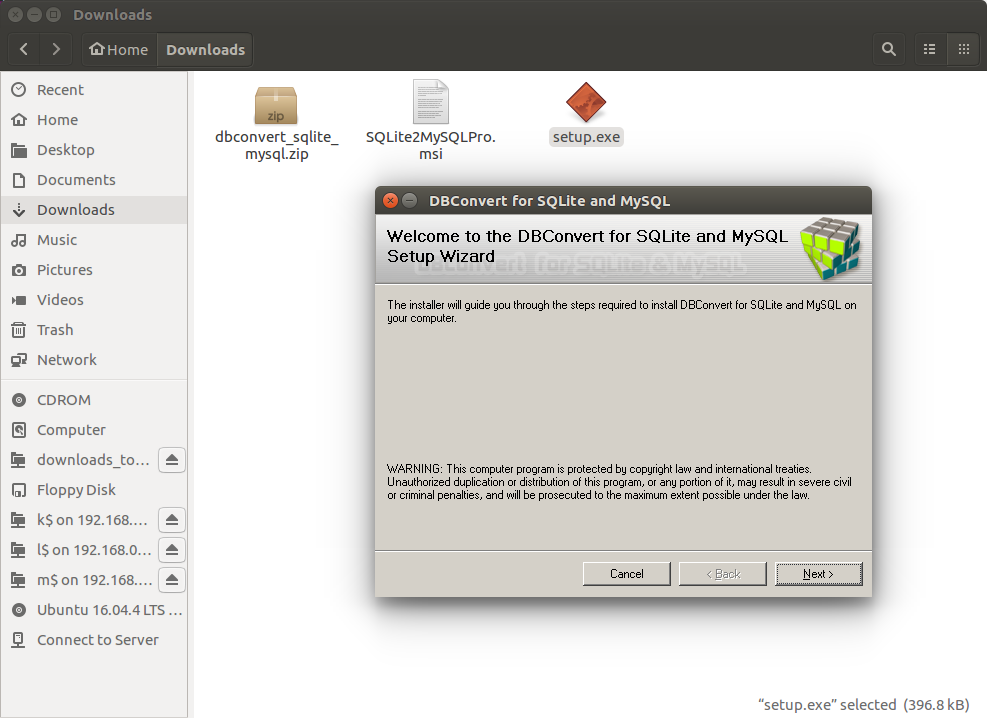
3. Launch
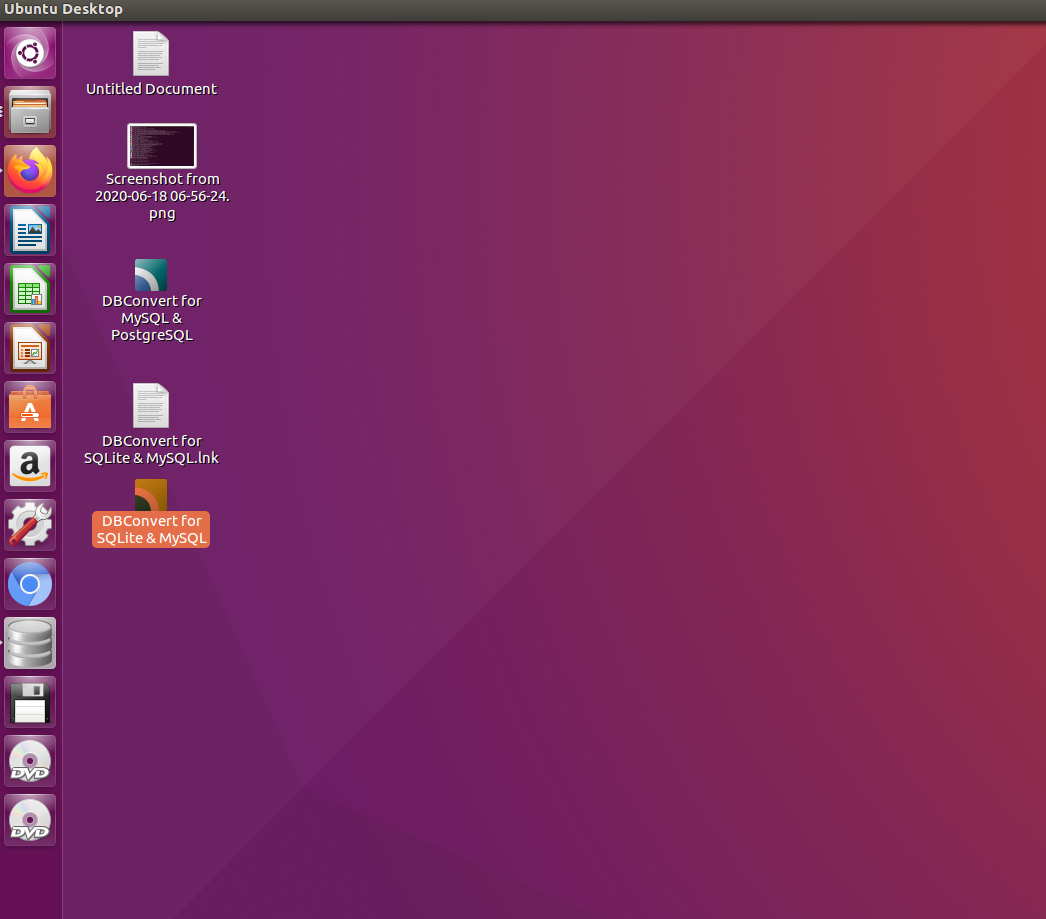
The installed application appears in the panel menu / start menu / desktop.