Field, index, and foreign-key options
Per-field, per-index, and per-foreign-key overrides on the Customization stage.
Last updated August 19, 2026
Field options
Click Fields under a table to see the list of fields and their target definitions.
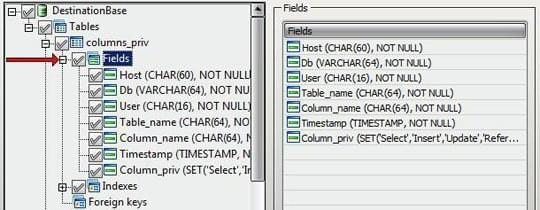
Select a field to review and override its target definition.
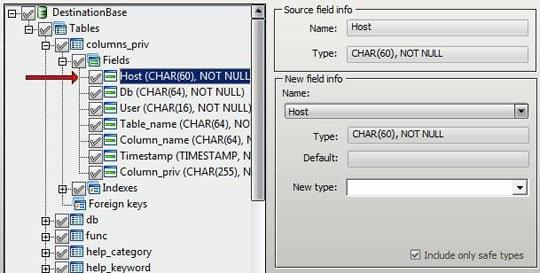
The Source field info group shows the original field name and source type. The New field info group holds the target settings - rename the field, change its type, or adjust how it is created on the target.
Pick the target type from the New type list.
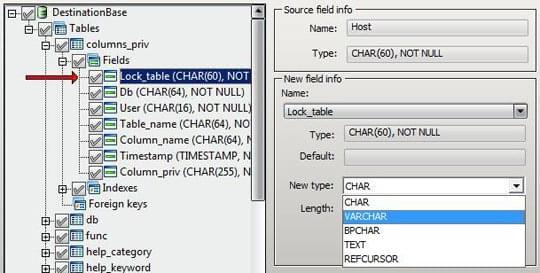
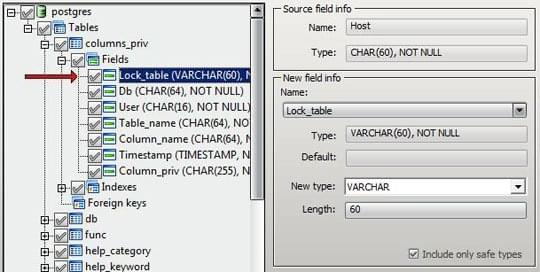
Include only safe types is on by default. With it enabled, the target-type list is limited to types that map safely from the source - types that would cause data loss are hidden. Turn it off if you need access to the full target-engine type list.
For per-database (global) overrides that apply to every table, use Global mapping in Database options.
For a worked MySQL ↔ SQL Server type-mapping reference, see this Medium article: MySQL and SQL Server data types mapping.
Index options
Click Indexes under a table to see the indexes defined for it.
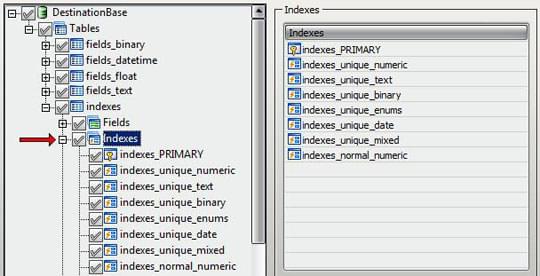
Select an index to review its target definition.
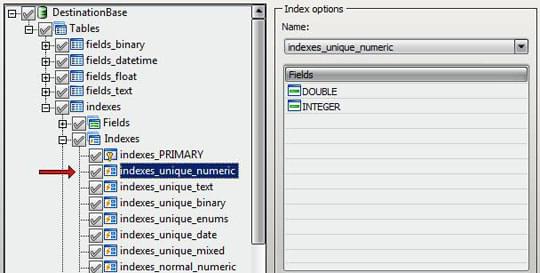
The Index options group lets you rename the index and see which fields it depends on. Edit Name to override the generated target name. Required fields must be selected for conversion alongside the index - if not, the customization stage flags the index in red. See Pre-migration checks.
Foreign-key options
Click Foreign Keys under a table to see the foreign keys defined for it.
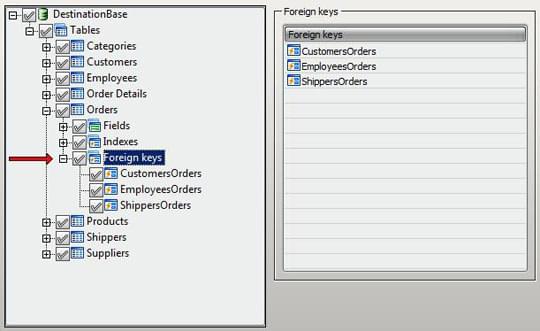
Select a foreign key to review its target definition. In the Foreign key options group, use the dropdown to pick an available generated name or type a different value in Name.
As with indexes, the fields referenced by a foreign key must also be selected for conversion - otherwise the customization stage flags the foreign key.
Composite foreign keys
For a foreign key that spans several columns, all of its columns - and all of the referenced (parent) columns - must be included in the migration, and the parent table needs a matching primary key or unique index on those columns. If any referenced column is missing, or the parent key it points to is not migrated, the target database rejects the constraint.
Foreign keys are created after the table data is loaded, so a missing-parent error usually means the referenced table or its key was not selected rather than a problem with the foreign key itself. Make sure both tables (parent and child) are part of the same run. If foreign keys still fail to create on a particular target, you can migrate with Copy foreign keys turned off and add them afterwards, or contact support with the source structure so we can check the case.