Source and destination connections
Set up the source database and the destination database before configuration. DBConvert uses the same workflow for every database pair.
Last updated November 7, 2026
Both ends are set on the first step, Setup:
- Pick a saved connection for the source and for the destination, or click + to add one.
- In the connection dialog, fill in the fields and click Connect to check them, then Save.
- For a server database, pick the Database on the Setup page. It lists the server's databases by itself; type a new name to have it created.
Missing database names, a system database selected as the destination, and a job name already in use are shown at the field. Next stays disabled until you fix them.
System databases cannot be destinations: MySQL information_schema, performance_schema, mysql and sys; SQL Server master, model, msdb and tempdb; PostgreSQL template0 and template1.
Server databases (host, port, username, password):
File databases (browse to a file):
Destination-only outputs: dump files, PHP script, and program files.
Several source schemas
For SQL Server, PostgreSQL and Oracle sources, select one or more schemas on Setup. Use the schema list's search and checkboxes to choose them.
If the destination supports schemas, choose Each into its own schema to keep the source schema names, or combine all tables in the selected destination schema. A missing destination schema is created when the job runs. Destinations without schemas combine the tables in one database.
When combining schemas, tables with the same name get distinct destination names. Review them on Tables & mapping. Foreign keys between source schemas are preserved.
Several source schemas require a database destination. For a SQL dump, select one source schema.
SQL Server
Fill in Host, Port, Username, Password, or switch to Connection string and paste one. Windows Authentication connects as the current Windows user instead of a SQL login. Connect checks the connection. On Setup, pick the Database and the source schemas.
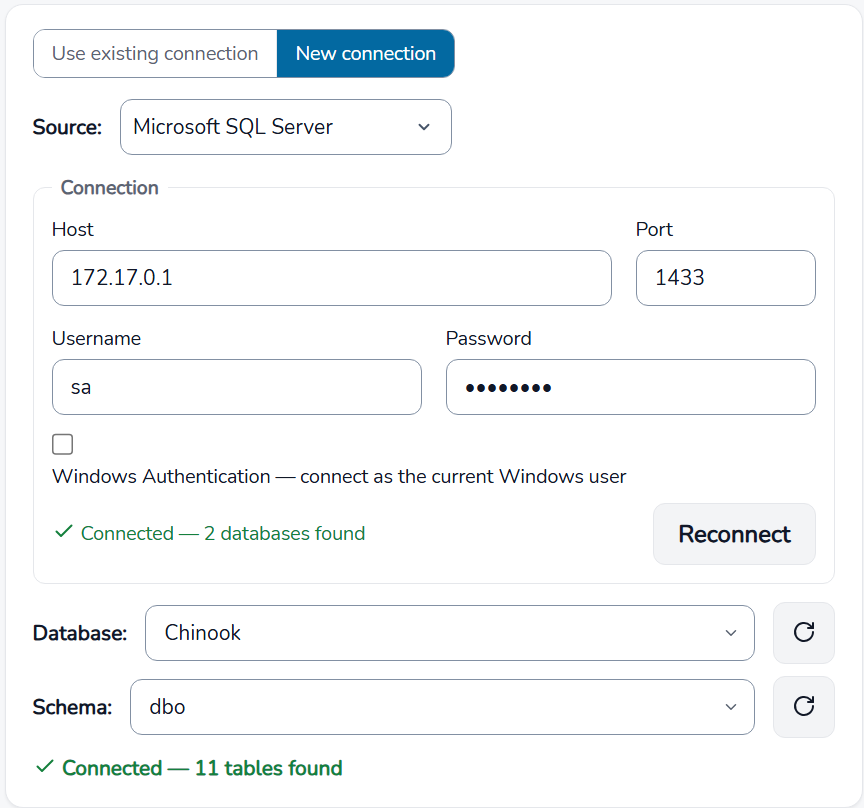
For Express edition setup and Named Pipes fallback, see Connect SQL Server.
MySQL / MariaDB
Fill in Host, Port, Username, Password. Pick the Character set; utf8mb4 is the default. Connection route switches between a direct connection and an SSH tunnel; Use SSL/TLS encrypts it.
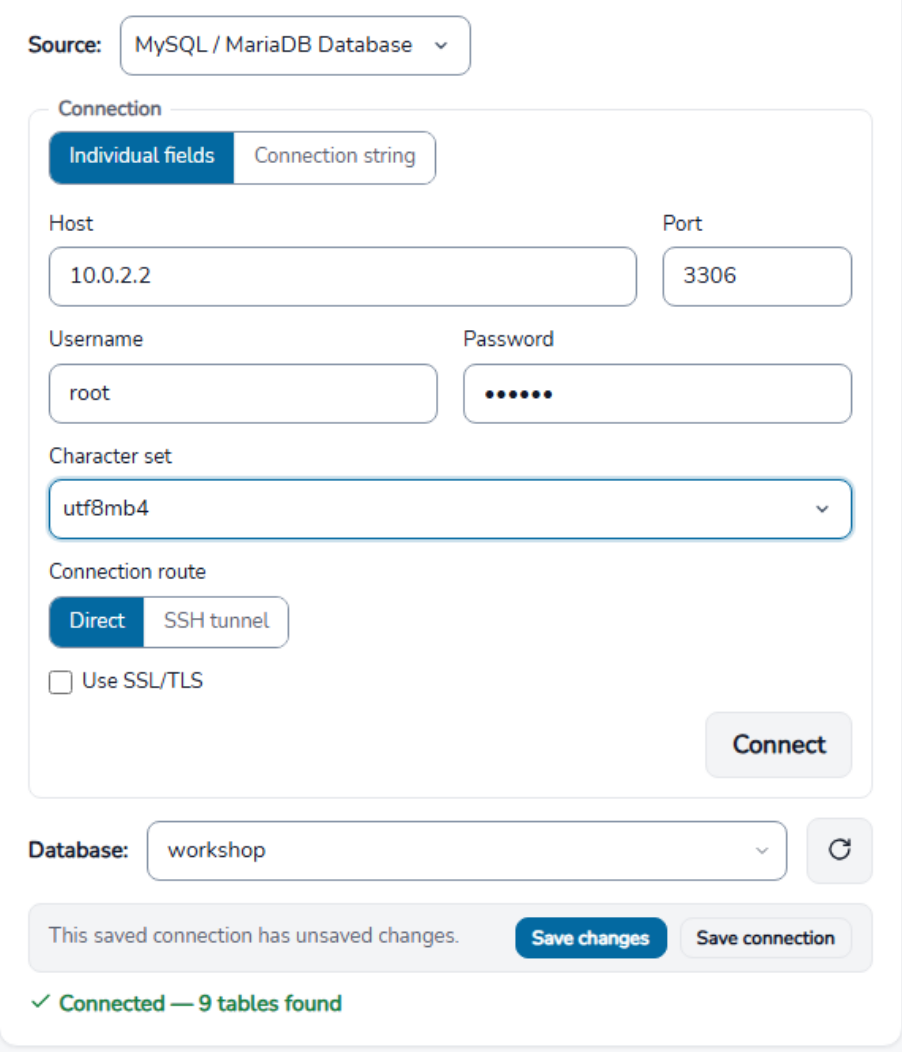
Engine-specific setup (user and privileges, Aurora MySQL, Google Cloud SQL): Connect MySQL / MariaDB.
PostgreSQL
Fill in Host, Port, Username, Password. After Connect, pick the Database and the source schemas on Setup. Connection route switches between a direct connection and an SSH tunnel; Use SSL/TLS encrypts it.
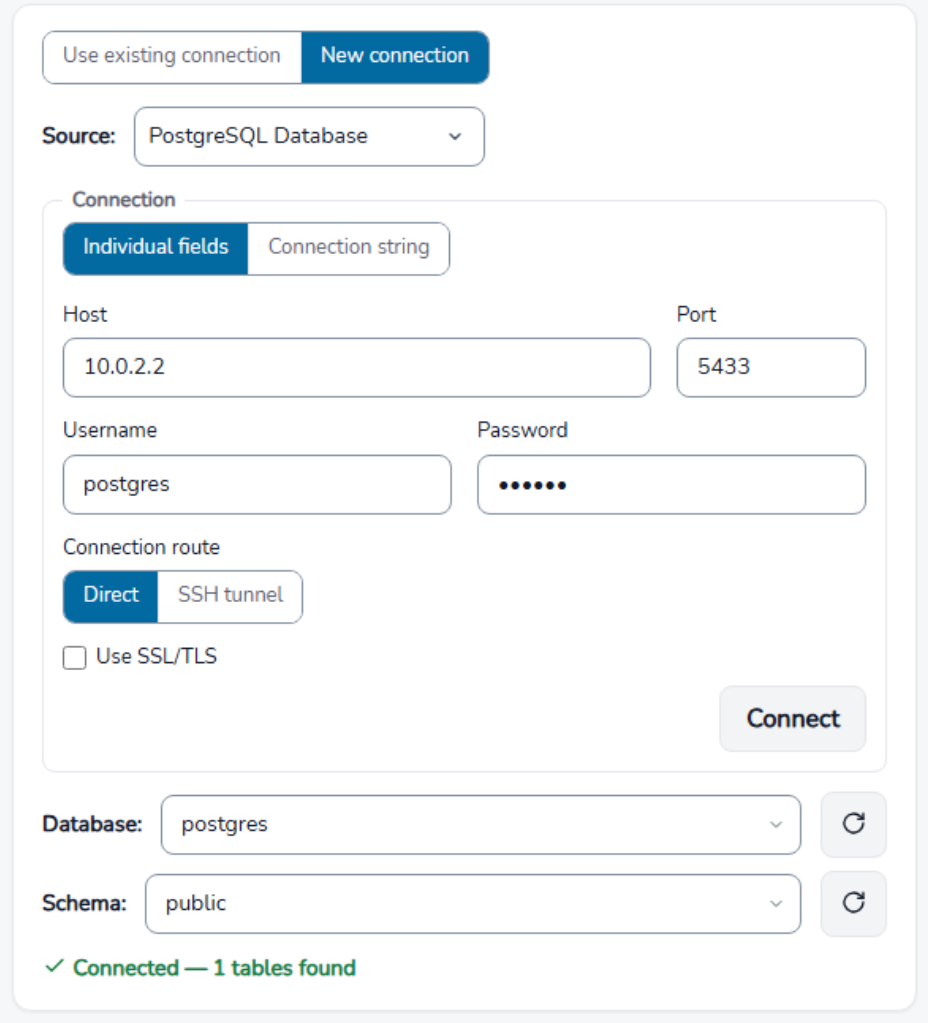
Engine-specific setup (pg_hba.conf, Aurora PostgreSQL, Heroku, Cloud SQL, and other managed services): Connect PostgreSQL.
Oracle
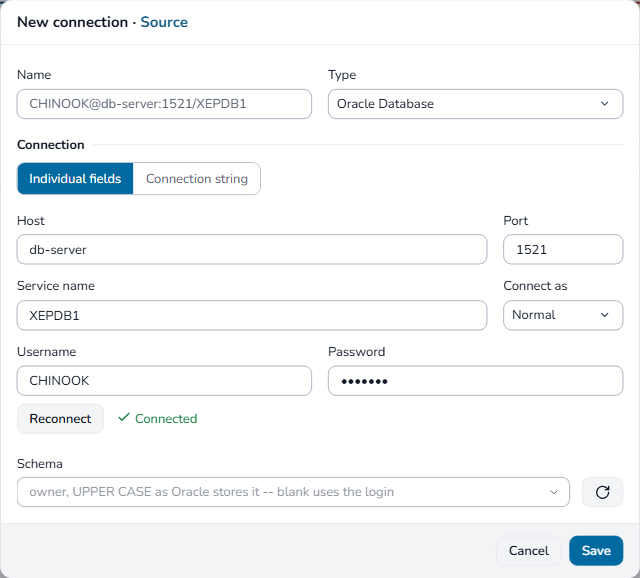
Fill in Host, Port, Username, Password. Pick the access mode from Connect as: Normal, SYSDBA, or SYSOPER, and enter the database name in Service name. On Setup, select the source schemas. The 2026 application includes the Oracle client.
IBM DB2
Fill in Host, Port, Username, Password, then pick the database and schema.
Firebird
Fill in Host and Port, the database file path as the server sees it (or its alias), Username, Password, and the Character set. The file must exist: create an empty database on the server first.
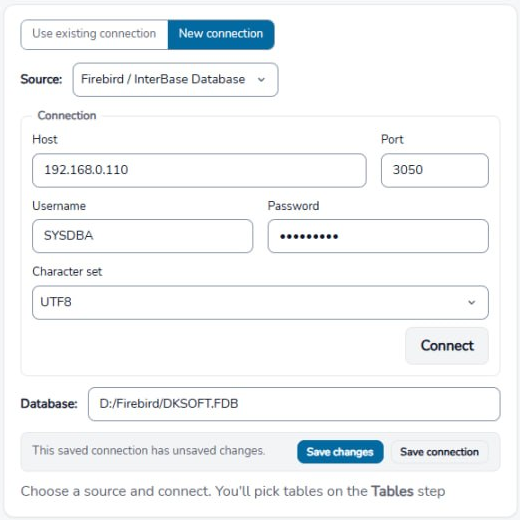
Firebird to SQL Server: connection and transfer example
MS Access
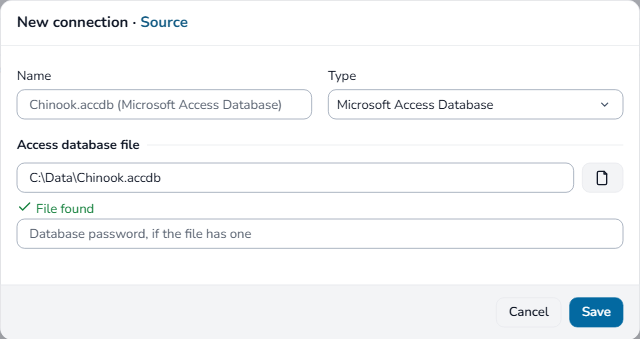
In the 2026 application (Access with MySQL, SQL Server, SQLite, PostgreSQL, Firebird, and with FoxPro both ways), choose the .accdb or .mdb file and enter the database password if it has one. Reading and writing Access files needs Microsoft's 64-bit Access Database Engine. The installer adds it if it is missing; if a 32-bit Office blocks it, the connection step links to Microsoft's download. Access 97 files must be re-saved in Access 2000 format or later, and workgroup security (.mdw) is not supported.
MS Visual FoxPro
DBConvert for FoxPro (FoxPro with SQL Server, MySQL, PostgreSQL, SQLite, or Access) reads and writes the FoxPro files itself. There is nothing to install for FoxPro, and no Visual FoxPro OLE DB driver is needed.
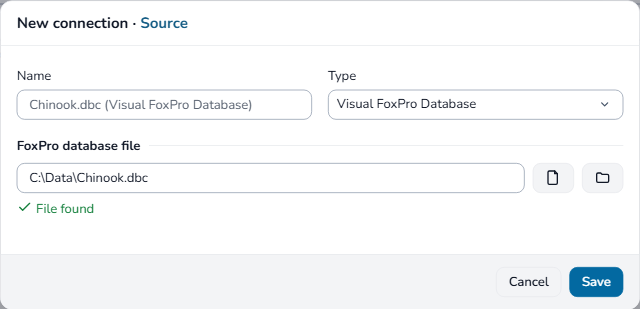
As a source, choose one of:
- a
.dbcdatabase; - a folder of free tables (
.dbf).
Text is read in each table's own codepage. Field names arrive in lower case, as Visual FoxPro shows them. Candidate tags become unique keys, the .dbc primary tag the primary key, and relations foreign keys. Plain dBase III and IV files read too.
As a destination, choose one of:
- a
.dbcdatabase, created when it is missing; - a folder of free tables.
Set Codepage of new tables; 1252 is the default. Visual FoxPro opens what is written: .dbf, .fpt, .cdx, and .dbc.
Limits:
- Text the chosen codepage cannot hold is refused, not written as
?. - An index tag other than plain fields,
STR,DTOS, orLOWERblocks writing into that table. - A FoxPro table is capped at 2 GB.
- A tag expression such as
LEFT(name,3)has no SQL index. It is logged.
MS Excel
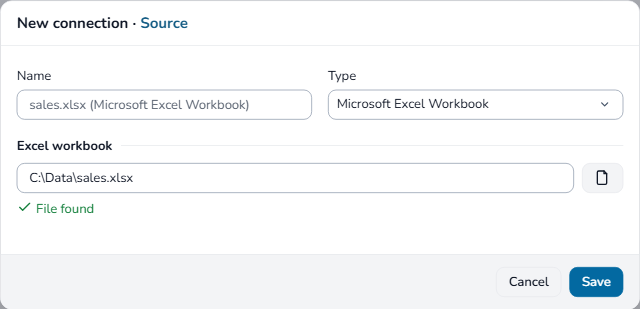
An Excel connection is the path to an .xlsx file.
- As a source, choose an existing
.xlsxworkbook. Each sheet with data is listed as a table. - As a destination, choose the file to write in the Save dialog. A workbook already at that path is replaced; the application warns before the run.
An .xls file does not open: save it as .xlsx in Excel first. How sheets, columns, and values are converted: Excel workbooks as source and destination.
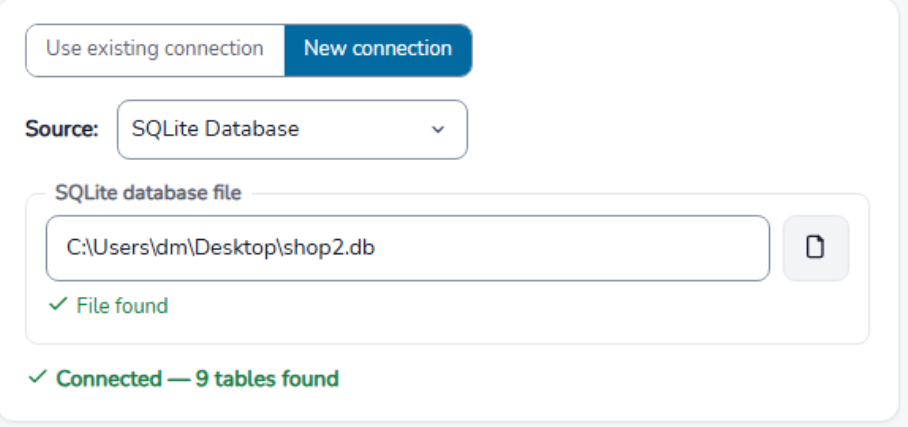
SQLite
Browse to a .db file.
Destination-only outputs
Instead of a live server, DBConvert can write the result to a dump file (SQL Server, MySQL, PostgreSQL, Oracle, Firebird, or DB2), a PHP script, or an MS Visual FoxPro program file - useful when you cannot connect to the target directly. For the formats, options, and how to apply them, see Dump files, PHP scripts and FoxPro program files.
File outputs are available in conversion mode.