Job options
Options for the whole job, each on the step where you decide it.
Last updated November 6, 2026
For copy, rebuild and row settings of the tables, see Table options.
- Choose a synchronization method
- Choose the tables
- Choose destination names
- Replace invalid characters in names
- Add a prefix or suffix to table names
Choose a synchronization method
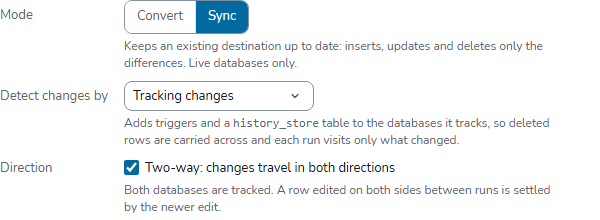
On Setup, set Mode to Sync. Under it, choose Detect changes by:
| Choice | What it does |
|---|---|
| Tracking changes | Creates triggers and a history_store table on tracked databases. Each run visits only changed rows and carries deleted rows across. A new synchronization job starts with it. |
| Comparing rows | Reads both databases in full and applies the differences. It creates no objects. With Delete enabled under Sync rows, rows missing from the source are deleted from the destination. |
With Tracking changes, select Two-way to carry changes in both directions. When both sides change the same row, the newer edit wins. A saved job keeps the method it was saved with.
See How database synchronization works and Trigger-based synchronization.
Choose the tables
On Tables & mapping, tick the tables to migrate in the list on the left. The box in the list header selects them all. The line above the list shows how many are selected.
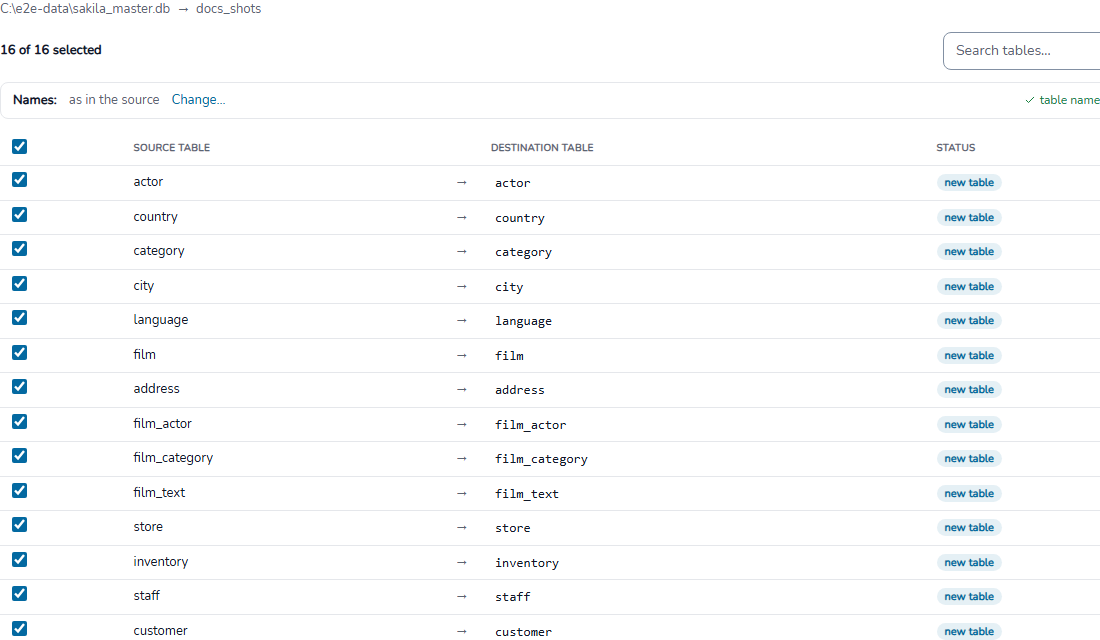
New tables in the source controls later runs:
| Choice | Tables included |
|---|---|
| Include | All source tables except those you untick, including tables added later. |
| Skip | Only the tables you tick now. Tables added later stay unselected. |
A new job and Select all use Include. Existing jobs with an explicit table list open with Skip. You can change the choice before running.
Tables discovered since the job was saved are marked new in source. For jobs with more than 5,000 tables, the app reports how many are new instead of marking individual tables. New columns of a selected table are always copied.
Saved table names missing from the source are listed separately. Check whether they were renamed or dropped. Choose Forget them to remove those names from the job.
Choose destination names
On Tables & mapping, click Naming rules above the list. The panel sets the rule for the whole job, and the names in the list change as you set it.
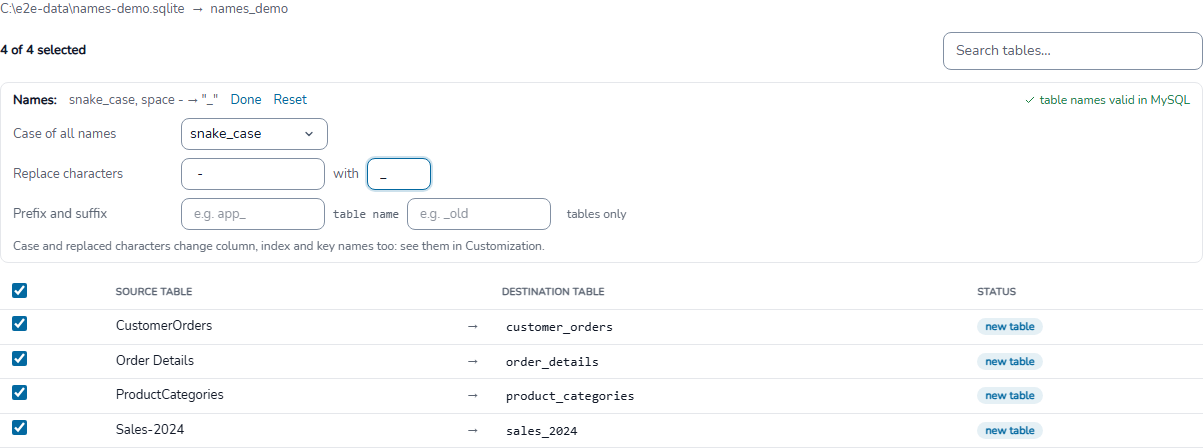
The columns of a table follow the same rule:

Under Case of all names, choose the case of every name the run creates:
| Choice | What it does |
|---|---|
| As in the source | Keeps the source spelling. |
| lower case | CustomerOrders becomes customerorders. |
| UPPER CASE | CustomerOrders becomes CUSTOMERORDERS. |
| snake_case | CustomerOrders becomes customer_orders, OrderID becomes order_id. |
The rule applies to tables, columns, indexes and keys, including names you type yourself.
For a PostgreSQL destination: names that keep capitals need quotes. Choose lower case or snake_case to avoid them.
If two source names would become the same destination name, the run stops before copying and names both.
Replace invalid characters in names
In the same panel, under Replace characters:
- In Characters, type every character to replace. For example,
/.replaces both. - In Replace with, type the replacement. Leave it empty to remove the characters.
Letters and digits are valid in names, so they are not replaced.
The replacement comes before the case. With / replaced by _, order/item becomes order_item. Leave Characters empty to keep names as they are.
A job imported from a version before 2026 keeps its Garbage symbols to replace/remove rule when you had changed it.
Add a prefix or suffix to table names
Under Prefix and suffix, type text to put before or after every table name, for example app_ or _old. It applies to tables only, not to columns.
Review and run
The run summary, Worker threads, starting or scheduling the run and removing tracking objects are on Execution: review and run.