Re-register with a new license
You bought an update and want to enter new license information, but the registration option is unavailable. Here is why, and how to re-register.
Last updated July 10, 2026
Why the registration option is unavailable
If the registration window is greyed out or missing, it means your copy is already registered. The application reuses the license code stored on the machine and does not prompt you again. To register with new license information (for example after purchasing an update), you first need to clear the saved registration code, then register the product again.
Clear the saved registration code
The license code is kept in the Windows Registry. Close the DBConvert / DBSync / DBConvert Studio application before you start.
- Press Win + R (or click Start → Run).
- Type
regeditand press Enter to open the Registry Editor. - Expand
HKEY_CURRENT_USERand open the Software key. - Find and open the DMSoft Technologies folder.
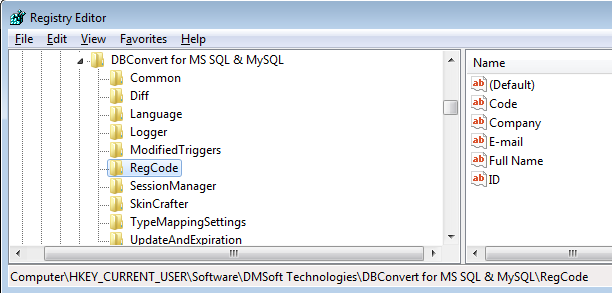
- Open the folder named after your product (for example DBConvert for MS SQL & MySQL).
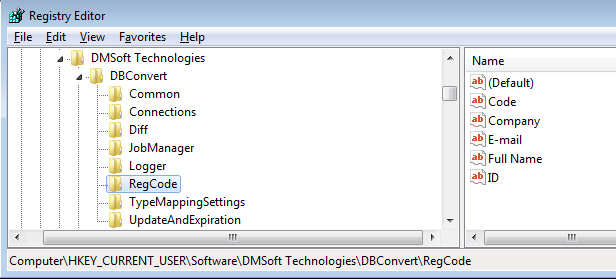
- Delete the RegCode entry inside that folder.
- Start the converter again and register it with your new license information.
DBConvert / DBSync tools
For the DBConvert and DBSync tools the registry path looks like this:
DBConvert Studio
For the DBConvert Studio tool the registry path looks like this:
Note: editing the Windows Registry affects only the DBConvert registration data described above. Remove the RegCode entry only - do not delete the surrounding product folder, so your other preferences are preserved.