Connect SQL Server
Connection setup for Microsoft SQL Server as a source or target: SQL Server Express and Azure SQL.
Last updated September 12, 2026
For the generic source-and-destination workflow, see Source and destination connections. This page covers SQL Server-specific setup.
- SQL Server Express
- Network and host access
- Login, user and permissions
- When TCP/IP does not connect - use Named Pipes
- Azure SQL
SQL Server Express
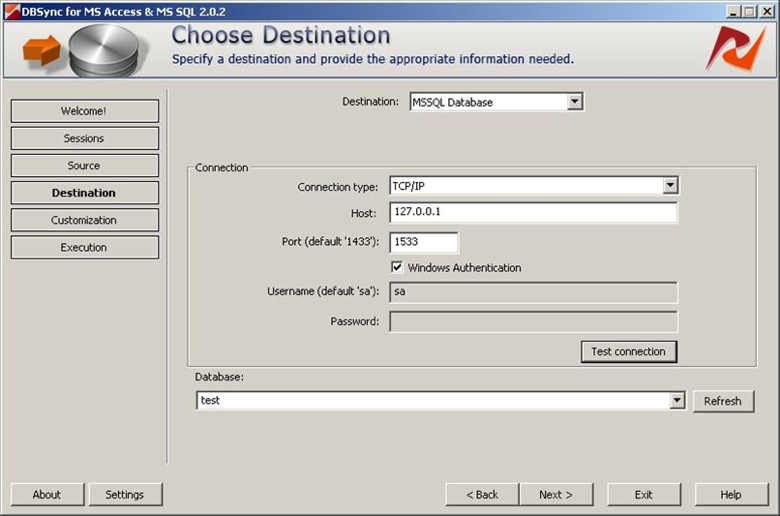
SQL Server supports three connection protocols: TCP/IP, Named Pipes, and IPX/SPX. DBConvert uses TCP/IP by default. Enable the protocol through SQL Server Configuration Manager before connecting.
All Express editions (2005, 2008, 2008 R2, 2012, 2014, and later) work as a source or as a target.
Open SQL Server Configuration Manager and verify TCP/IP is enabled.
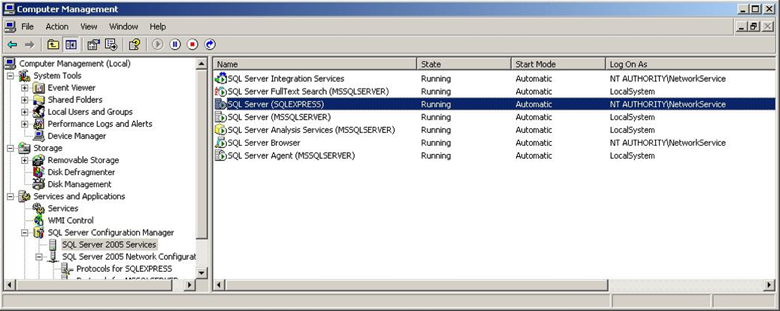
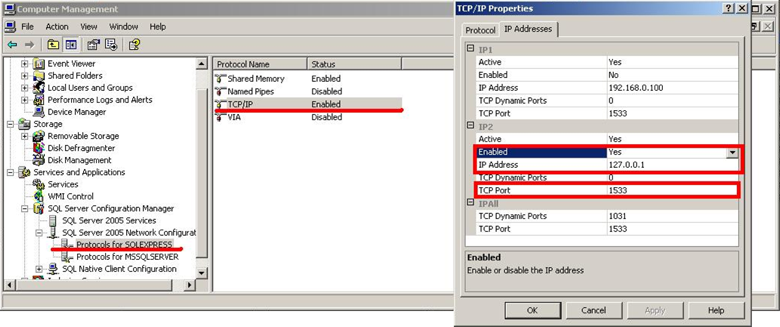
Restart the SQL Server (Express) service after changing the protocol. In DBConvert, click Refresh next to Database to list databases on the server.
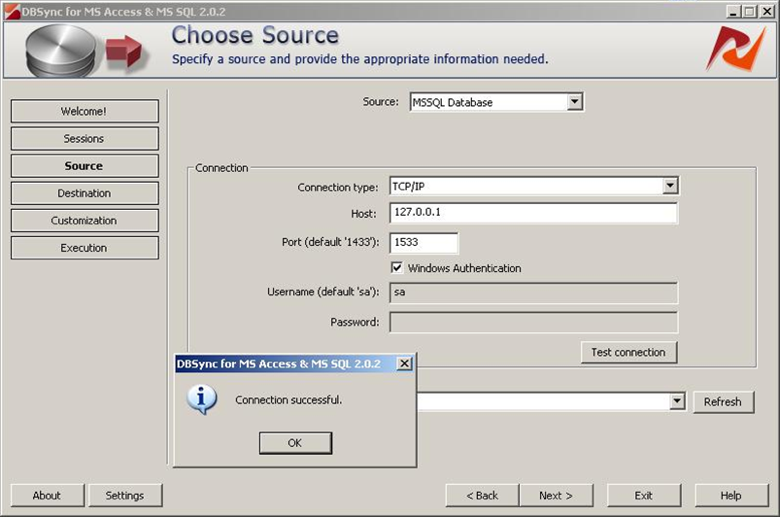
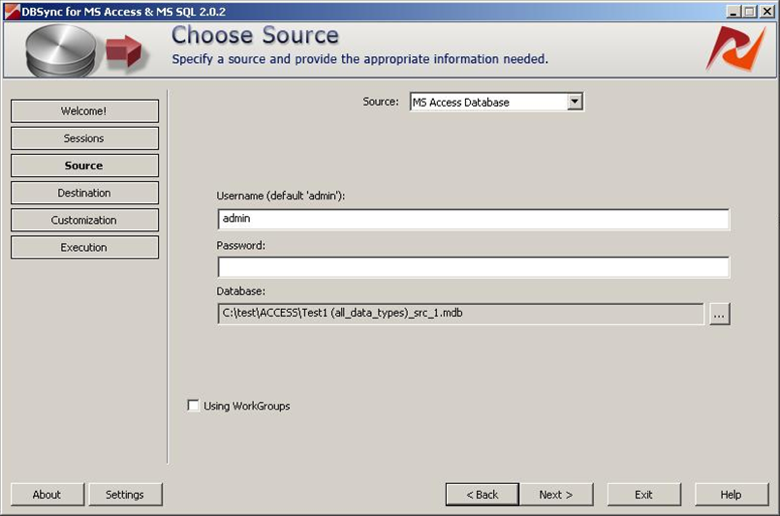
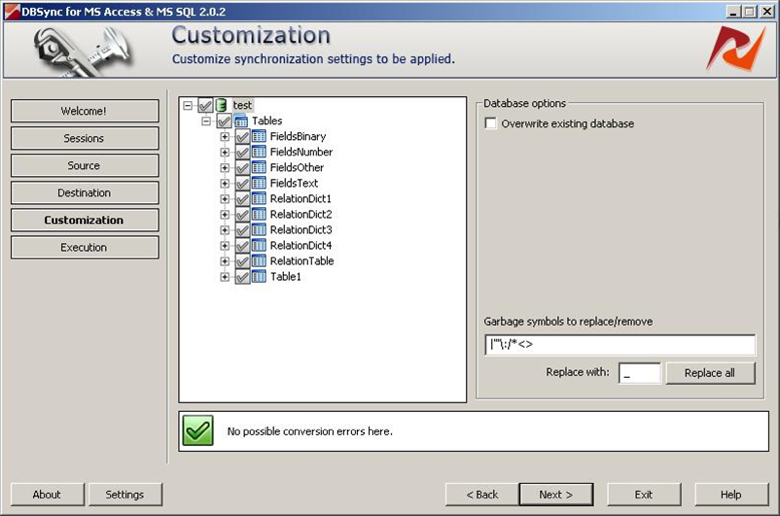
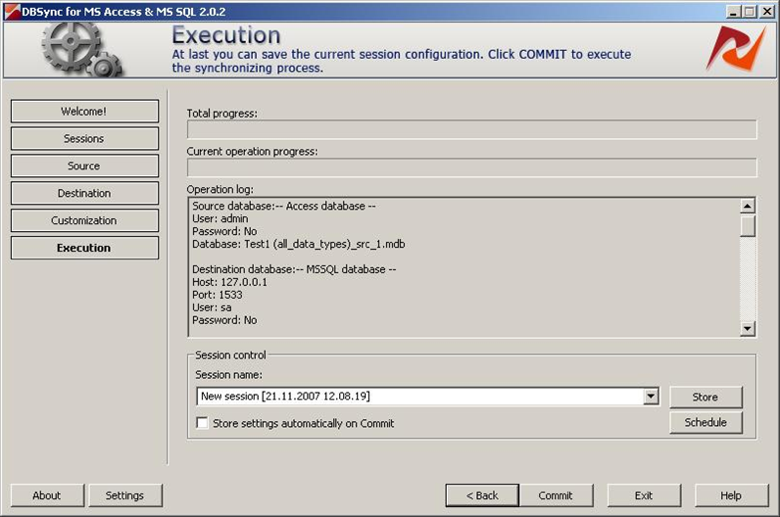
Pick the source database, then the destination database, configure customization, and run the job.
Network and host access
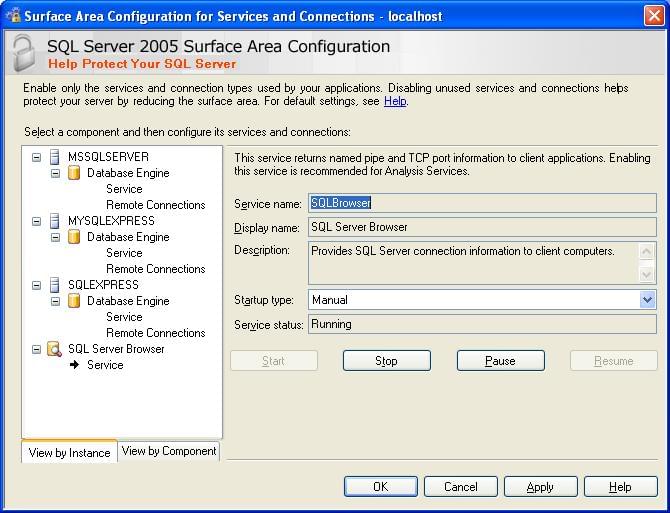
A default instance listens on port 1433. A named instance takes a dynamic port instead and is located through the SQL Server Browser service on UDP 1434, so with a named instance both have to be reachable.
Open the port for the machine running DBConvert:
netsh advfirewall firewall add rule name="SQL Server" dir=in action=allow protocol=TCP localport=1433If the instance is named and you would rather not depend on the Browser service, give it a fixed port in SQL Server Configuration Manager under TCP/IP → IP Addresses → TCP Port, restart the service, and connect to host,port.
Login, user and permissions
SQL Server splits access into two levels, and confusing them produces a connection that succeeds but shows nothing to convert.
- A login exists on the server and is what authenticates.
- A user exists inside one database and is what carries permissions there.
A login with no user mapped into the database connects and passes the connection test, then lists no tables. Run the statements below as an administrative login, in SQL Server Management Studio, Azure Data Studio, or sqlcmd. Create both:
CREATE LOGIN dbconvert WITH PASSWORD = 'a-strong-password';

USE source_db;
CREATE USER dbconvert FOR LOGIN dbconvert;
ALTER ROLE db_datareader ADD MEMBER dbconvert;
On the target the account also has to build the structure and fill it, which takes two more roles:
USE target_db;
CREATE USER dbconvert FOR LOGIN dbconvert;
ALTER ROLE db_datareader ADD MEMBER dbconvert;
ALTER ROLE db_datawriter ADD MEMBER dbconvert;
ALTER ROLE db_ddladmin ADD MEMBER dbconvert;
db_datawriter alone is not enough. It permits INSERT, UPDATE and DELETE on tables that already exist, but not CREATE TABLE. DBConvert builds the target structure before it transfers any rows, so a run with only db_datawriter stops before the first row moves, with Msg 262, Level 14 - CREATE TABLE permission denied in database. db_ddladmin is what allows tables, indexes and views to be created.
The account does not need sysadmin. Granting it works and is common, but it hands the migration account rights over every database on the server.
When TCP/IP does not connect - use Named Pipes
For named SQL Server instances, Named Pipes is often more reliable than TCP/IP. Enable Pipes in SQL Server Configuration Manager and select PIPE as the connection type in DBConvert.
Make sure SQL Server Browser service is running, then enable Named Pipes on the instance and test the connection.
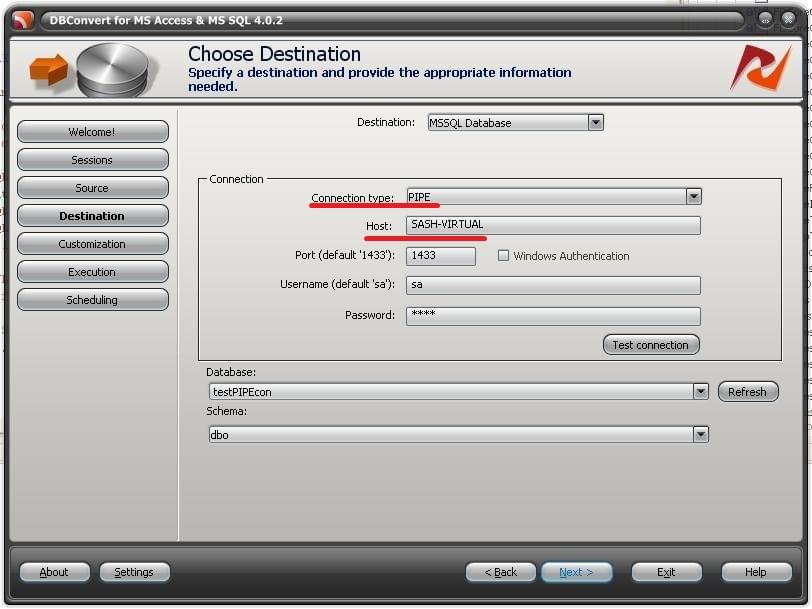
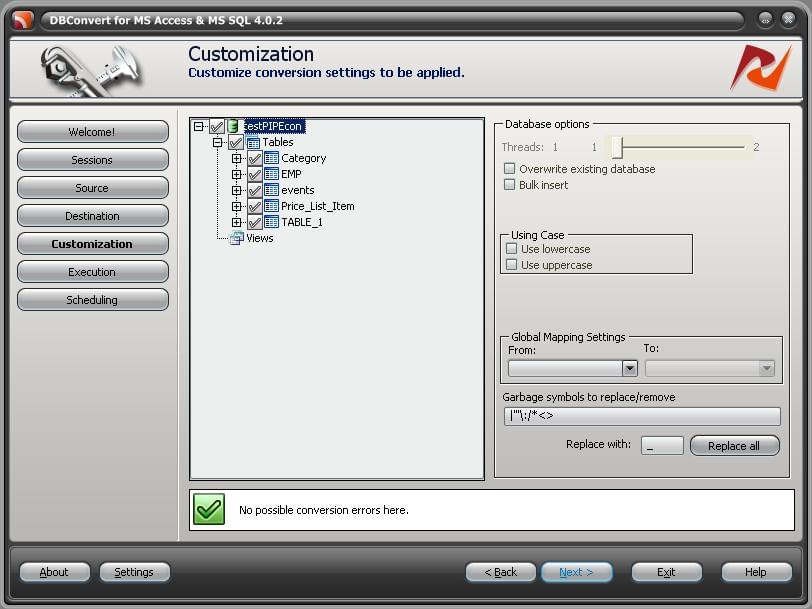
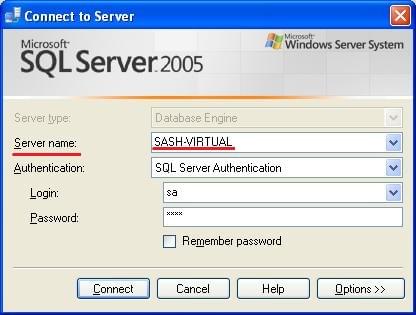
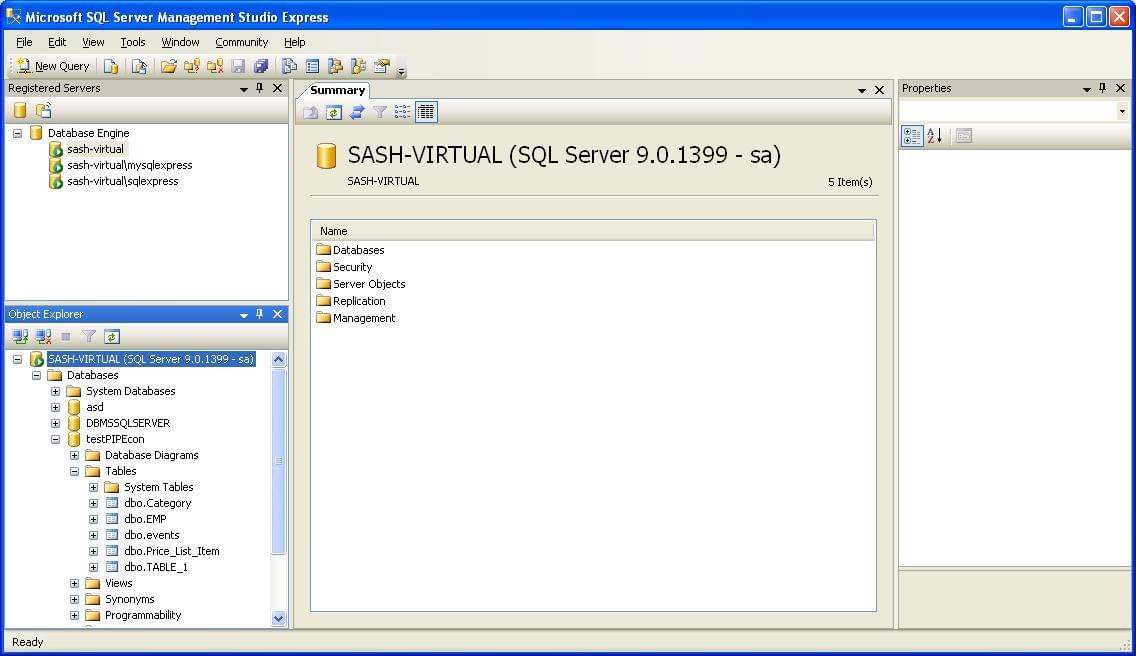
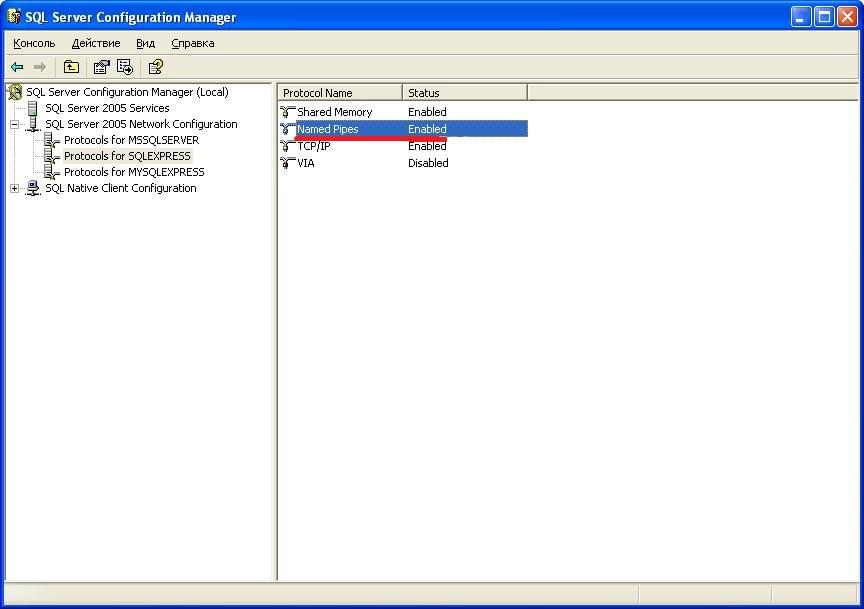
If the firewall blocks the SQL Server port, confirm the rules with the DBA before falling back to Named Pipes. If you log in as sa, leave the password field empty when the account has no password set.
Azure SQL
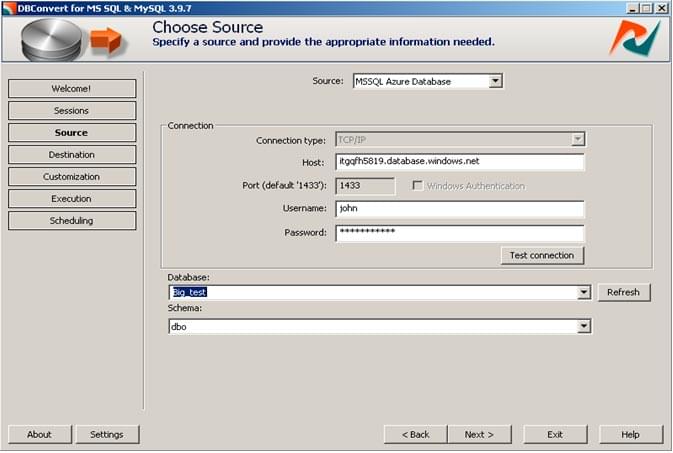
Azure SQL is a cloud database service based on SQL Server. It only supports SQL Server authentication and requires an SSL connection on port 1433.
Create an account at azure.microsoft.com and a database in the portal. Then in DBConvert:
- Pick MS Windows Azure as the connection.
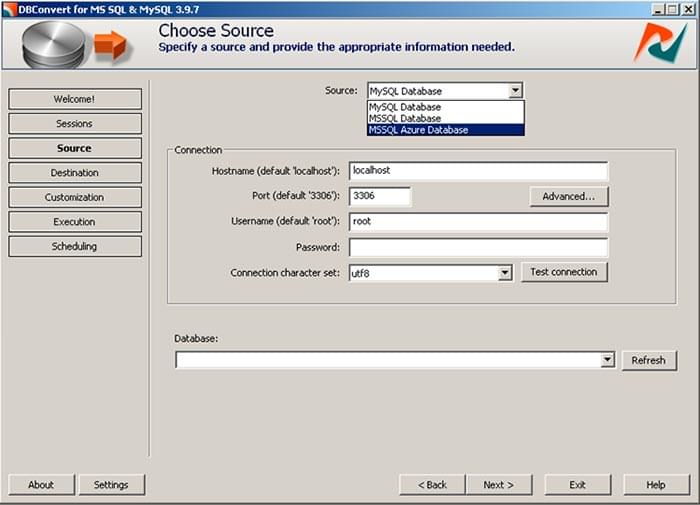
- Enter the server hostname, port 1433, and the SQL login. SSL is required.
Note on heap tables. Azure SQL requires every table to have a clustered index. Tables without a clustered index can be created, but inserts fail at runtime with an error.
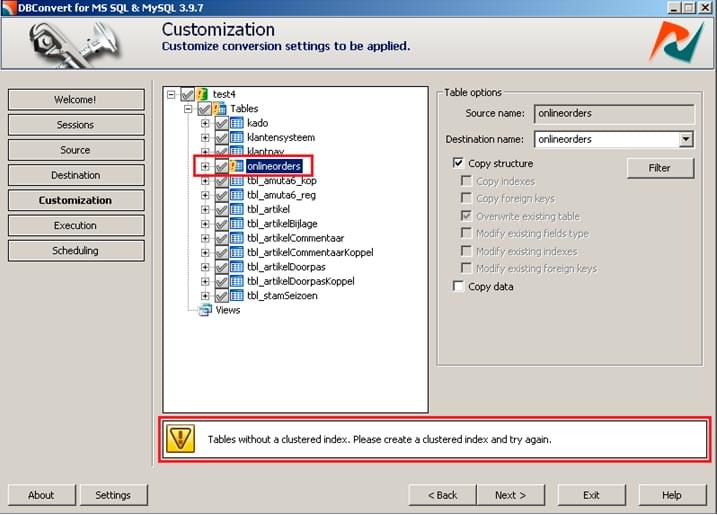
Make sure every table in your migration has a clustered index, or enable index/key conversion at the customization stage.