Connect PostgreSQL
Connection setup for PostgreSQL as a source or target: local server, Amazon Aurora PostgreSQL, Heroku Postgres, and Google Cloud SQL.
Last updated September 12, 2026
For the generic source-and-destination workflow, see Source and destination connections. This page covers PostgreSQL-specific setup.
- Local PostgreSQL server
- Network and host access
- Role and privileges
- Amazon Aurora PostgreSQL
- Heroku Postgres
- Google Cloud SQL for PostgreSQL
- Other managed PostgreSQL services
Local PostgreSQL server
To accept connections from DBConvert, edit pg_hba.conf on the PostgreSQL server and allow the IP of the machine where DBConvert runs.
Add a line of the form:
| TYPE | DATABASE | USER | CIDR-ADDRESS | METHOD |
|---|---|---|---|---|
| host | all | all | 127.0.0.1/32 | trust |
| host | all | all | 192.168.1.0/24 | trust |
Use scram-sha-256 instead of trust if a password should be required. trust lets anyone reaching that address in as any role without one, so keep it to a loopback line on a machine you control.
The file's location varies by platform and package, so ask the server rather than guessing. Run this from any SQL prompt - the psql client, or the SQL console in DBConvert Streams:
SHOW hba_file;
SHOW config_file;
After editing, apply the change without restarting the server:
SELECT pg_reload_conf();Then check that PostgreSQL actually parsed the line you added. The error column is the point: a malformed rule is skipped silently, and the connection keeps failing as though nothing was edited.
SELECT line_number, type, database, user_name, address, auth_method, error
FROM pg_hba_file_rules
ORDER BY line_number;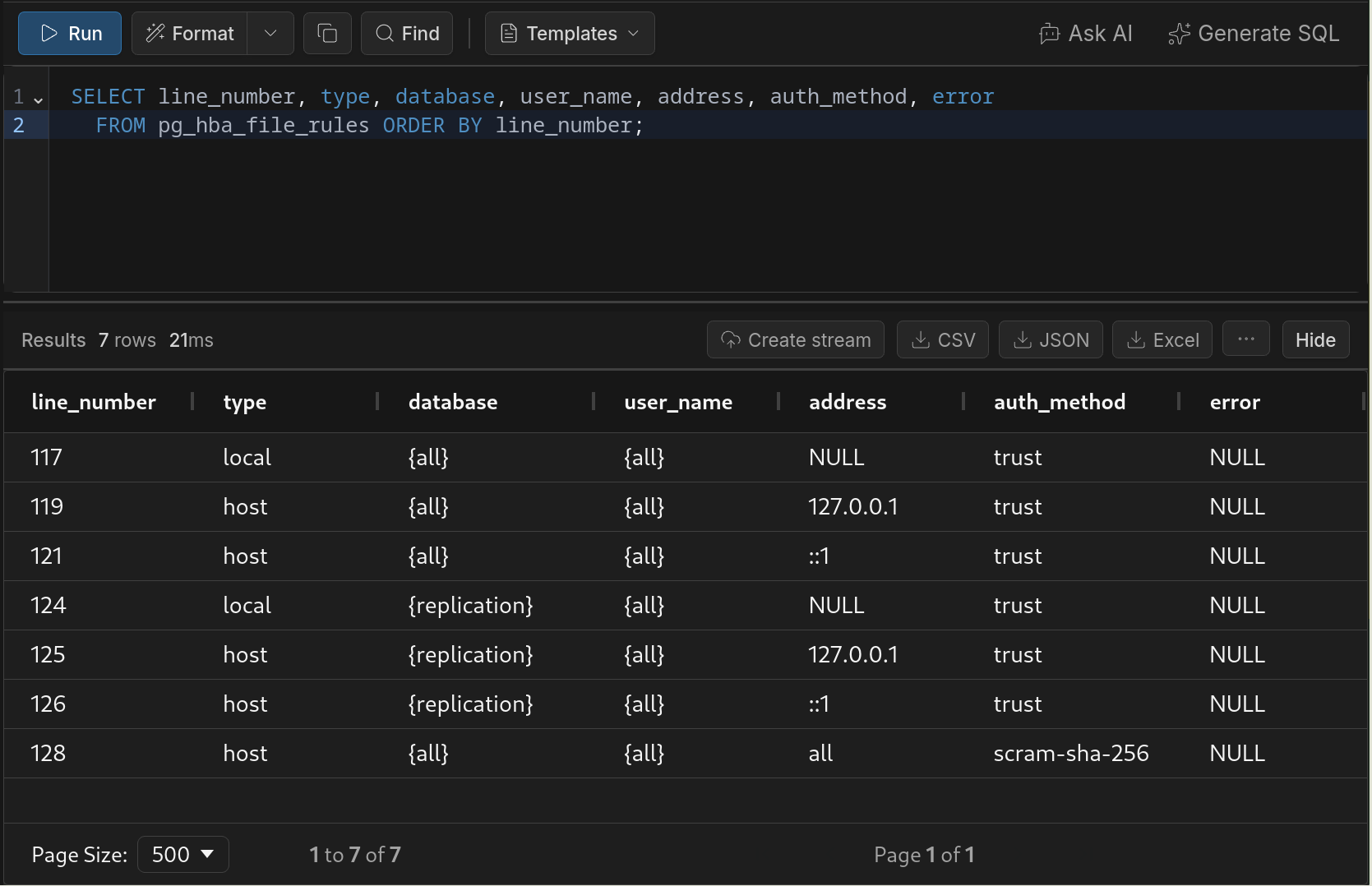
error is empty here, so every line was accepted - a rule that failed to parse would name the problem in that column instead of being silently dropped.Both pg_hba_file_rules and pg_reload_conf() need a superuser; an ordinary role gets permission denied for view pg_hba_file_rules.
Network and host access
Two separate things have to allow the connection, and they fail with different symptoms.
The server must listen on an address DBConvert can reach. Out of the box PostgreSQL listens on localhost only, so a connection from another machine is refused before authentication happens. In postgresql.conf:
listen_addresses = '*'
port = 5432
The firewall must pass port 5432 from the machine running DBConvert:
sudo ufw allow from 203.0.113.10 to any port 5432Restart PostgreSQL after changing listen_addresses - a reload is not enough for that setting. pg_hba.conf only needs a reload.
Role and privileges
pg_hba.conf decides who may connect; it says nothing about what that role may then do. A role that passes authentication and still cannot create tables is the most common failure on a PostgreSQL target.
Run the statements below as a superuser, in psql or in the SQL console in DBConvert Streams.
Create the role and let it into the database:
CREATE ROLE dbconvert LOGIN PASSWORD 'a-strong-password';
GRANT CONNECT ON DATABASE target_db TO dbconvert;
Reading a database takes USAGE on the schema and SELECT on its tables:
GRANT USAGE ON SCHEMA public TO dbconvert;
GRANT SELECT ON ALL TABLES IN SCHEMA public TO dbconvert;
Writing into one takes CREATE on the schema as well, because DBConvert builds the target structure before it transfers any rows:
GRANT USAGE, CREATE ON SCHEMA public TO dbconvert;PostgreSQL 15 and later. Earlier versions granted CREATE on schema public to every role, so a freshly created role could build tables without being told to. From PostgreSQL 15 that default is gone. The connection test still passes and the run still starts - it fails at the first CREATE TABLE with permission denied for schema public. Run the GRANT above and rerun.
Ownership matters separately from privileges: the role that creates a table owns it. If a later run has to drop and recreate that table, it must be the same role or a member of the owning role.
Amazon Aurora PostgreSQL
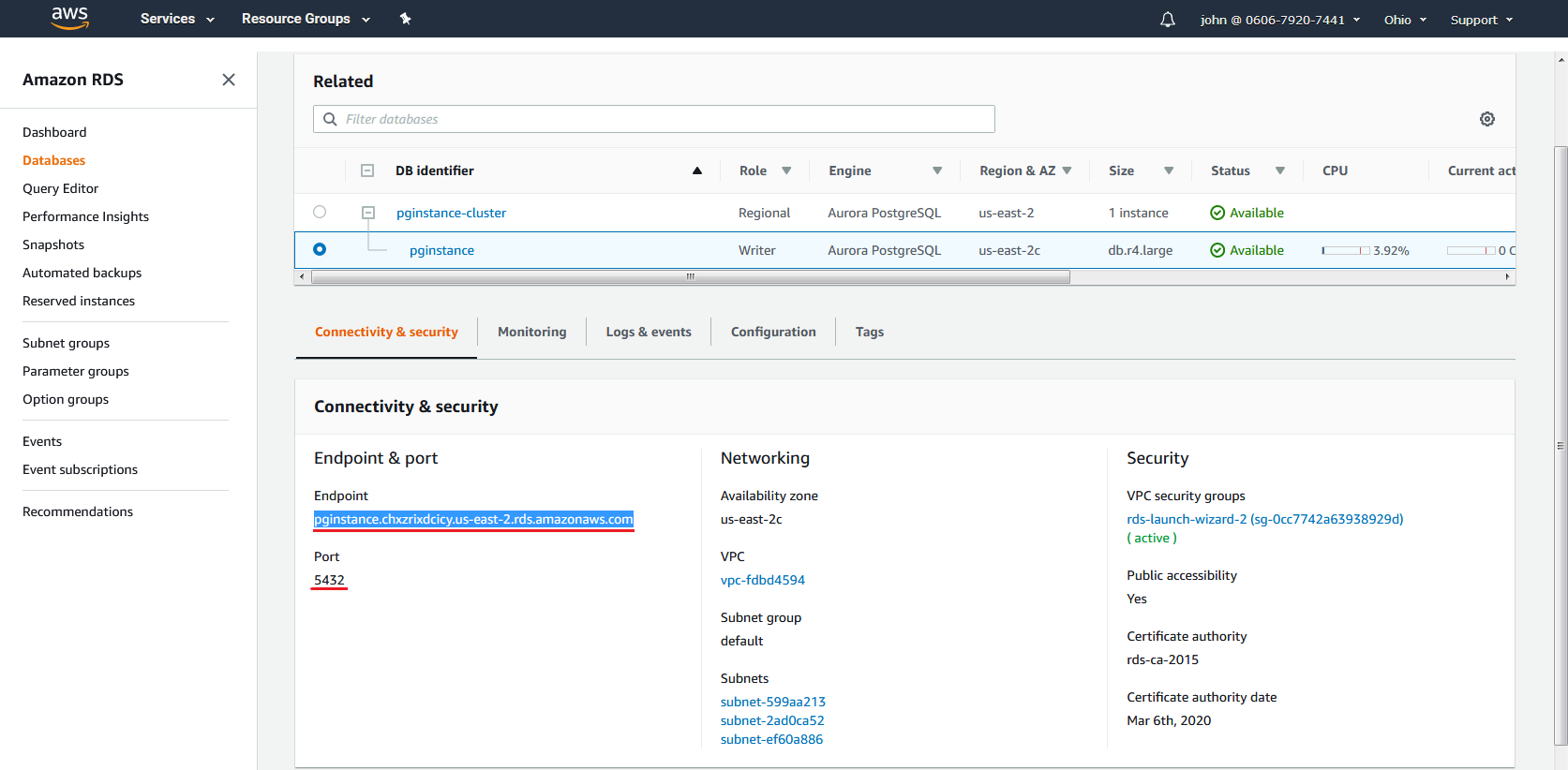
Aurora PostgreSQL connects exactly like a regular PostgreSQL endpoint. Get the endpoint and port from the AWS console.
- Log in to the AWS console and open RDS → Databases.
- Select your Aurora PostgreSQL cluster.
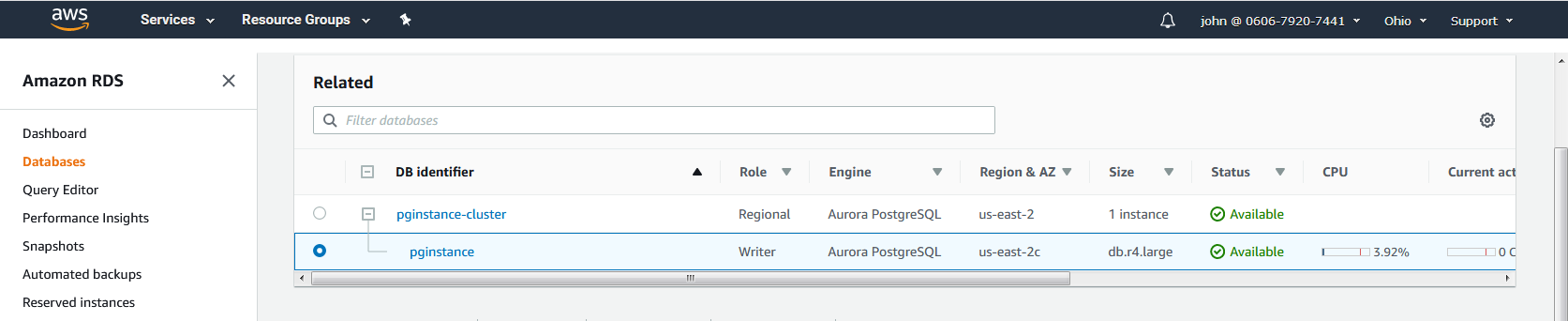
- Copy the Endpoint and Port from the connection details.
- In DBConvert, paste the endpoint into Hostname, port into Port, enter the DB user and password, and click Test connection.
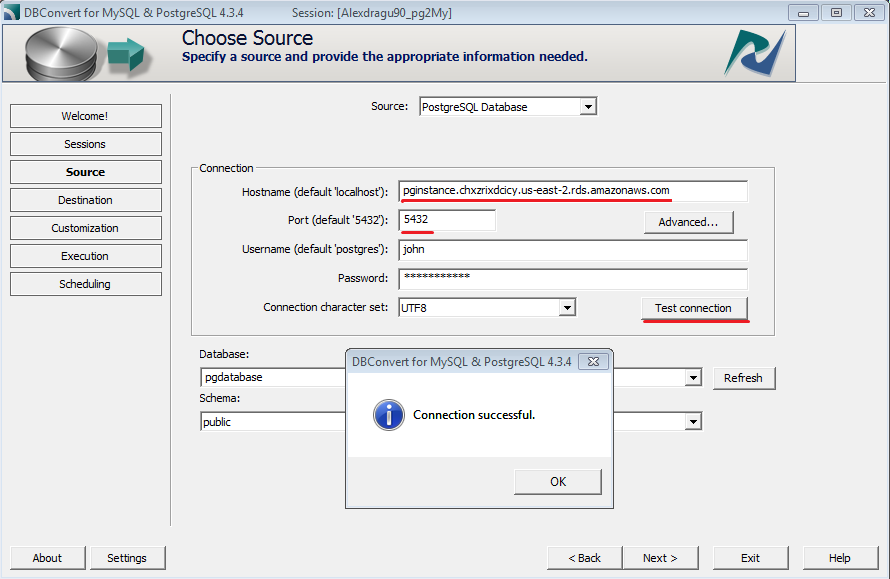
- Click Refresh next to Database, pick the database, then pick the schema.
For non-Aurora RDS endpoints, see Amazon RDS configuration.
Heroku Postgres
Heroku exposes a host, username, password, and database name for every Heroku Postgres add-on.
- Open the Heroku Postgres dashboard for your app and copy Host, Database, User, and Password.
- In DBConvert, paste those into the corresponding fields.
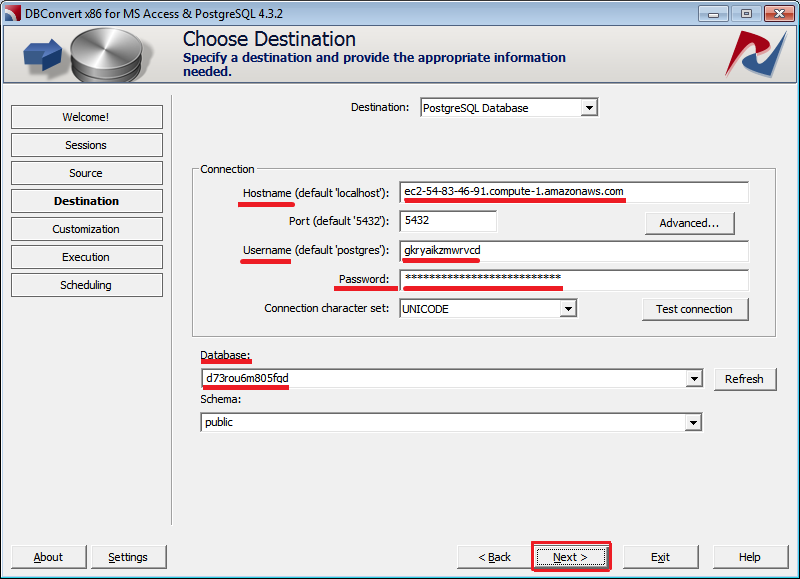
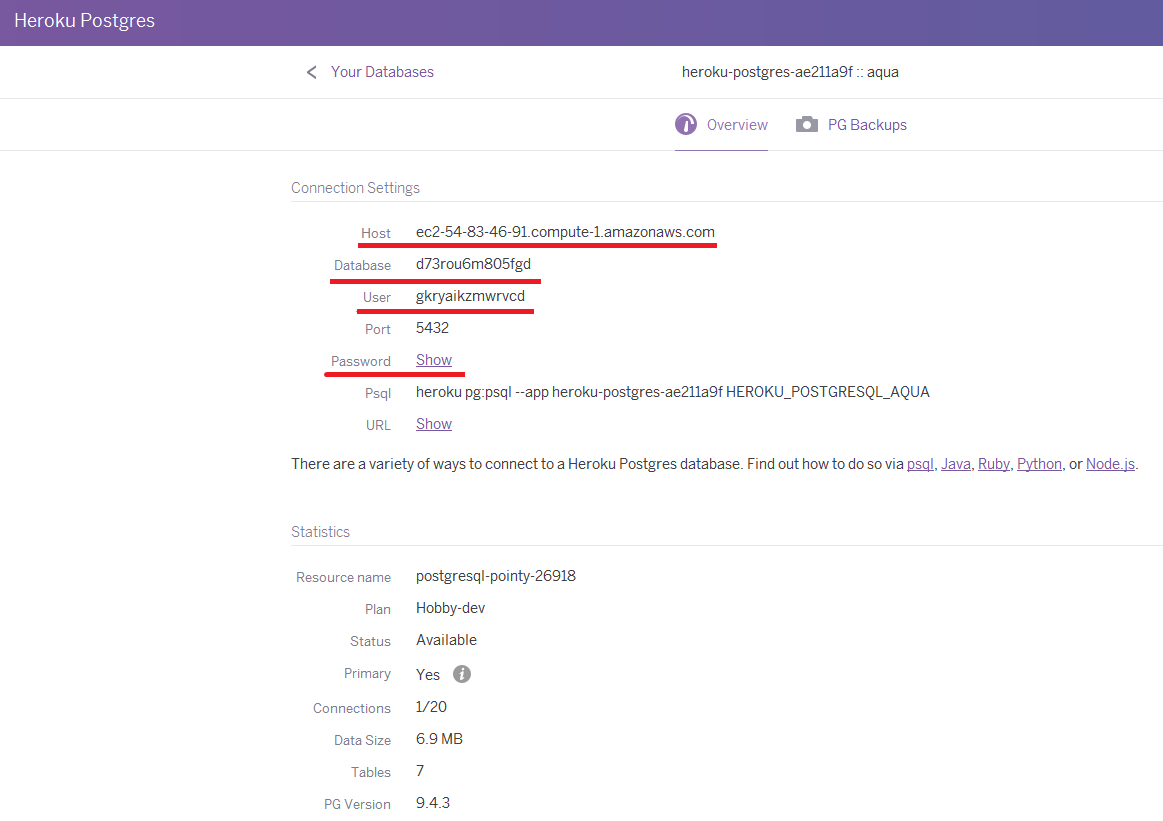
- Click Test connection and then Next.
Google Cloud SQL for PostgreSQL
Cloud SQL exposes a PostgreSQL endpoint behind an authorized-network rule.
1. Create the instance
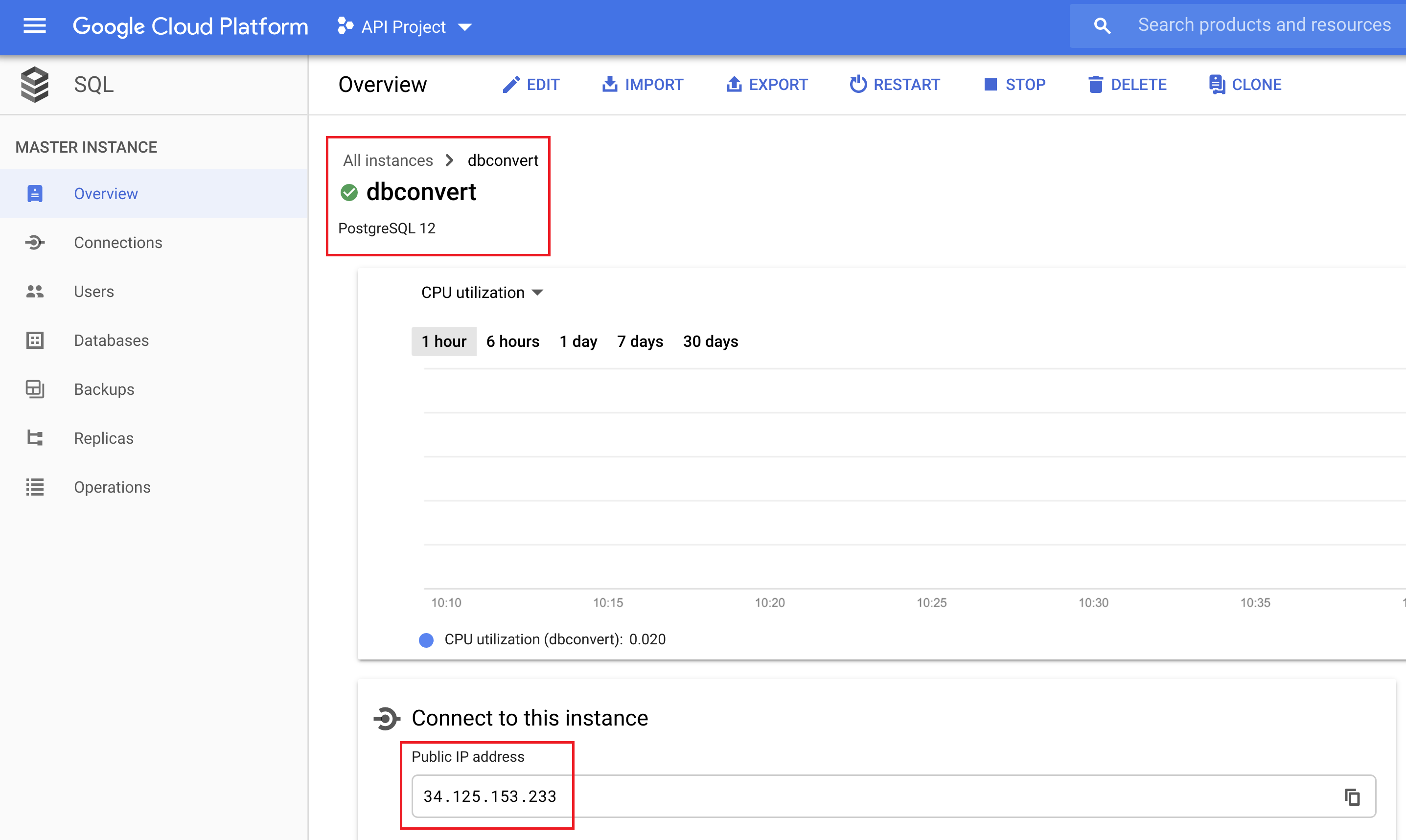
In the Cloud Console, open SQL and click Create instance. Pick PostgreSQL.
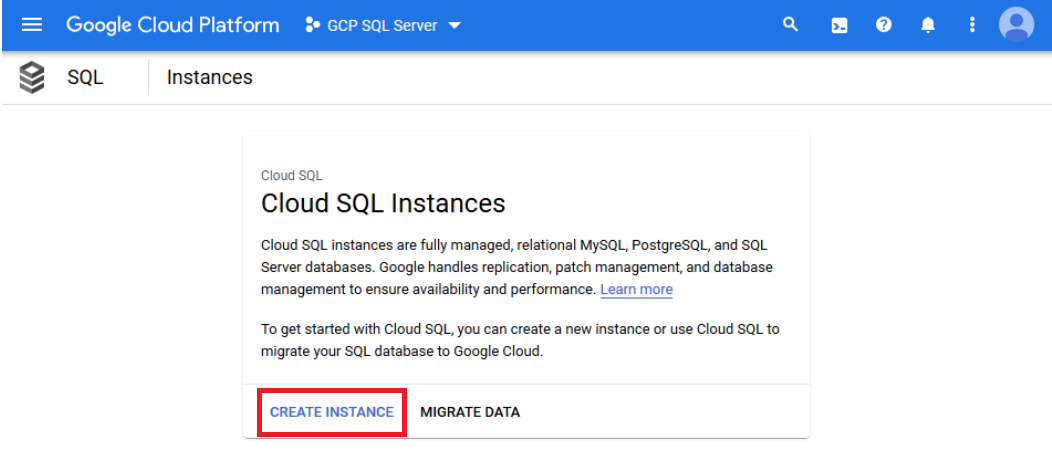
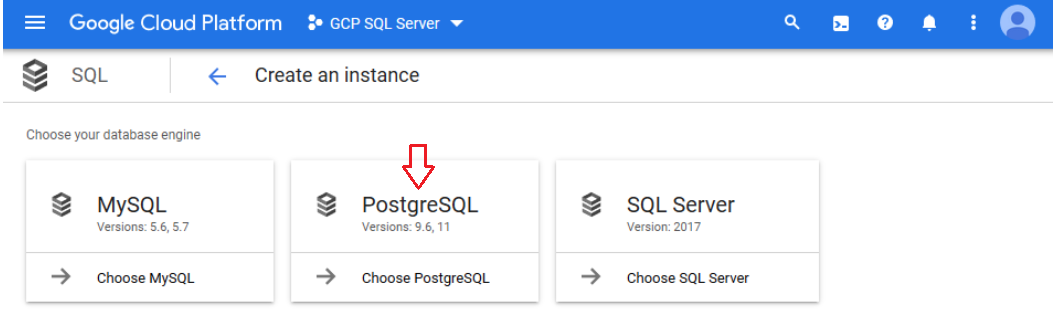
After the instance starts, note its public IP from the Overview page - you will use it as the hostname.
2. Create a database
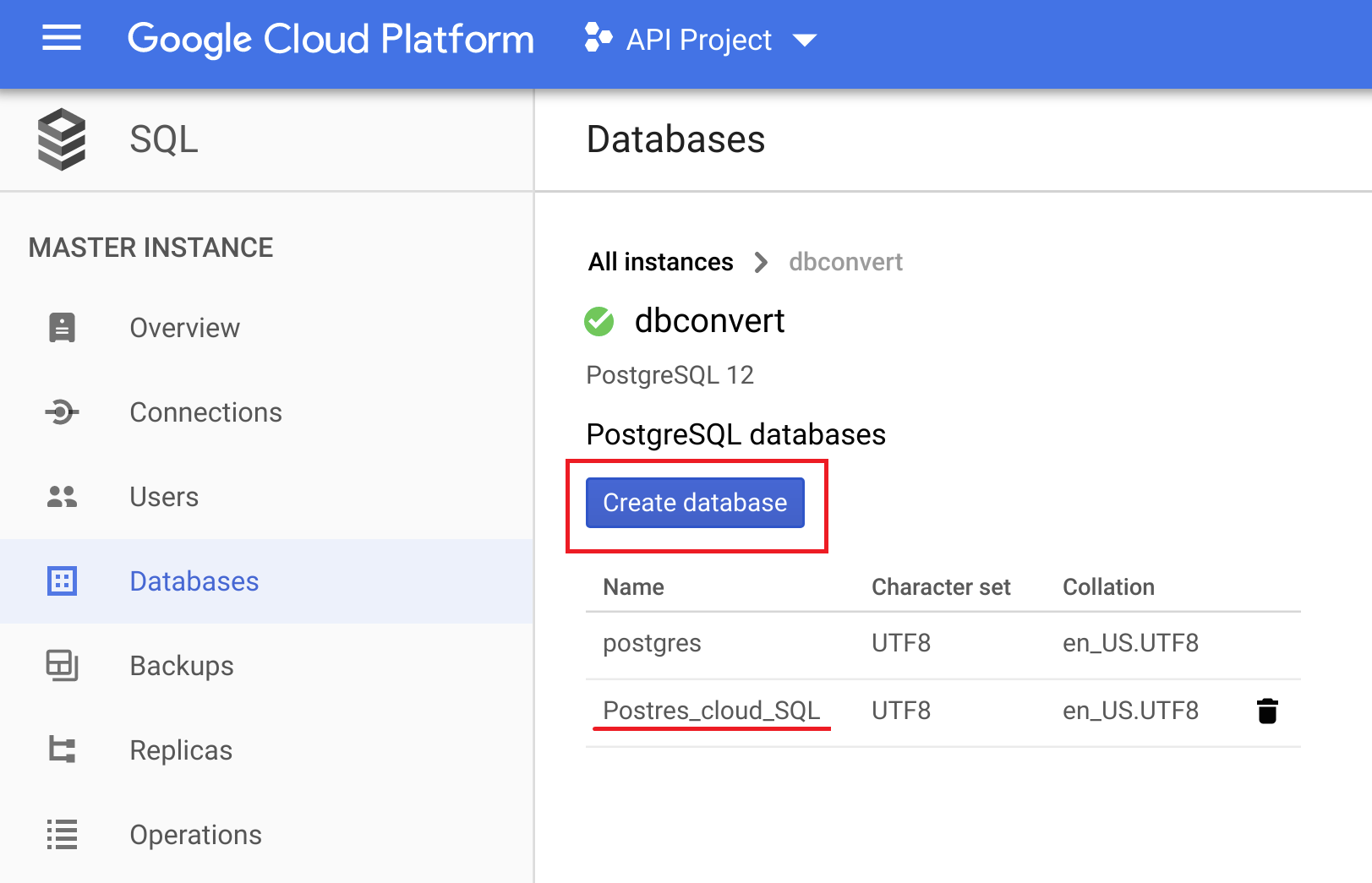
On the Databases page click Create database and enter a name.
3. Enable remote access
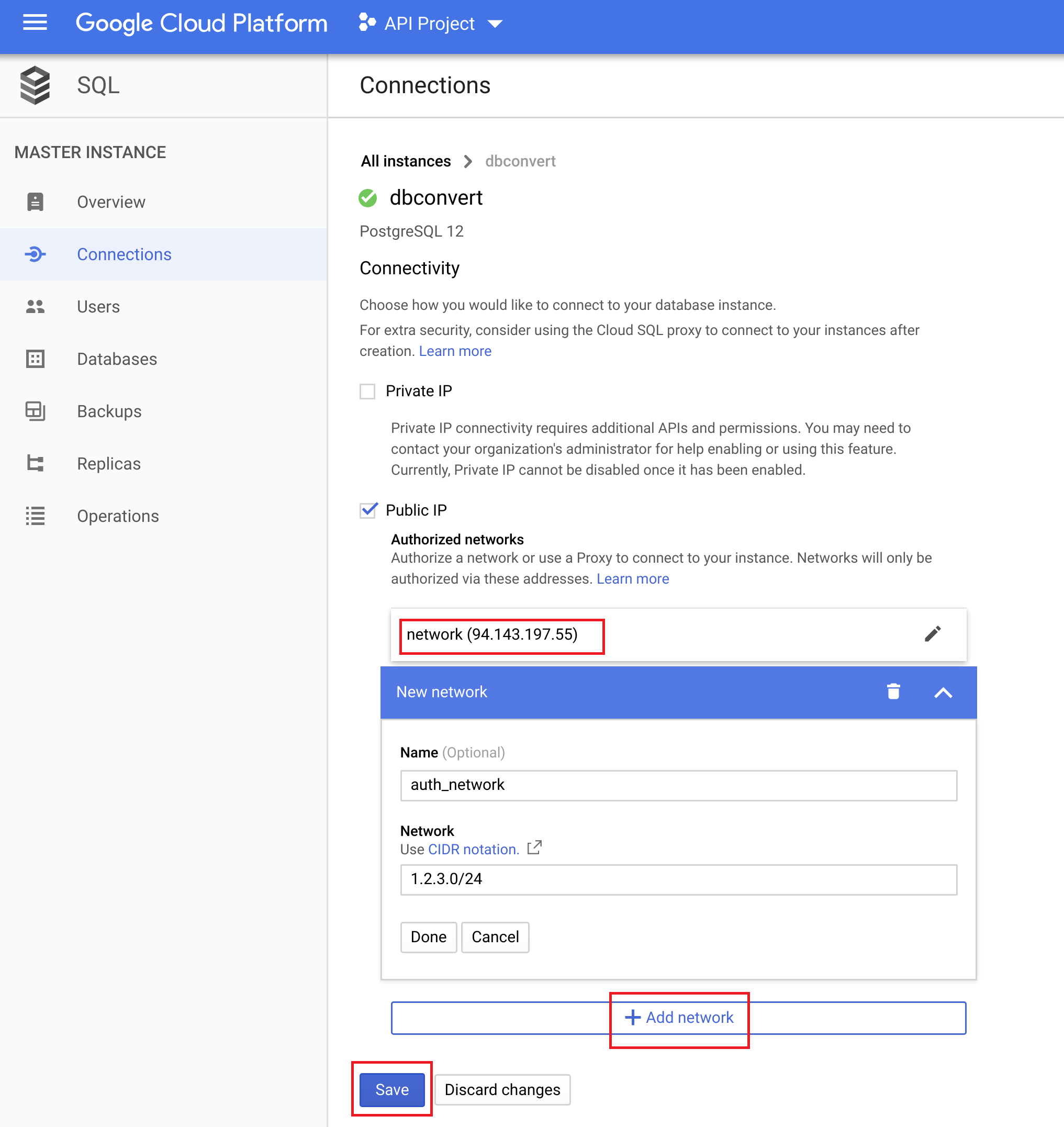
Open Connections for the instance, enable Public IP, then click + Add network and add the IP of the machine running DBConvert. Save.
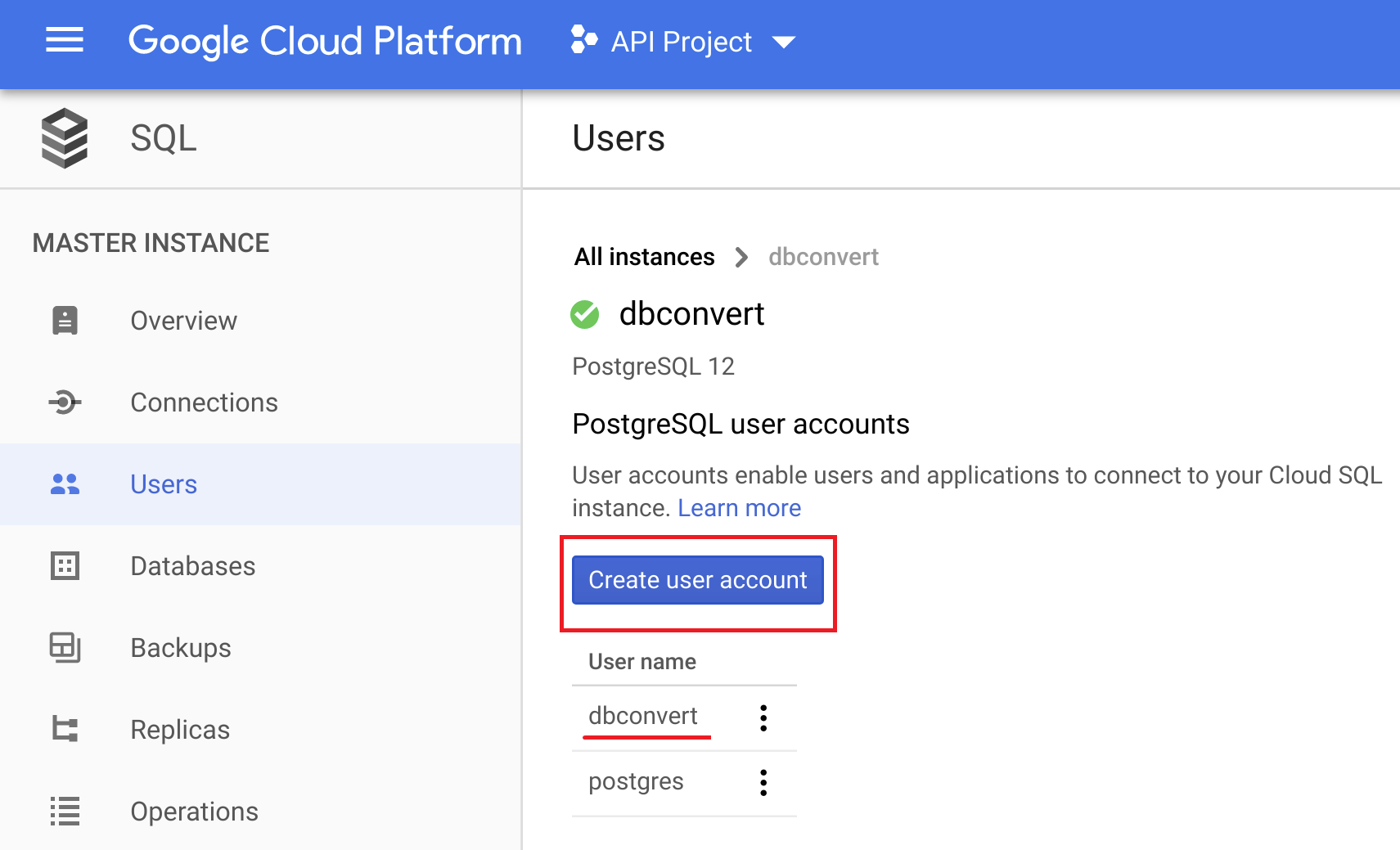
On the Users page, create a user for DBConvert and remember the password.
4. Connect from DBConvert
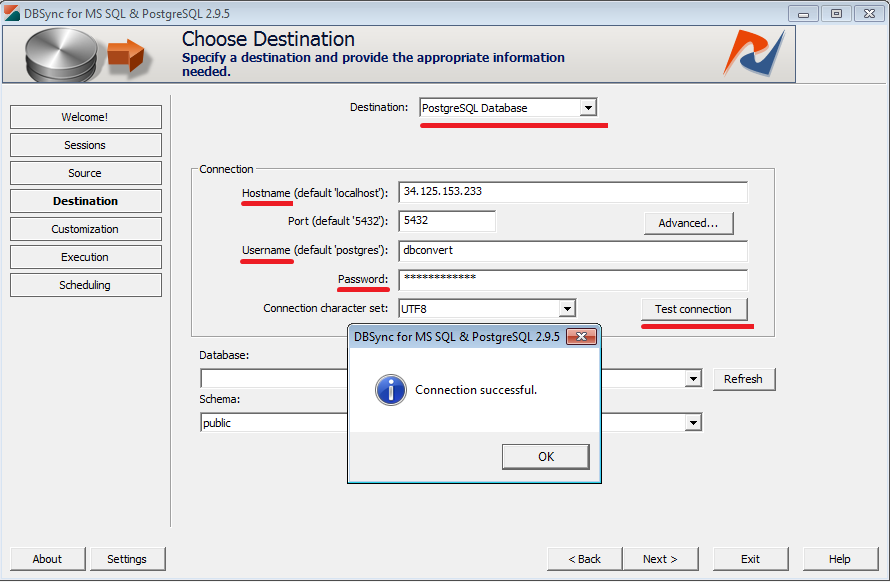
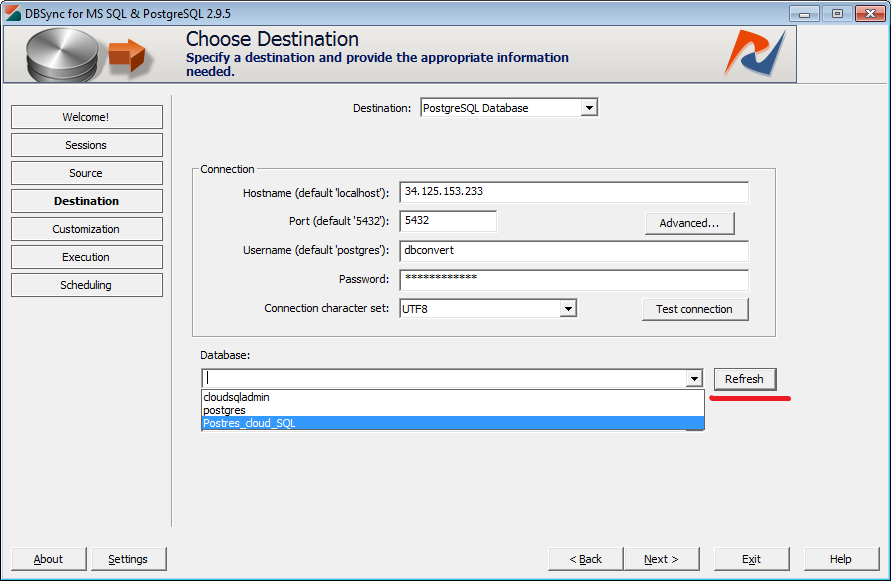
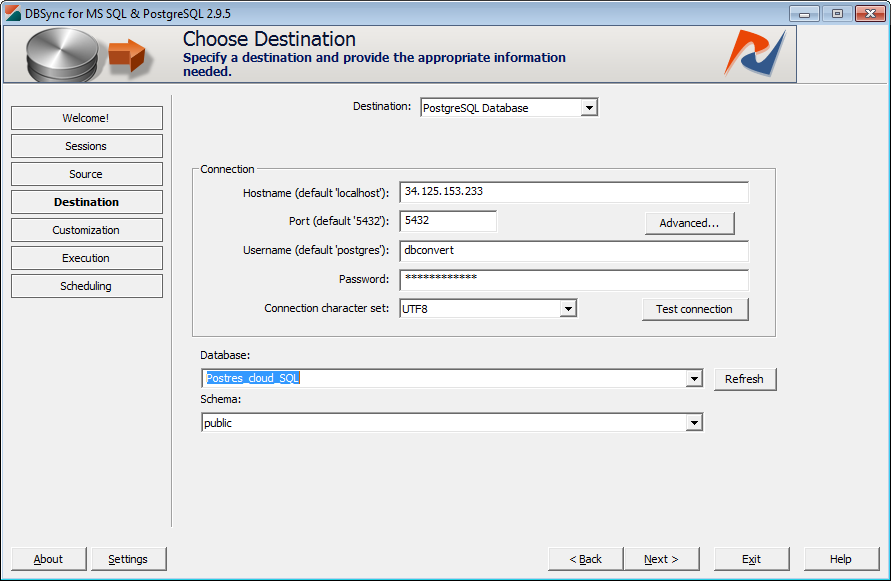
Paste the instance's public IP into Hostname, enter the user and password, and click Test connection. Then click Refresh next to Database and pick the database you created.
Other managed PostgreSQL services
Most managed PostgreSQL platforms - Supabase, Neon, DigitalOcean, CockroachDB, Azure Database for PostgreSQL, and others - expose a standard PostgreSQL endpoint. There is no special connector: connect them like any PostgreSQL server using the host, port, database, user, and password from the provider's dashboard, and enable SSL if the service requires it.