Run, Save, and Automate DBConvert Jobs
Use this guide once source and target connections are ready. It focuses on turning setup into a runnable job and a reusable workflow.
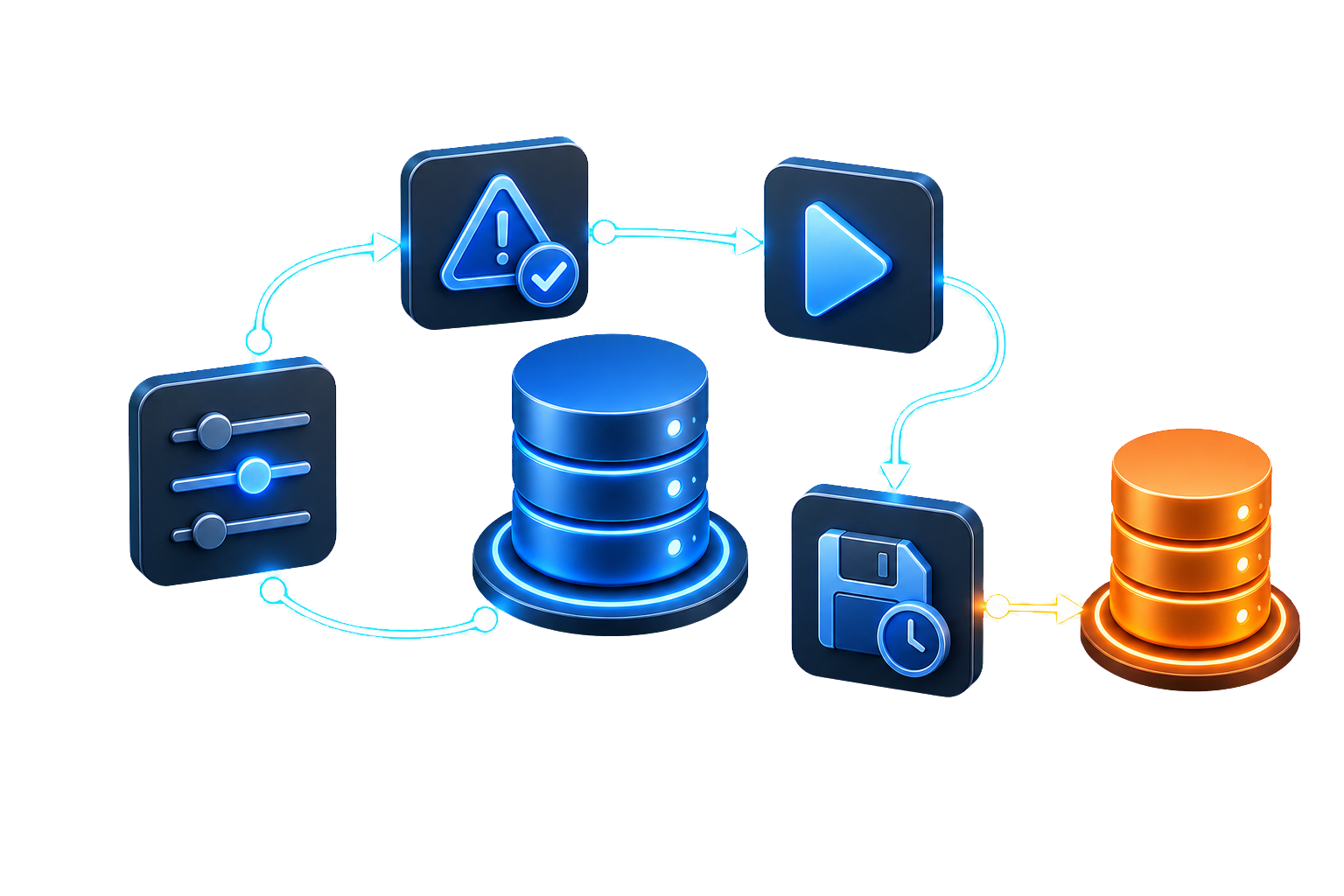
Where this guide fits
This is steps 3 to 6. Steps 1 and 2 - connecting the source and the target - differ by database pair and live on the page for your pair. Everything from here on is the same whichever two databases you picked.
Already done on your pair page
1. Source connected
Credentials and source database are ready.
2. Target selected
Destination database or dump output is ready.
3. Choose what to transfer and how to map it
Select the tables, fields, indexes, foreign keys, and views that should be copied or synchronized. Start with broad defaults, then adjust only the objects that need exceptions.
Set global database and tables options first, then override a specific table, field, or index / foreign key only where required.
For the full screen-by-screen walkthrough, open Customization overview.
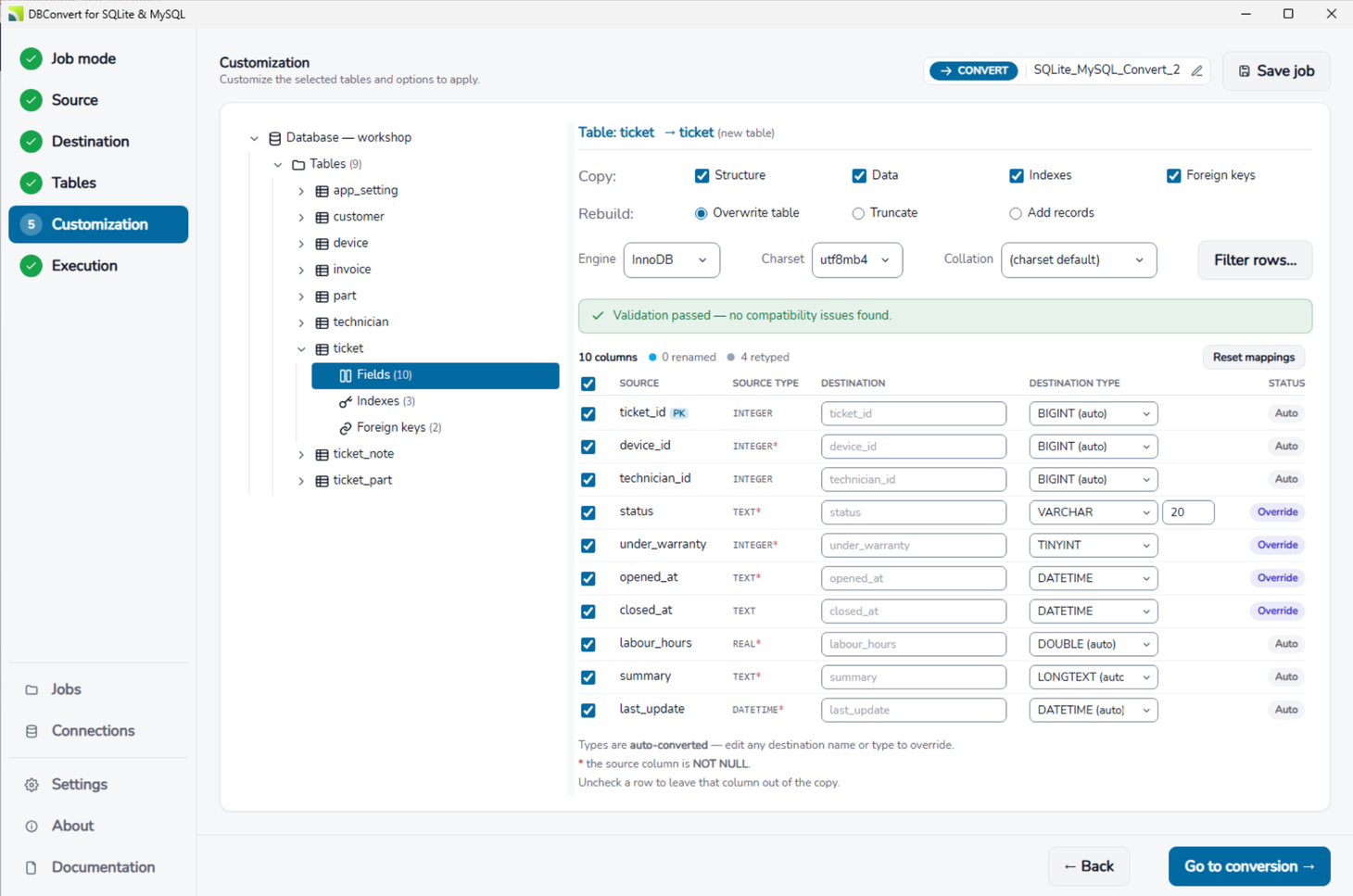
Object selection and table options before execution.
4. Review warnings before you run
The built-in checker highlights data-integrity, referential-integrity, naming, and compatibility issues before migration or synchronization starts.
Default type mapping uses the closest target equivalent. Override mappings at the database level with Global mapping, or change them field by field when only a small subset needs adjustment.
Open Pre-migration checks for the warning list and resolution patterns.
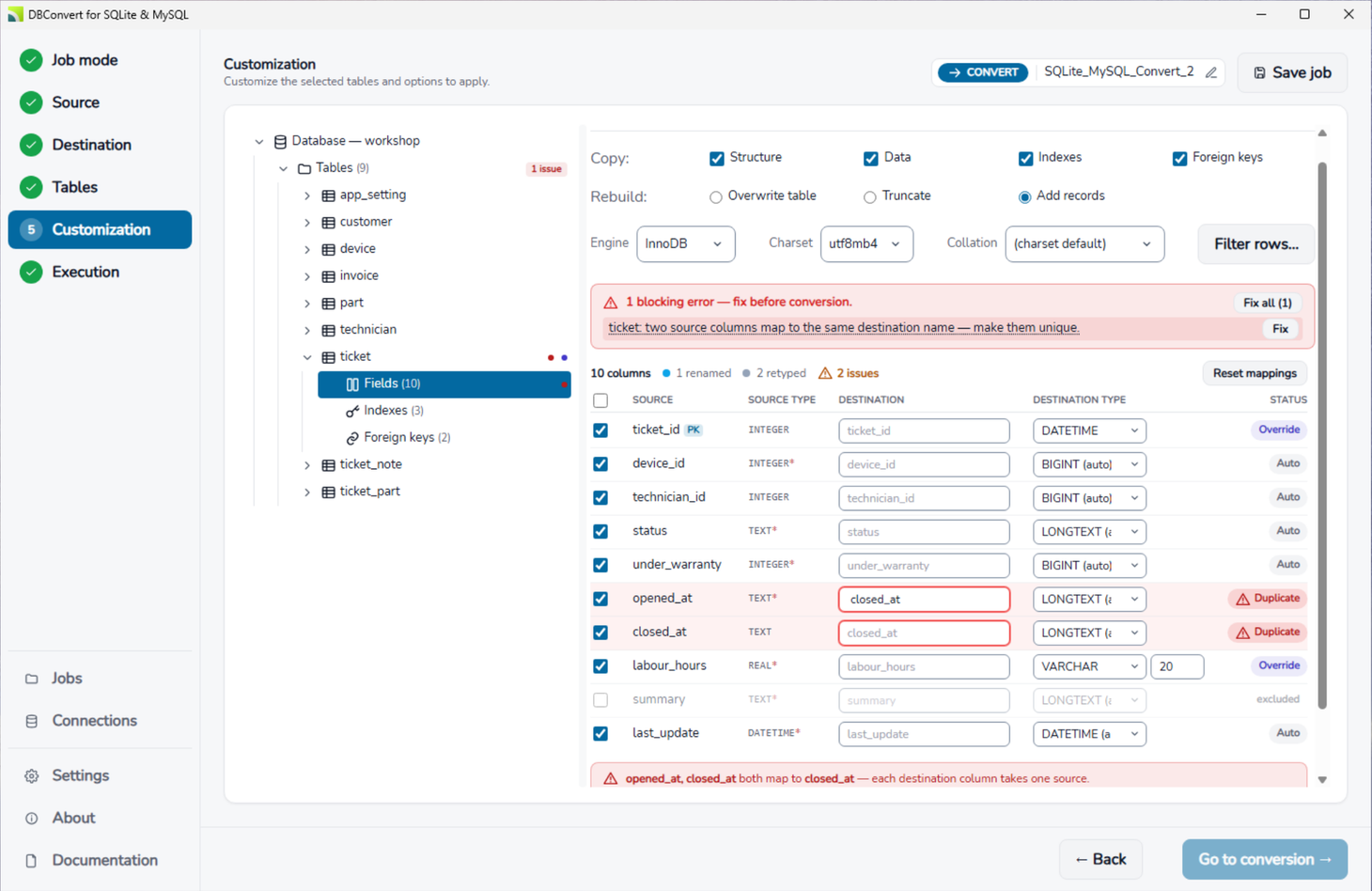
Warnings and small defects should be reviewed before the job starts.
5. Run the job and save it for reuse
Once the source, target, and options are ready, start the migration or synchronization from the execution screen.
Click Start job to begin and watch overall progress together with the current operation.
Name the job in the header and press Save job if you expect to run the same setup again - from the Jobs list, the command line, or on a schedule.
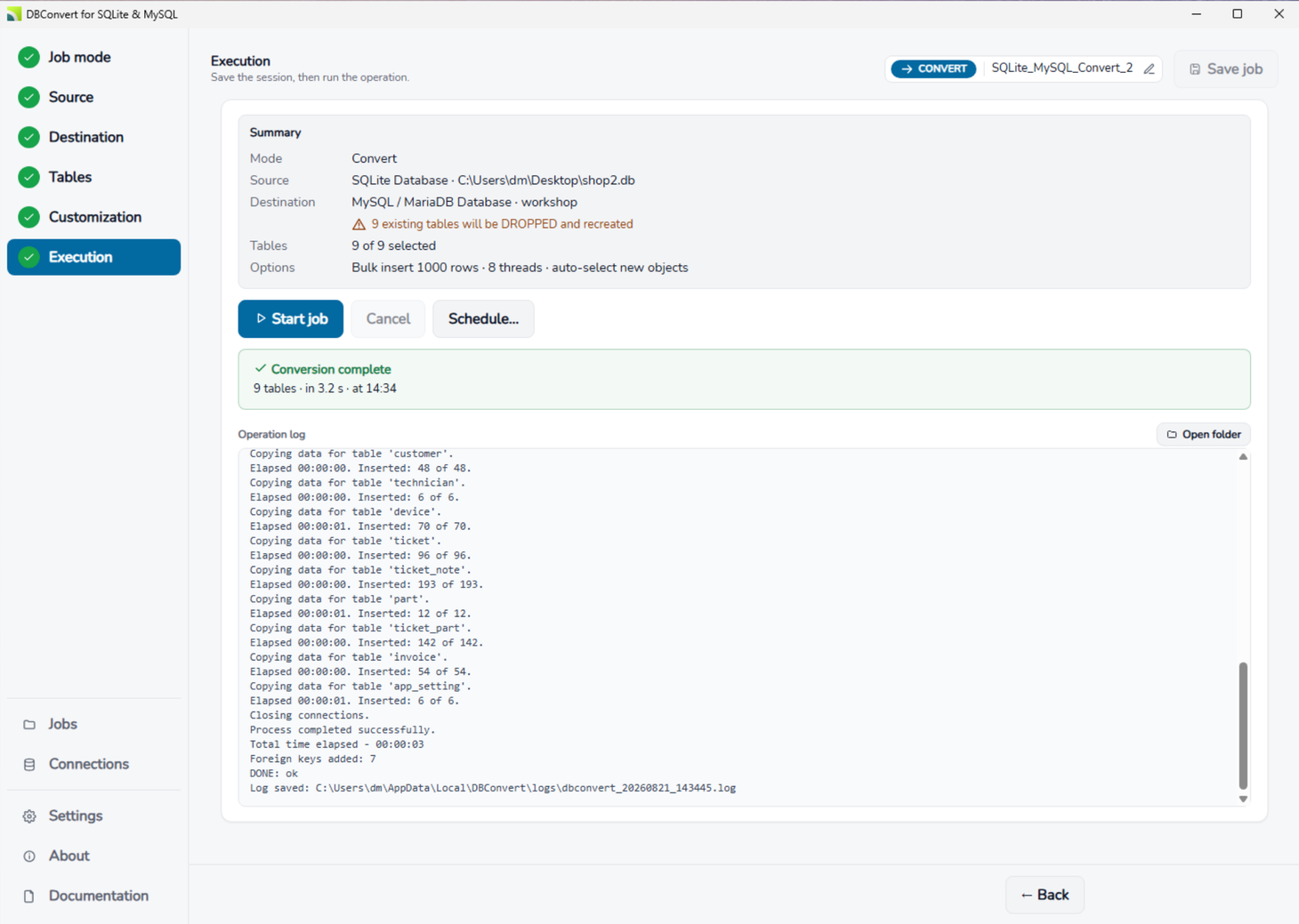
Execution progress while the job is running.
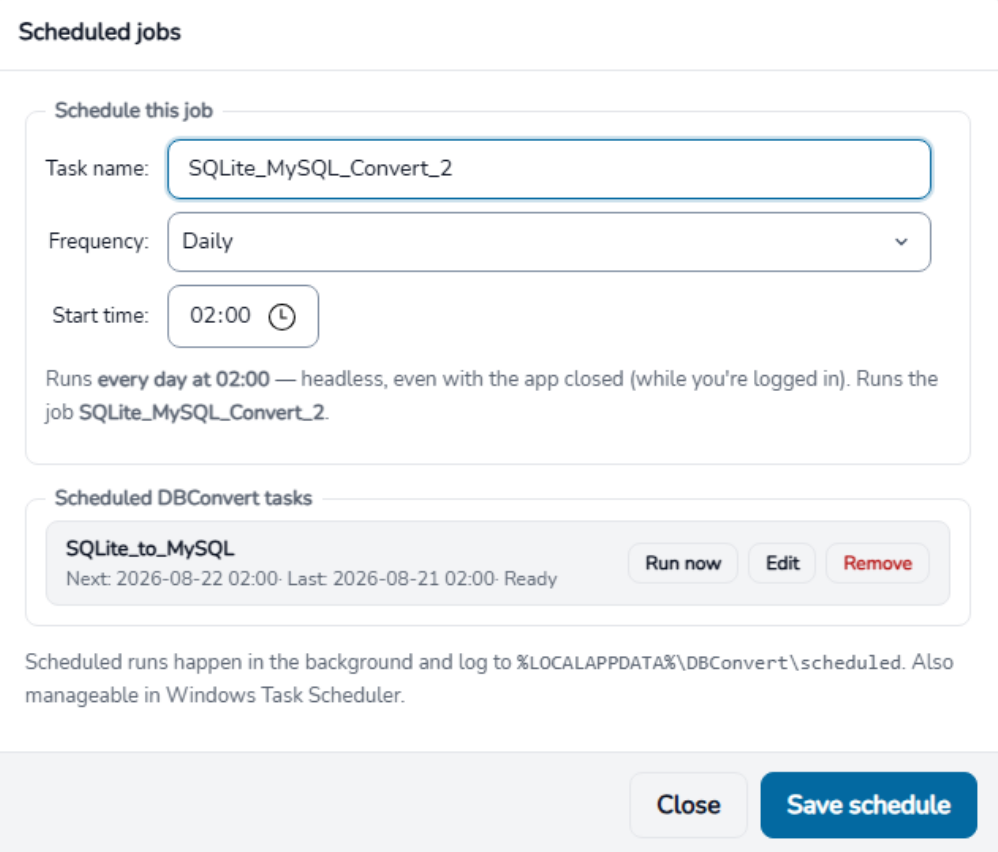
A saved job can run on a schedule, in the background, with the app closed.
More on the options available during the execution stage.
6. Automate repeat runs, and other common tasks
Open the doc page that matches the problem you are solving instead of scanning the full manual.
Continue with the reference docs or start the tool
Open the docs index for specific options, or download the DBConvert tools when you are ready to run a job.
The screens here are the 2026 interface. If your converter predates it, the guide for the previous interface is still up.
Related: choose a path
Three angles on the same toolkit - what it does, which tool fits your job, and how to run it step by step.
Convert once, or keep in sync?
Pick the mode your job needs - one-time migration, ongoing sync, or both. Includes the full pair list.
All features
What DBConvert handles - type mapping, sync modes, filters, scheduler, CLI, dump output, and more.
Data conversion software
The overview - what DBConvert converts across 30+ databases, Excel, and the cloud, and where to start.