Secure connections (SSH, SSL, PuTTY)
Encrypted database connections from DBConvert - built-in SSH and SSL, plus PuTTY tunneling.
Last updated October 19, 2026
SSH
Use SSH when the database server is on a private network reachable only via a jump host. DBConvert opens the tunnel itself for the duration of the job.
In the connection dialog, set Connection route to SSH tunnel and fill in:
- SSH host and SSH port - the jump host (usually port 22).
- Authentication - Password, Private key, or Both.
- SSH username, SSH password, Private key and Key password, as the method needs.
In the previous interface and DBConvert Studio
Tick Use SSH (in Studio, open the SSH tab) and fill in:
- Host and Port - the SSH jump host (typically port 22).
- SSH version - leave this on SSH2.
- Initial method -
password,public key, orboth. - Login, password, private key, and key password as required by the chosen method.
- Local port for the forwarded tunnel.
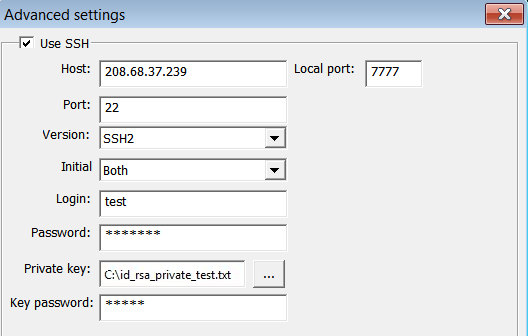
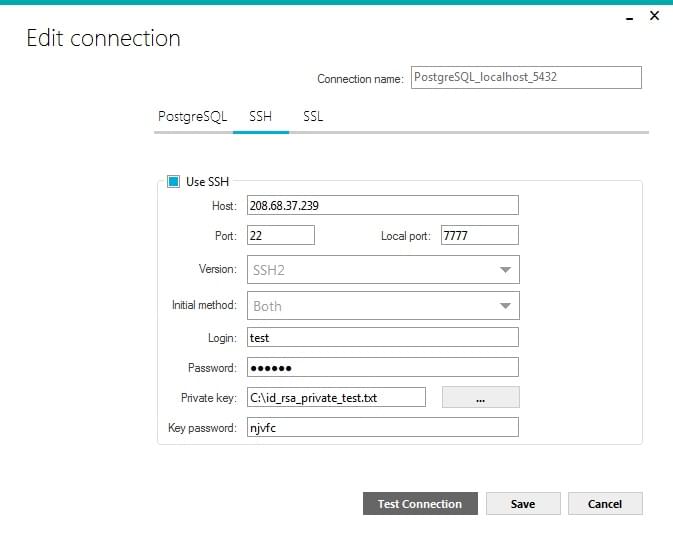
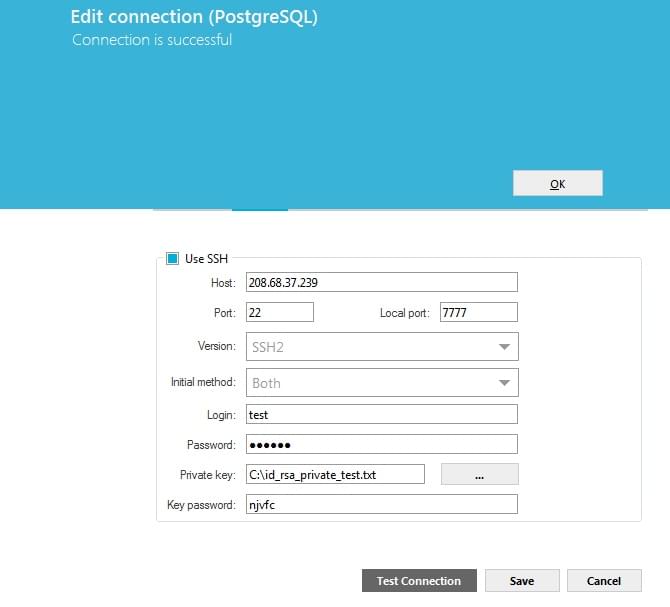
Click Connect (Test connection in DBConvert Studio). On success the form says it connected.
SSL
Use SSL when the database server exposes an SSL endpoint (Azure SQL, Cloud SQL, RDS with forced SSL).
Tick Use SSL/TLS (Use SSL in the previous interface) and provide:
- CA certificate - the certificate authority bundle.
- Cipher - cipher suite to use.
- For mutual TLS, also tick Use client certificate authentication and provide the Client certificate and Client key.
PuTTY tunnel before connecting
If your environment relies on PuTTY for SSH tunneling, set up the tunnel first, then point DBConvert at localhost + the forwarded local port.
1. PuTTY session
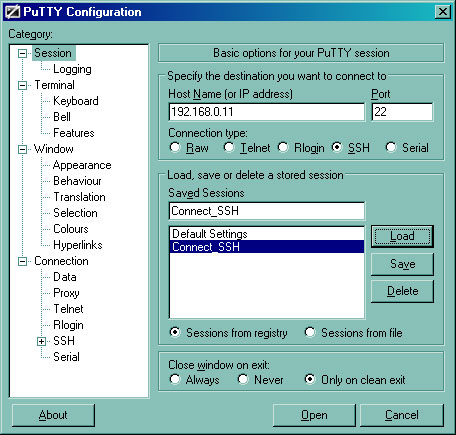
In PuTTY Configuration → Session:
- Host name - outer server domain or IP (example:
192.168.0.11). - Connection type - SSH.
- Port - 22 (default).
- Saved session name - any name, e.g.
Connect_SSH.
2. PuTTY tunnel
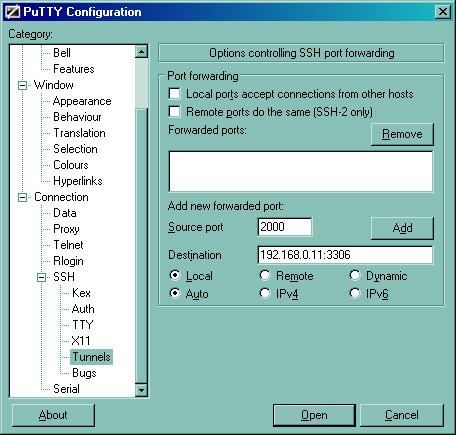
In Connection → SSH → Tunnels:
- Source port - any local port above 1024 (example:
2000). - Destination - database server address and port (example:
192.168.0.11:3306for MySQL). - Type: Local. Click Add.
3. Open the tunnel
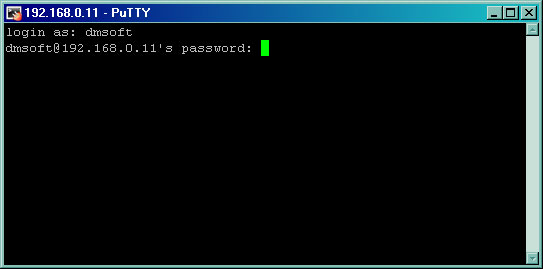
Open the saved session. PuTTY asks for the SSH user's login and password on the jump server - this is not the database user.
4. Connect from DBConvert
In DBConvert's connection dialog:
- Host -
localhostor127.0.0.1. - Port - the local port from step 2 (
2000in the example). - Username / Password - the database user. This is independent of the SSH user.
Do the same for the destination connection if the other database is also behind the tunnel.