Amazon RDS exposes a standard endpoint for each instance. The connection from DBConvert works the same as for a self-hosted server - you just need the endpoint, port, and master credentials from the AWS console.
1. Find the instance in the AWS console
Log in to AWS and open the RDS dashboard.
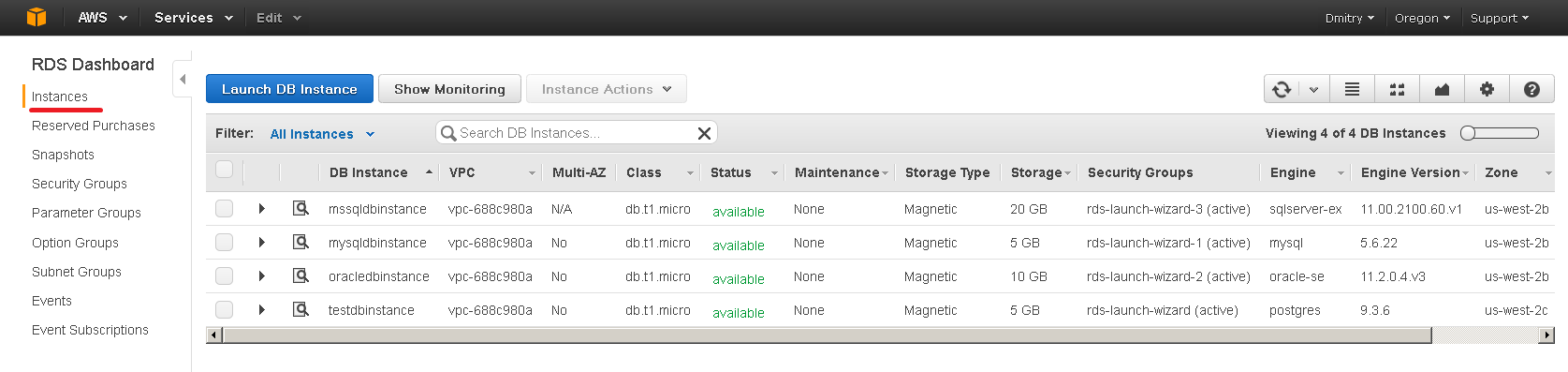
Pick Instances in the RDS sidebar to see your instances.
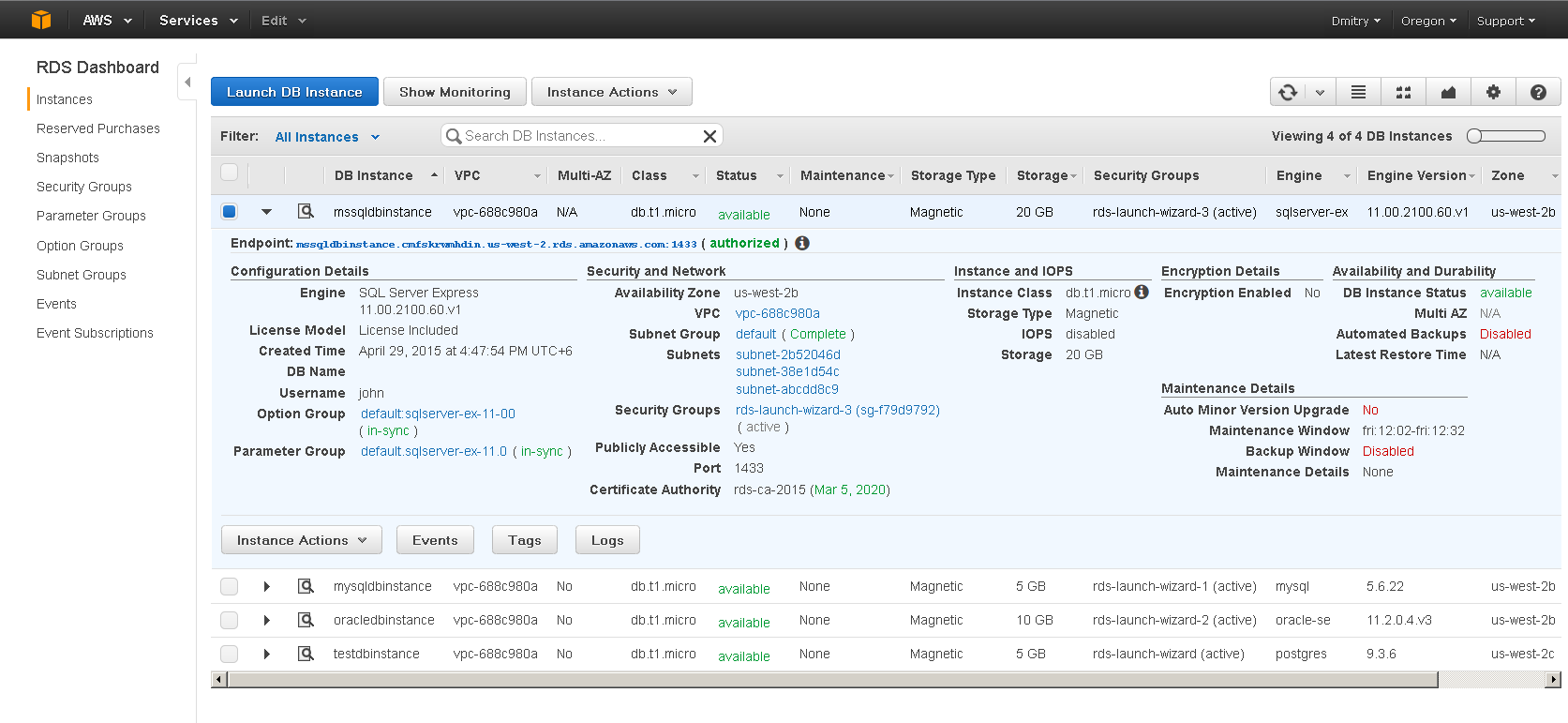
Select the instance you want to connect to.
2. Copy the endpoint
Click Endpoint to see the connection string.
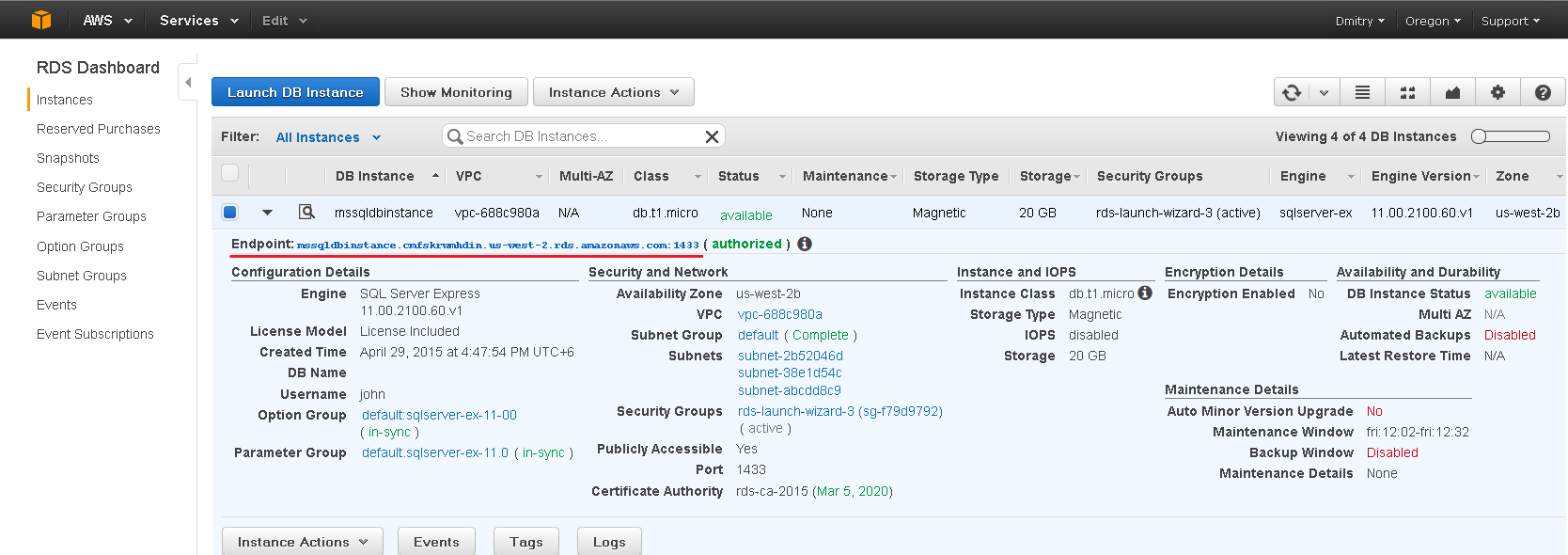
The endpoint includes the port at the end (e.g. myinstance.xxxx.region.rds.amazonaws.com:3306). Split it into hostname and port for DBConvert.
3. Fill in the DBConvert connection
On the Source or Destination stage:
- Host - hostname only, without the port.
- Port - the port from the endpoint.
- Username and Password - the master user and password you set when creating the instance.
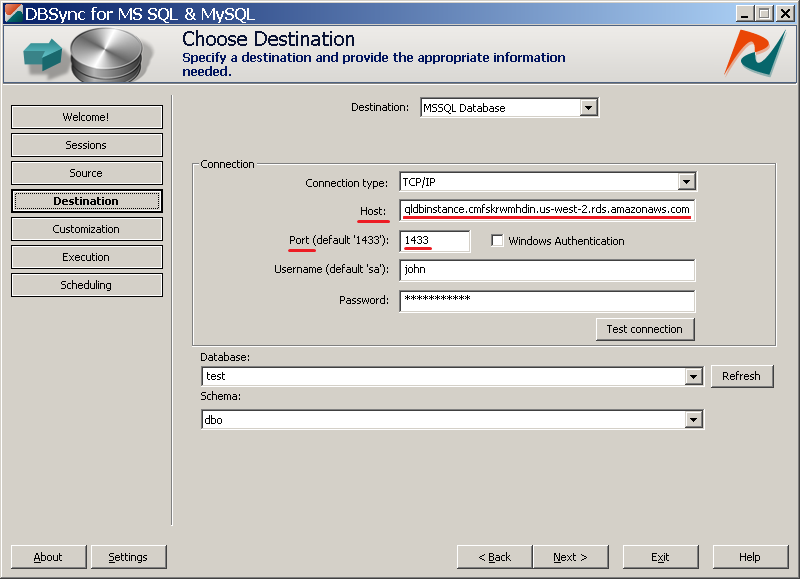
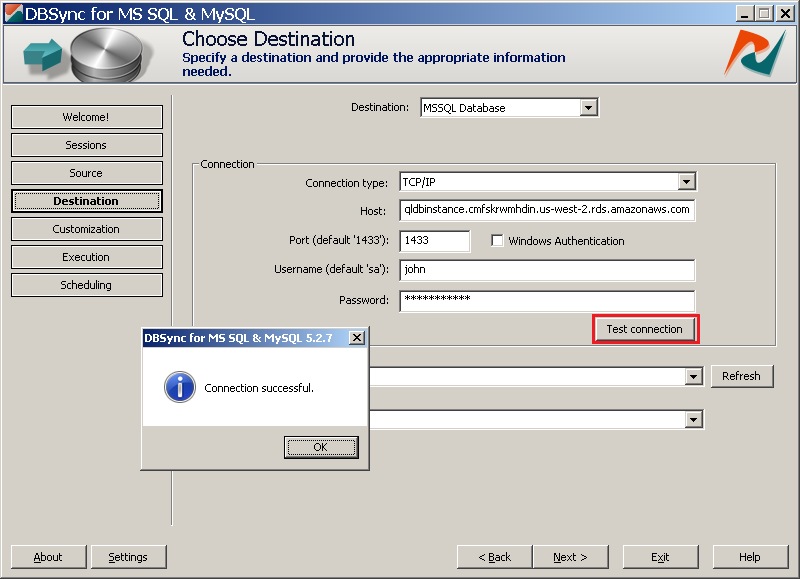
Click Test connection.
4. Pick the database
Type the database name into the Database combo, or click Refresh to list databases on the instance and pick from the list. For Oracle and PostgreSQL targets, also pick the schema in the Schema combo.
Click Next to continue.
Engine-specific notes
For Aurora-flavored RDS instances, see the engine-specific guides: