DBConvert Studio migration guide
A complete walkthrough of a copy or synchronization job: connections, endpoint selection, configuration, and execution.
Video walkthroughs
Two short tutorials cover the two core jobs most users start with: copying data and synchronization.
Copy data walkthrough
Step-by-step video showing a standard copy workflow between databases.
Synchronization walkthrough
Tutorial for setting up and running a database synchronization job.
Default settings first, detailed control when needed
The default workflow gets migrations running quickly. When the job needs more control, Studio exposes object selection, type mapping, validation, filtering, scheduling, and synchronization options.
- Database items such as schemas, tables, keys, indexes, and views are selected by default, but can be copied individually.
- Automatic type mapping can be overridden with custom matching rules.
- Validation warns about bad destination settings before transfer starts.
- Custom WHERE expressions help limit the copied dataset.
- The built-in scheduler automates repeat jobs.
- The classic DBConvert and DBSync feature set remains available in the Studio workflow.
Add connections
Start by adding the databases that will act as source and destination nodes.
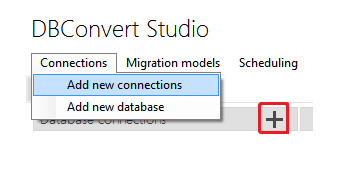
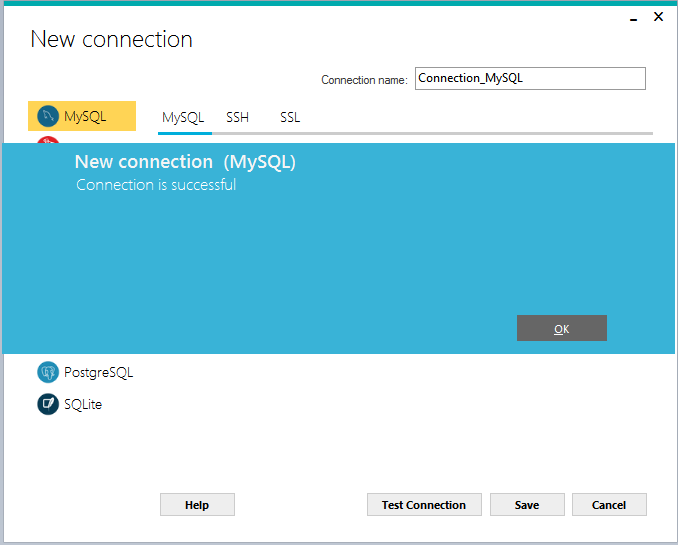
Use Connections -> Add connection or the Add Connection button in the Connections window.
For most databases you will need the server address, port, username, and password.
Select the database type first, then enter the connection details for each endpoint you plan to use in the job.
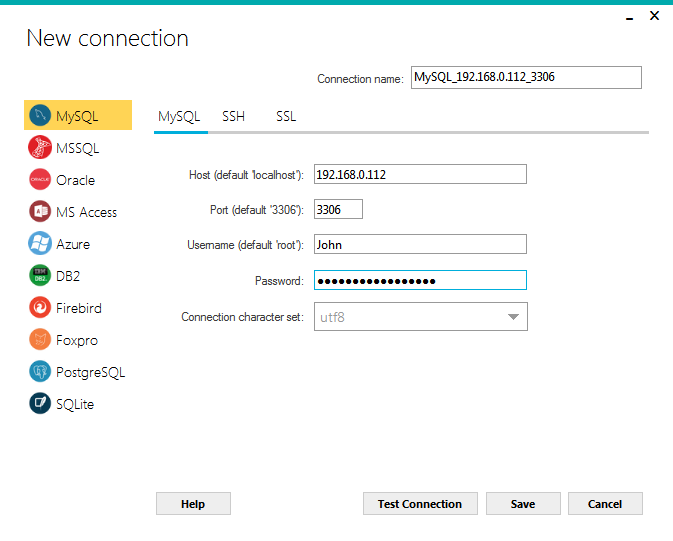
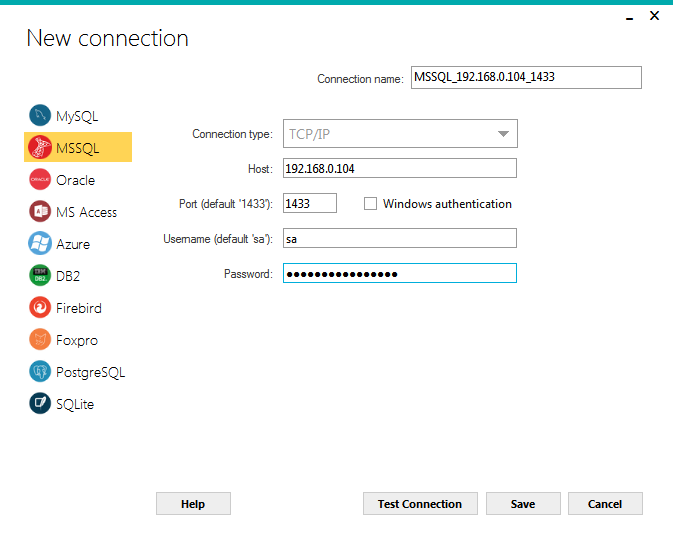
Use Test connection to verify the settings before saving.
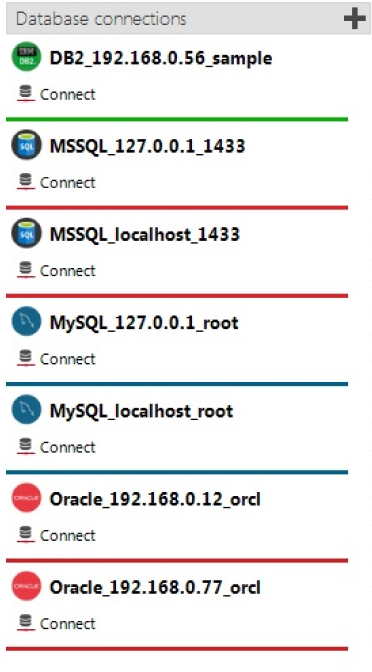
After a successful test, save the connection and it becomes available for later source or destination selection. Saved connections remain available after the application is closed.
Choose migration type and endpoints
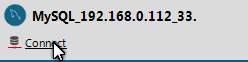
Pick the scenario, connect both sides, and choose the source objects and destination database.

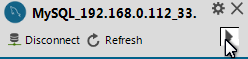

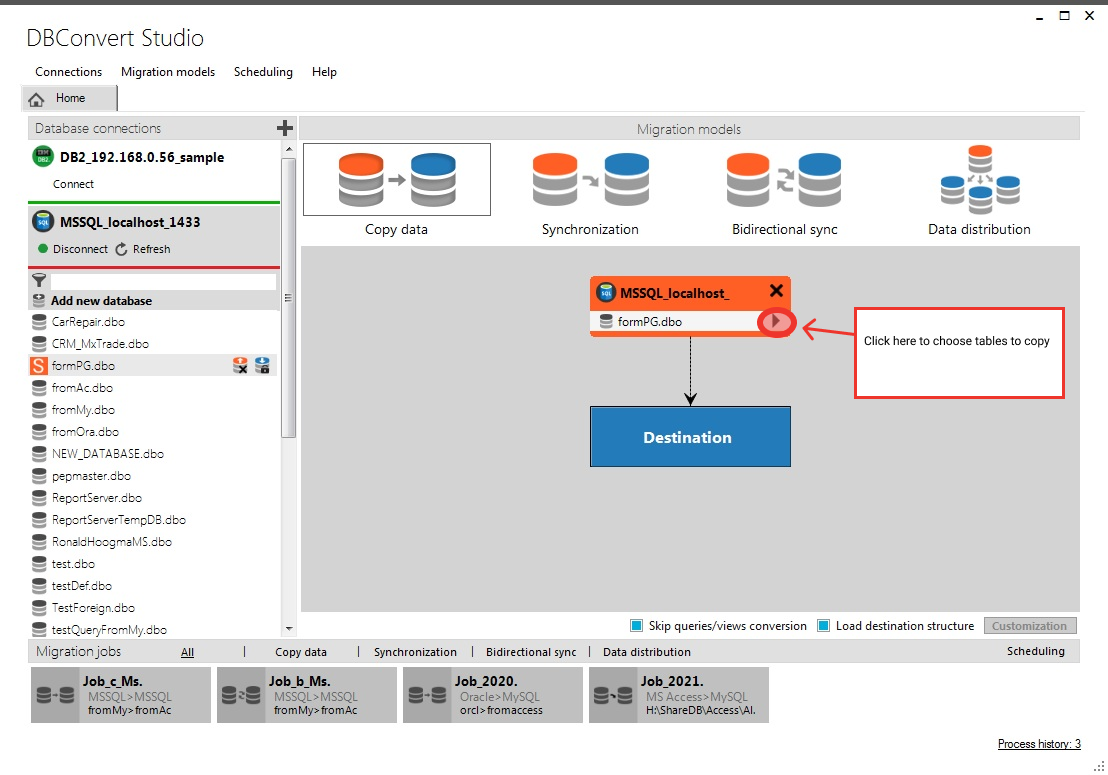
If you do not need the entire database, select only the tables you want to copy or synchronize.

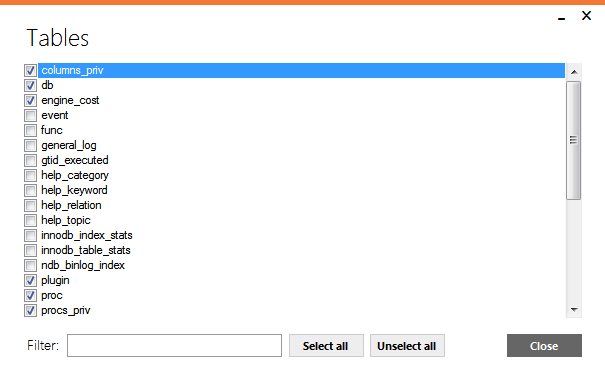
Repeat the same selection process for the destination side. If the target database does not already exist, DBConvert Studio can create it for you.

Distribution scenarios can route data from one source to multiple destination databases.
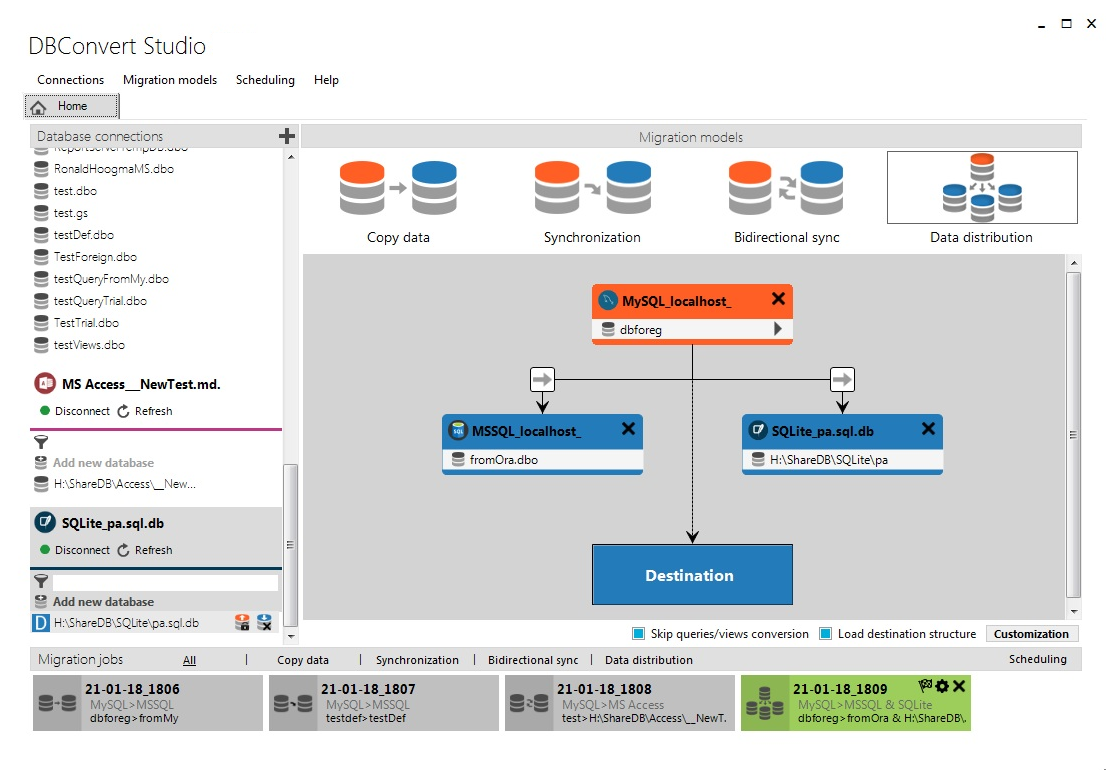
Jobs
Use Add job to save the current process as a reusable task. Jobs let you organize migration work and schedule repeat execution later.
Saved jobs appear at the bottom of the main window and can be filtered by type.


Configure the migration
Fine-tune views, parallel threads, filters, mappings, and synchronization behavior.
Global options

Skip queries/views conversion saves time when views are not needed in the migration.
Conversion does not support functions, triggers, or stored procedures.
Click Customization to open the detailed settings for the selected migration type. The examples below show both copy and synchronization configuration screens.

The Threads slider controls how many parallel tasks copy data from source to target. The upper limit depends on the available CPU threads and the license tier.
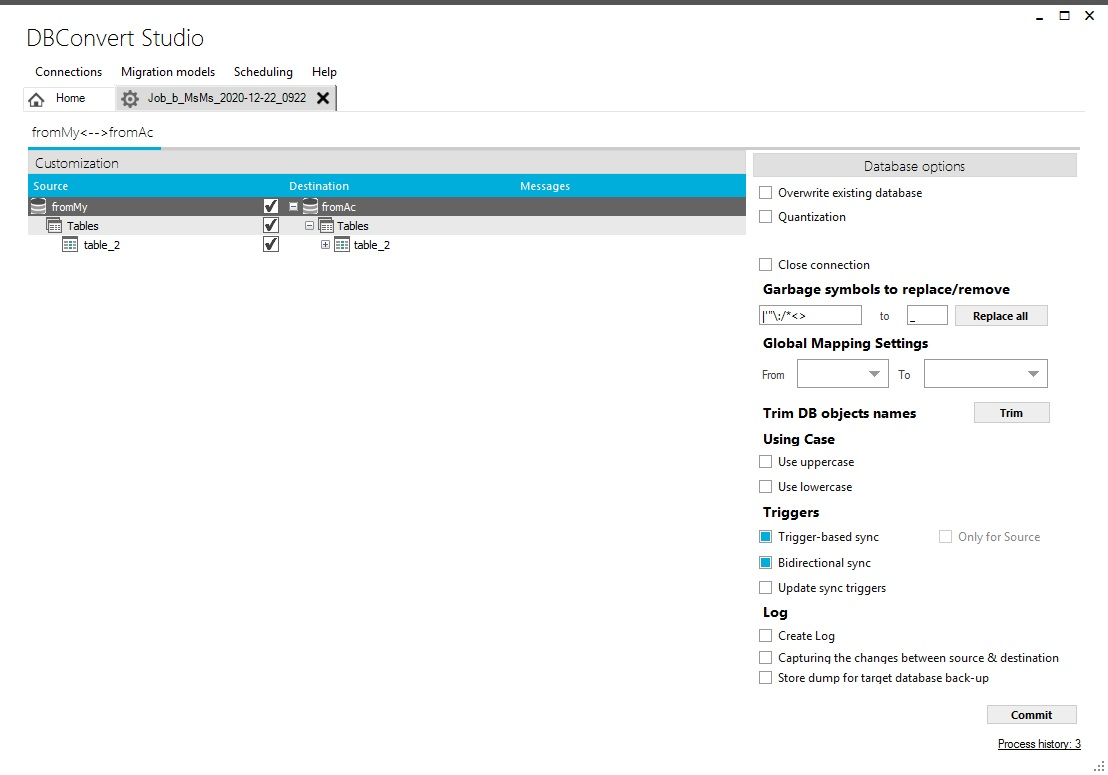
Update sync triggers refreshes triggers automatically on both source and target databases.
Re-run trigger updates when the saved job points to a new target database or when server time configuration has changed.

Data Filters help extract only the needed slice of data from a larger dataset.
These settings follow the same logic as the classic DBConvert and DBSync software.
Run the transfer
Commit the job, watch progress, and review logs when the process is complete.
Click Commit to start the actual copy or synchronization process. Studio shows both overall progress and the progress of the current operation.
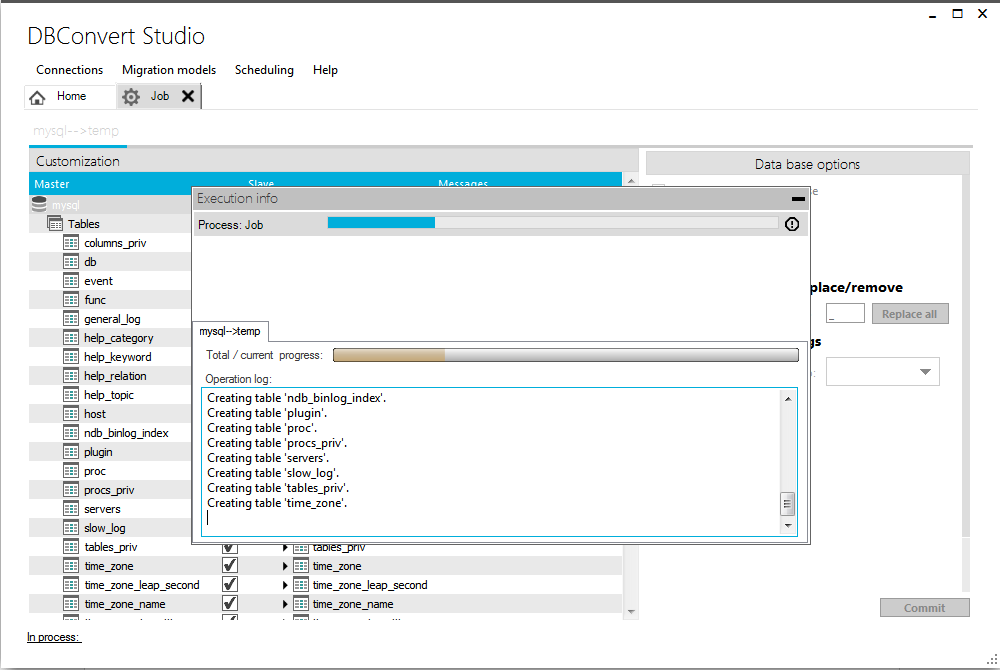
After completion you can inspect the detailed activity log and review any reported errors.

Committing the process also saves the task with its settings, which makes scheduled re-runs possible later.
Go further with DBConvert Studio
Studio-specific settings that classic DBConvert and DBSync do not have - duplicating jobs, trigger options, monitoring, truncate, and recovery.
Ready to run your first migration?
Download DBConvert Studio or review the editions and pricing.