DBConvert Studio
Convert and sync across all your databases: servers, cloud and files.
An AI assistant in the window
Ask about your job and get answers from what DBConvert returns. Optional: it does nothing until you pick an agent.
See what it doesRather not run it yourself?
Let us do the migration →The AI assistant
Ask it about your job. It explains; you decide and press the buttons.
- Explains a run's errors, grouped across tables.
- Writes the SELECT of a Table from SQL from your words: type what you want and click Generate.
customers from Germany with their order countGenerate
SELECT c.customer_id, c.name, COUNT(o.order_id) AS order_count FROM customers c LEFT JOIN orders o ON o.customer_id = c.customer_id WHERE c.country = 'Germany' GROUP BY c.customer_id, c.name; - Names the risks of a plan before Start conversion.
- Checks a connection and shows the step that failed.
Runs on a local model with Ollama on your computer, or on an agent you already have: Claude Code, GitHub Copilot CLI, Codex, Gemini CLI, OpenCode or Goose.
The assistant is optional. Until you pick an agent in Settings, then Assistant, it does nothing and sends nothing anywhere.
It never sees your passwords.
See it answer What it can and cannot seeServers
 SQL Server
 MySQL / MariaDB
 PostgreSQL
 Oracle
 DB2
 Firebird / InterBase
Cloud
 Azure SQLvia SQL Server
 Amazon RDS / Auroravia SQL Server / MySQL / PostgreSQL
 Google Cloud SQLvia MySQL / PostgreSQLAzure Database for MySQL / PostgreSQLvia MySQL / PostgreSQL
 Supabasevia PostgreSQL
 Neonvia PostgreSQL
Files
 SQLite
 Access
 FoxPro
 Excel
Good to know
- Convert can also write a MySQL or PostgreSQL dump file.
- Excel works with Convert only, not Sync: as a source, or as a new workbook.
- DB2 pairs with SQL Server, MySQL and PostgreSQL.
Watch a SQL Server to PostgreSQL migration
One take in real time: the source, the destination, the plan, the run, and every row checked against the source.
How it works
Setup
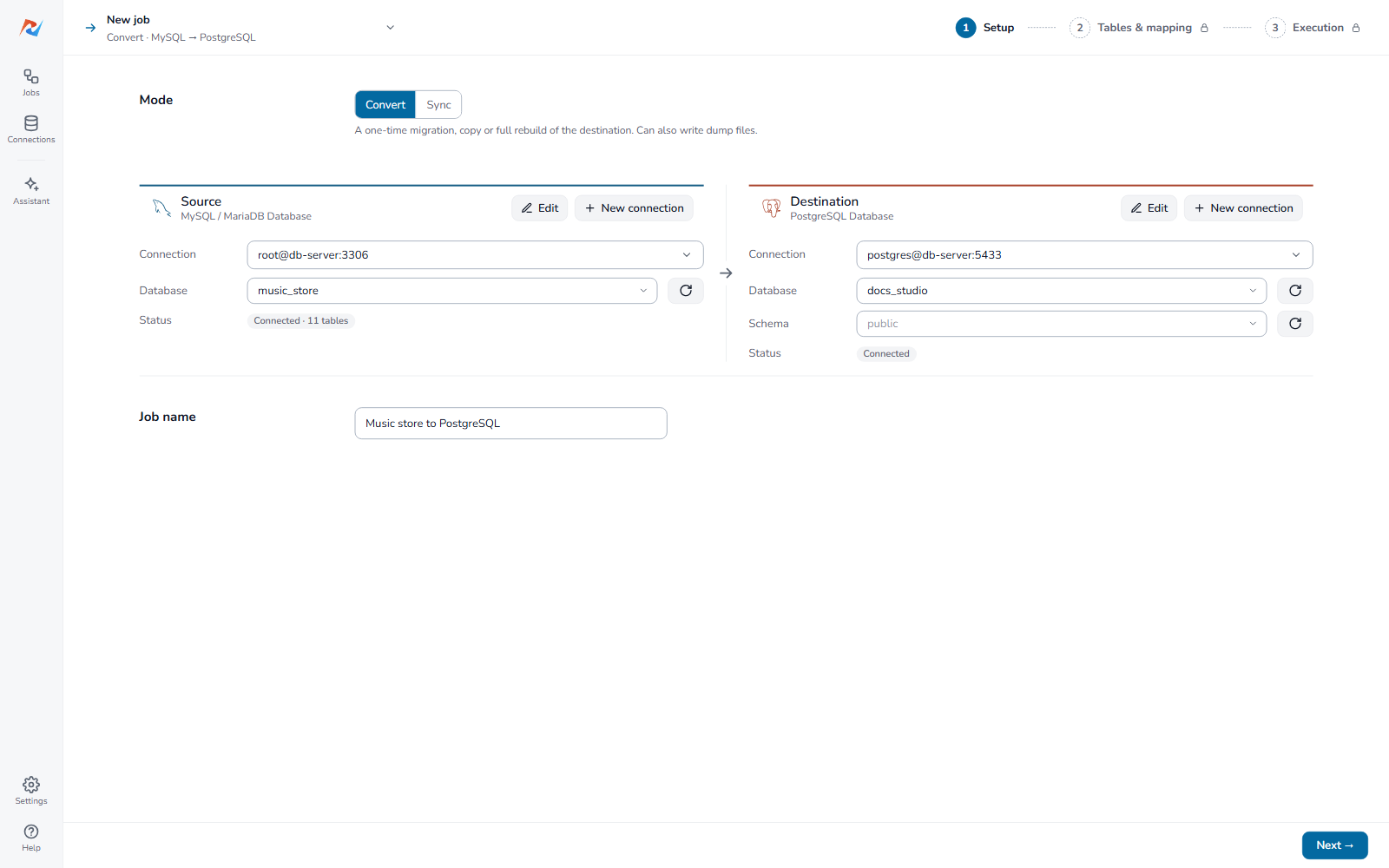
- Pick Convert or Sync.
- Choose the source and the destination. A new connection starts with a card for each database type.
- A connection is saved once and reused by every job.
Tables & mapping
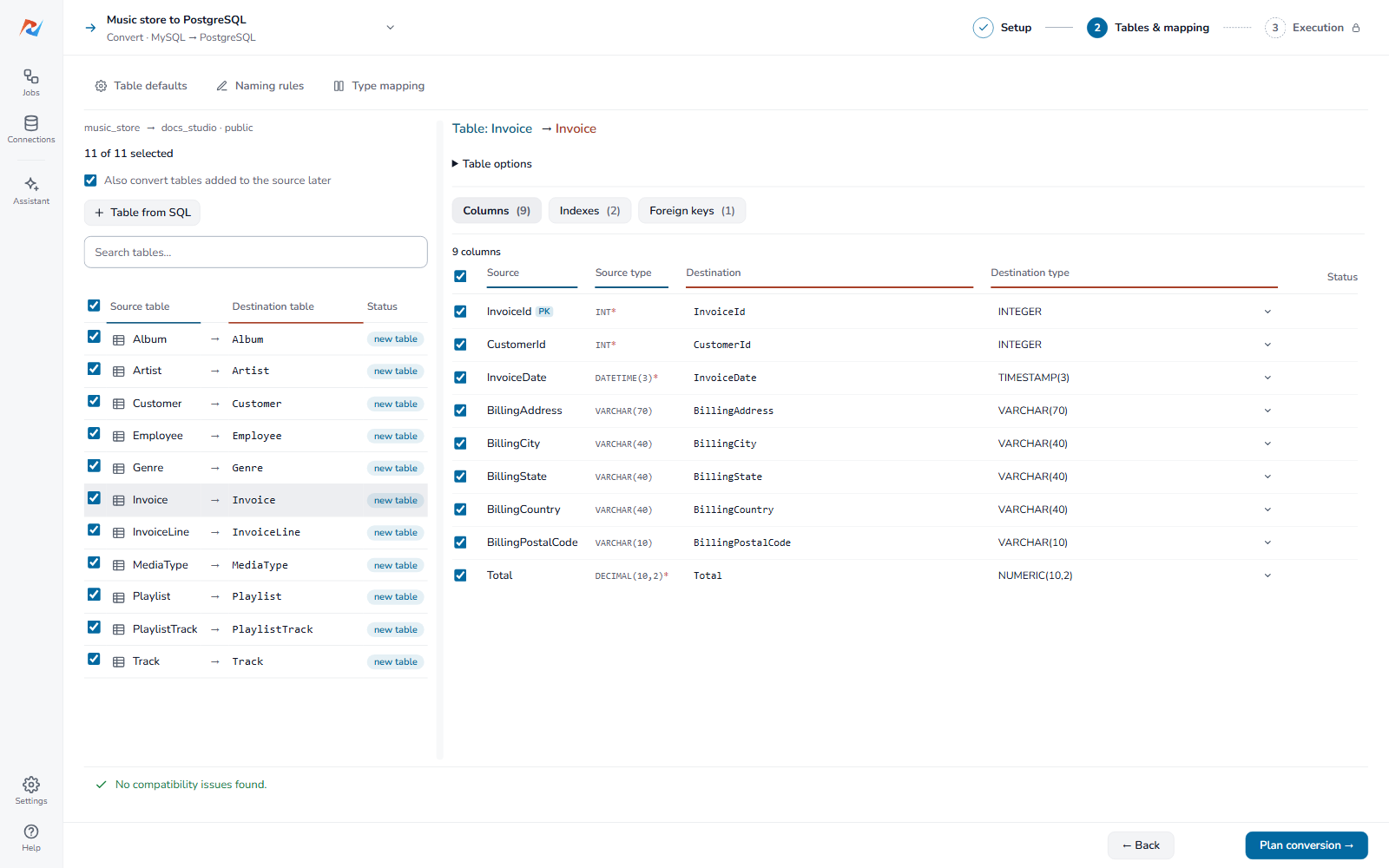
- Pick the tables.
- Open one: each column shows the destination type it becomes. Change a type or a name in place.
- The line at the bottom names anything that would fail.
Execution
- Review what the run will do and start it.
- Read the log as it goes.
- The job stays in the list to run again or put on a schedule.
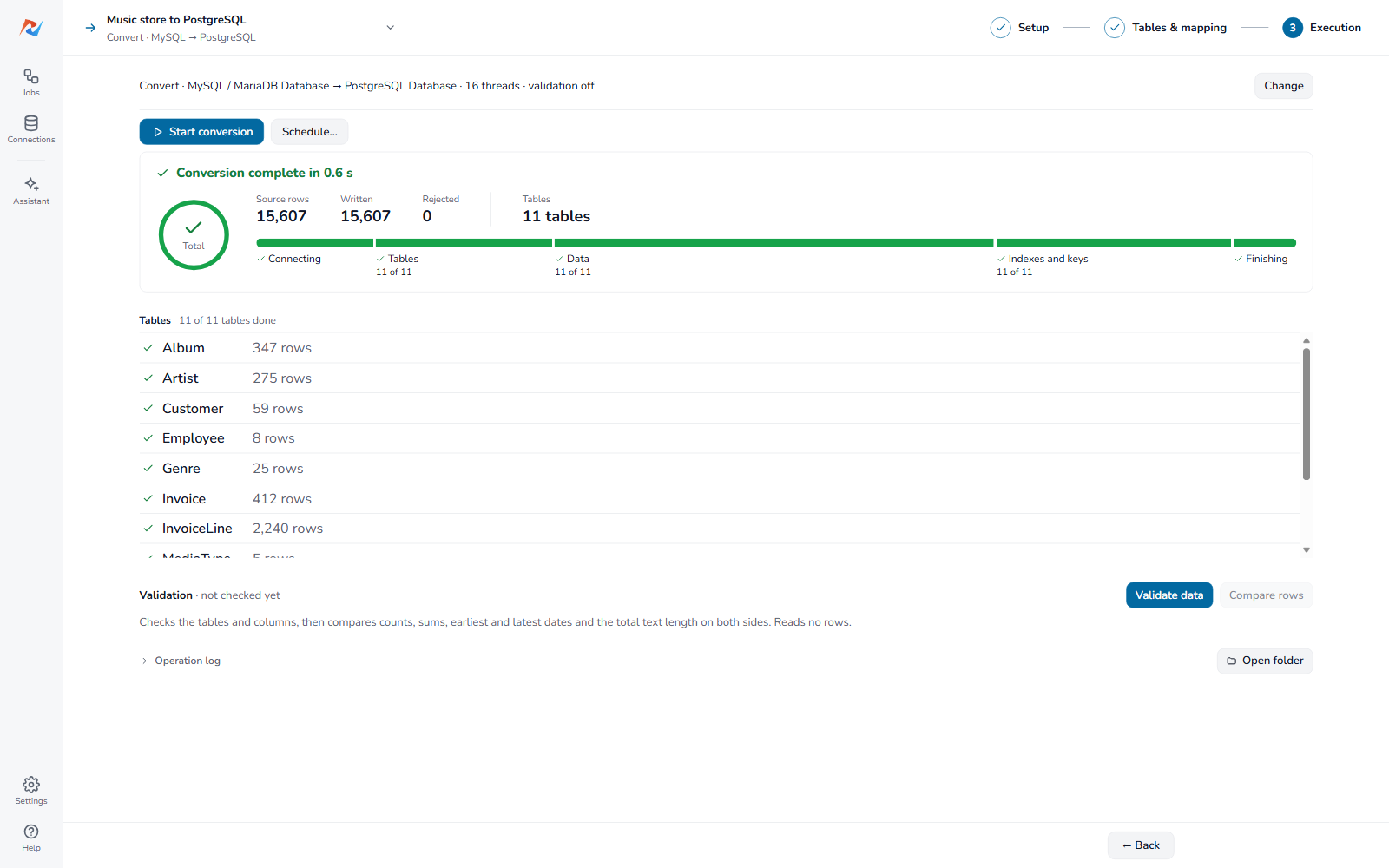
Table from SQL
Copy the result of one SELECT: only some rows, only some columns, or a join. The SELECT is checked on the source first, with the columns, their types and sample rows shown.
Describe the table in words and click Generate: the assistant writes the SELECT. Only DBConvert Studio has Generate.
Table from SQLComing from Studio 4.x
Import your saved sessions as jobs: pick the workSettings folder, a copy from another computer works too. Connections with the same name are reused.
A session that cannot be imported is listed with the reason.
Import jobs from Studio 4.xValidate the copy New
A run can finish without errors and still leave changed data: some servers store a value they cannot hold in another form. Validation checks the destination after the run, on three levels:
- Schema - every table and column is there, with the planned type.
- Totals (Validate data) - row counts, sums, earliest and latest dates and text length match on both sides.
- Rows - every row matches the one that was copied. The window shows which rows and columns differ.
Tick Validate after the run on Execution.
How validation worksMuch faster on large databases
Conversion and synchronization now take a fraction of the time.
- Large tables are split across Worker threads, set on Execution.
- Indexes are built after the data is loaded.
Time for a table of 10 million rows
Convert
| Direction | Time |
|---|---|
| MySQL to PostgreSQL | 15 s |
| PostgreSQL to SQL Server | 22 s |
| SQL Server to PostgreSQL | 22.5 s |
| Oracle to MySQL | 32 s |
| MySQL to Oracle | 35 s |
| Firebird to SQL Server | 37 s |
Sync, nothing changed
| Direction | Time |
|---|---|
| PostgreSQL to MySQL | 23 s |
| MySQL to PostgreSQL | 26 s |
Measured on our test stand, single runs. Convert at 16 worker threads; MySQL to PostgreSQL and Firebird to SQL Server at 4.
Run it again
- Saved jobs - a job saves itself as you work. Jobs in the left rail lists them; open one and run it again.
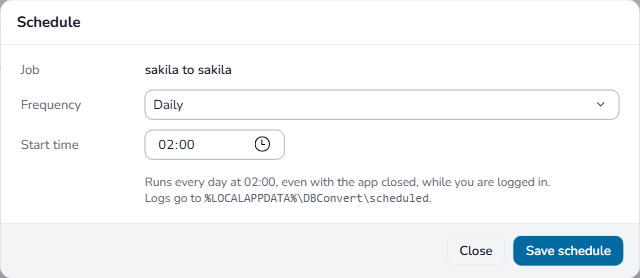
- Schedule… on Execution - daily, weekly or monthly. It runs with the app closed, as long as you are logged in to Windows.
- Command line -
dbconvert-runwith the saved job's name, for your own scripts.