DBConvert Studio
One application for database copy, synchronization, and distribution across desktop, on-premise, and cloud systems.
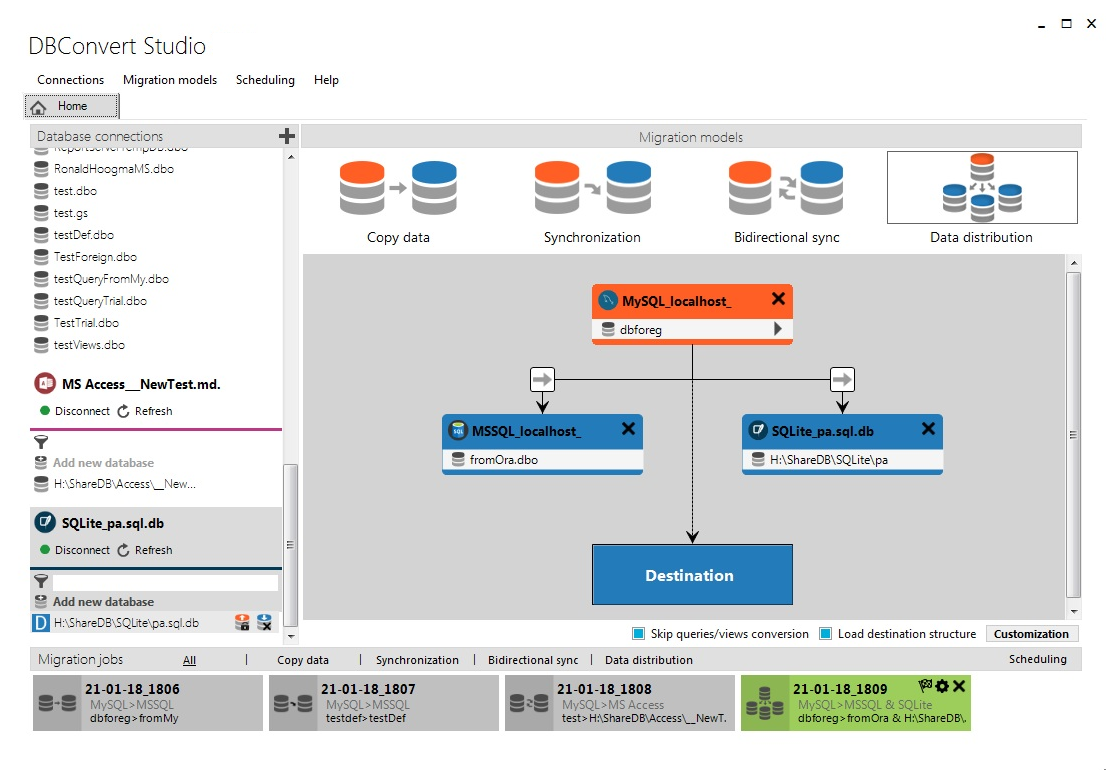
One tool instead of one per database pair
Teams working across several database engines usually end up juggling a separate utility or script for each source-to-target pair. DBConvert Studio handles 30+ database types in a single desktop application.
It also combines conversion and synchronization in one product, so a one-time migration and an ongoing sync job use the same connections and workflow rather than two different tools.
Copy
Move structure and data from one database to another with a straightforward source-to-target flow.
Sync
Run one-way or bidirectional synchronization to keep multiple nodes aligned.
Distribute
Push one source dataset to multiple destinations when the job requires fan-out delivery.
Connect local files, servers, or cloud databases
Each side of a job can be a local database file, a server on your network, or a cloud-managed instance. The same workflow handles all four - the host OS is irrelevant as long as the database is reachable.

DBConvert Studio
Windows desktop app
- Version
- 4.3.1
- Released
- May 25, 2026
- From
- US$ 599
Supported OS
- Windows 11/10/8/7
- Linux via WINE
- macOS via WINE
Requirements
Parallel migration
DBConvert Studio uses a parallel engine to make better use of modern CPUs when copying large datasets and structures.
Supported as source
- Oracle
- SQL Server
- MySQL
- PostgreSQL
- Firebird
- Interbase
- SQLite
Target limitations
Parallel migration is available for all target types except MS Access, MS FoxPro, and SQLite.
Actual throughput still depends on the target database, network, and storage. DBConvert Studio adapts its transfer strategy to the environment, but some targets will always be slower than server-class systems.
30+ databases. One workspace.
From local file formats to cloud-managed engines - connect any combination as source and target in a single application.
 SQL Server
 MySQL
MySQL Oracle
 PostgreSQL
 MariaDB
 Percona
 IBM DB2
 Firebird
 InterBase
 Azure SQL
 Amazon RDS
 Amazon Aurora
 Google Cloud
 Heroku
 Neon
Neon Supabase
 DigitalOcean
 EDB Postgres
 CockroachDB
 YugabyteDB
 Citus
Citus Greenplum
 SingleStore
 TiDB
TiDB Vitess
 SkySQL
 MS Access
 FoxPro
 SQLite
 dBase / xBase
 MS Excel
Four steps from connections to a finished job
The default workflow gets a copy or synchronization job running without deep configuration; object selection, type mapping, filters, threads, and scheduling are available when a job needs them.
Add connections
Add the source and destination databases with their server, port, and credentials, then test and save them.
Pick type and endpoints
Choose Copy, Sync, or Distribution, connect both sides, and select the objects and target database.
Configure (optional)
Adjust type mapping, views, parallel threads, data filters, and sync triggers only when the job requires it.
Run and review
Commit the job, watch progress, and review the activity log. Saved jobs can be scheduled to re-run.

Start your migration with DBConvert Studio
Try the free 30-day trial, or buy a license to keep using it.