
How to build docker images for Windows desktop applications.
This article describes how to create docker images for Windows desktop applications.
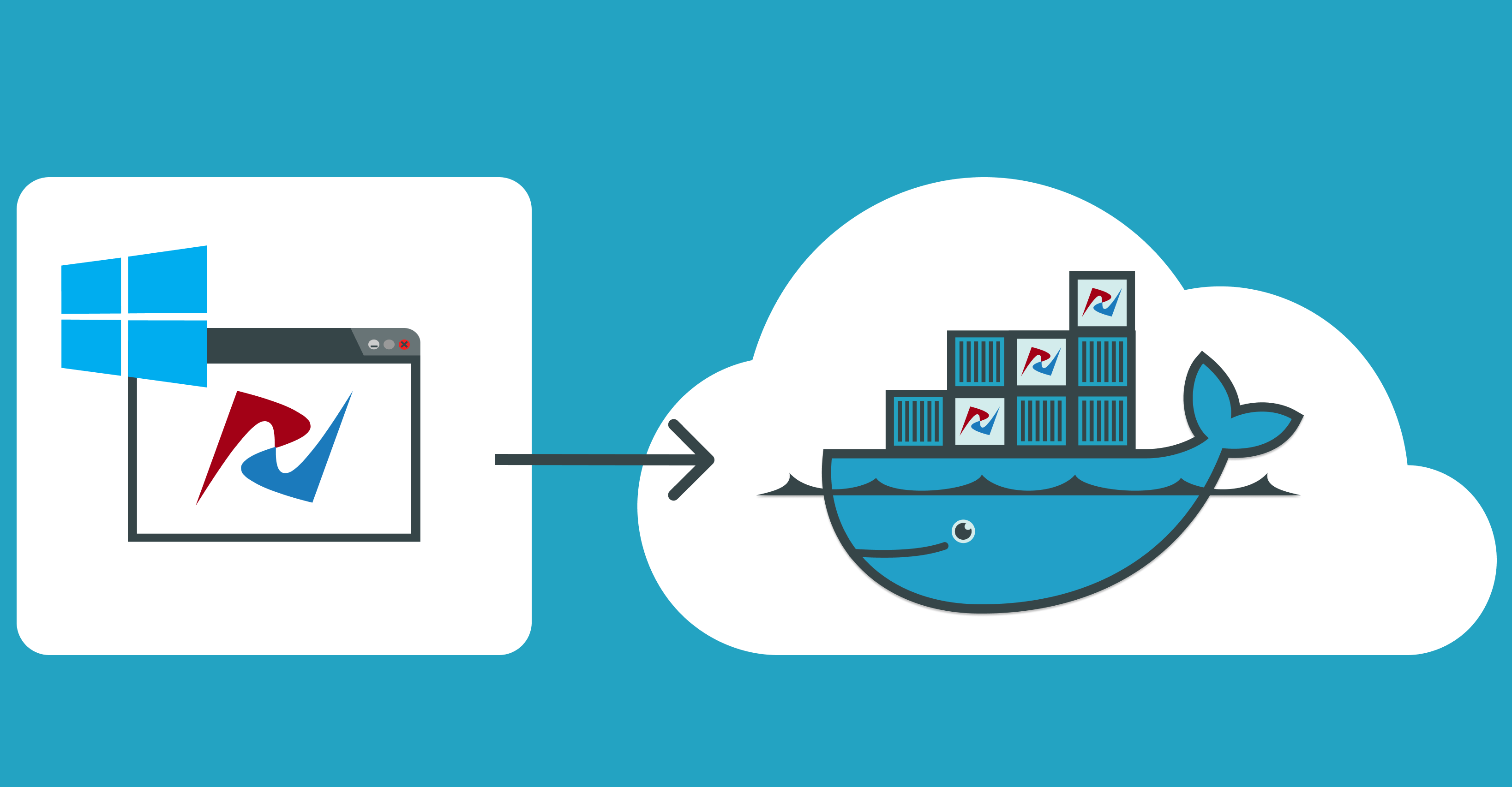
What's wrong with the legacy monolithic architecture of Windows applications?
- Typically, the core business logic of a legacy monolithic application is tightly coupled to its GUI.
- Legacy applications may not scale well enough to meet new customer needs, resulting in decreased performance and increased customer frustration.
- Developers often get stuck in old code when there are so many exciting new technologies available to innovate.
The good news is that moving from a legacy desktop application to a microservice architecture stops the monolithic nightmare.
Dividing a monolithic application into subsystems that can be scaled, developed, and deployed individually is your entry point into the microservices realm.
Docker containers.
Docker is currently the leading container toolbox to deploy microservices to the cloud.
A software container packages the code, its libraries, frameworks, and other dependent components. As a result, the application runs quickly and reliably in any environment, be it a local data center, a public cloud, or a developer's laptop.
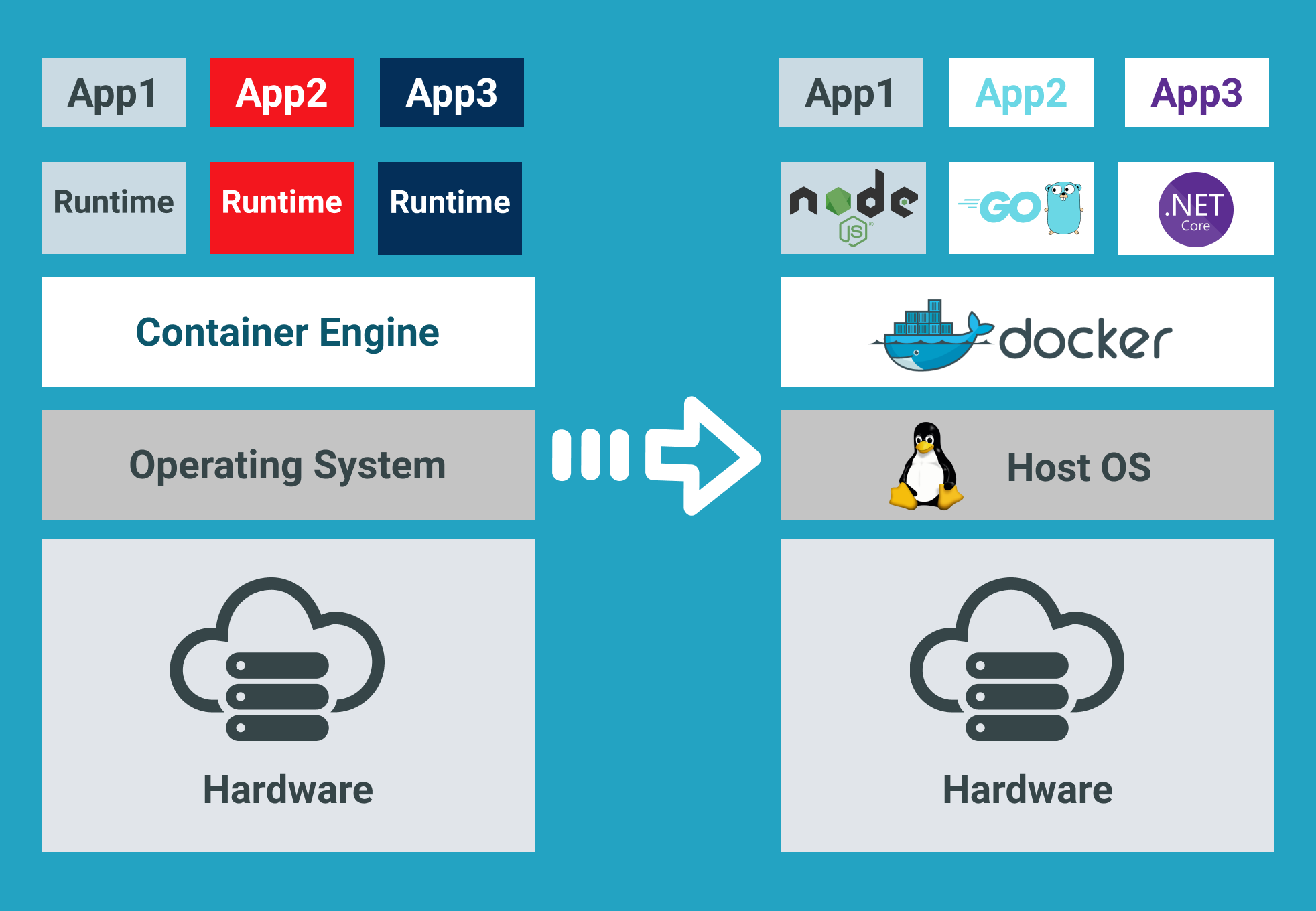
Software containerization solves many of the challenges of software development and deployment, so we embraced this concept when moving our Windows desktop applications to the cloud.
The most suitable types of software to embed in a docker container are non-user interface applications that are run from the command line. Typically Linux-based Docker images are lightweight and widely used in cloud environments.
Unfortunately, in most cases, rewriting all of your Windows application code from scratch to make it cross-platform is too expensive and time-consuming.
Besides, when it comes to platform design, sharing the kernel between Dockerized applications has significant limitations. For example, Windows containers will not be able to run on a Linux host.
Windows container base images.
Microsoft offers Windows containers to deliver containerized services on the Windows platform.
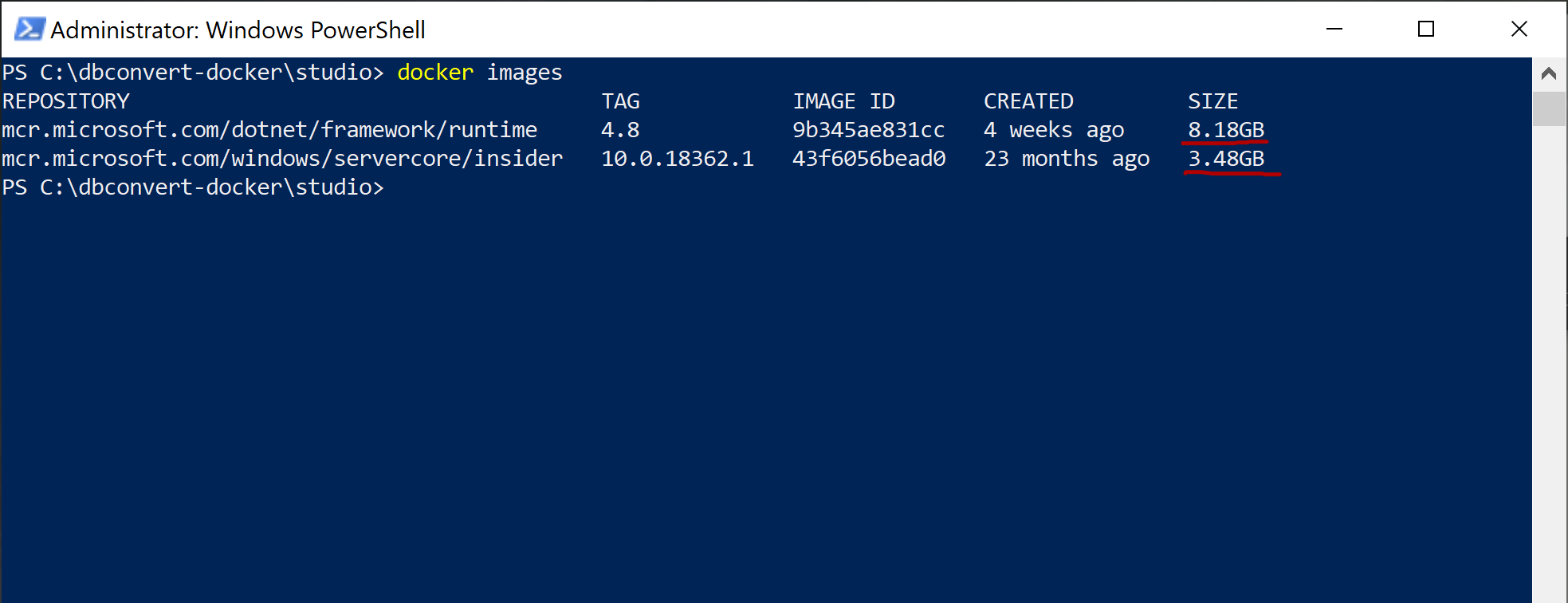
Check out a good article from Microsoft that describes Windows docker container images that users can build from.I will use an Insider Windows Server Core image as a base. This image includes a subset of the Windows Server APIs and is suitable for packaging typical .NET framework applications.
- Insider images are >50% smaller than the .Net Framework Runtime Images.
- Container startup into Windows PowerShell is 30-45% faster.
Dockerizing DBConvert tools.
As an example, I will show how to build a Docker image for DBConvert Studio. It is a classic .NET Windows application running either in GUI mode or in headless mode from the command line. It is also a good source of Docker-related techniques if you want to customize your own Dockerfiles further.
FROM mcr.microsoft.com/windows/servercore/insider:10.0.18362.1

RUN echo "Downloading dbconvert studio"
ADD https://dbconvert.com/downloads/dbconvert_studio.zip /
COPY DBConvert-Studio.reg /
RUN powershell -Command "Write-Host 'Expanding dbconvert archive'; \
    Expand-Archive dbconvert_studio.zip; \
    Write-Host 'Installing dbconvert'; \
    Start-Process msiexec -ArgumentList '/i', 'C:\dbconvert_studio\dbconvert_studio_x64\DbConvertStudioSetup_x64.msi', '/quiet', '/norestart' -NoNewWindow -Wait; \
    Start-Process reg import DBConvert-Studio.reg; \
    Remove-Item -Path c:\dbconvert* -recurse -force; \
    Set-Location -Path 'C:\Program Files\DBConvert\DBConvert Studio x64';"
CMD ["powershell"]
DBConvert Studio Dockerfile
Let's dive deeper into what the Dockerfile actually does.
- The first FROM line pulls the Insider Windows Server Core image.
- The next RUN simply displays the status of the following ADD command. It downloads the installation zip package directly to our new image.
- COPY DBConvert-Studio.reg / command copies the DBConvert registration file info to the root of the image. We will use it later to remove all restrictions on the DBConvert studio unregistered copy of the. (See the reg import command, which will appear later).
Let's take a look at the rest of the PowerShell commands combined into the following RUN command.
- The Write-Host command displays the current status of the operation.
- Expand-Archive - extracts the contents of the newly downloaded zip archive to the root directory of our image.
- Start-Process msiexec command installs the unpacked archive.
- The next "Start-Process reg" command imports the registration file's contents into our docker image's Windows registry.
- Remove-Item removes all unnecessary intermediary files from the final image.
- Set-Location sets the specified location as a working directory.
- CMD ["powershell"] specifies what command to run within the container. In fact, we can call straight CMD ["DBConvert.exe", "/ Session:", "mysql2mysql"] , but each time it may be a different session configuration file. Therefore, it is better to bind the directory on the host to the directory inside the container with the --volume (-v) flag
Building Docker image and starting container.
Launch the following command in the terminal to build your Docker image.
docker build -t slotix/dbconvert-studio .The next command docker run starts a container from the newly created DBConvert Studio image.
docker run --name studio -it --rm -v "c:\dbconvert-docker\studio\workSettings:C:\PROGRAM FILES\DBCONVERT\DBConvert Studio x64\workSettings" slotix/dbconvert-studio:latest DBConvert.exe /Session:"my2my_copy"Containers are immutable in design. This means that the container will not be changed during its life cycle: no updates, no patches, no configuration changes.
When starting DBConvert studio from the command line, you need to pass in a ready-made session file that includes the configured database connections involved in the migration and some other parameters.
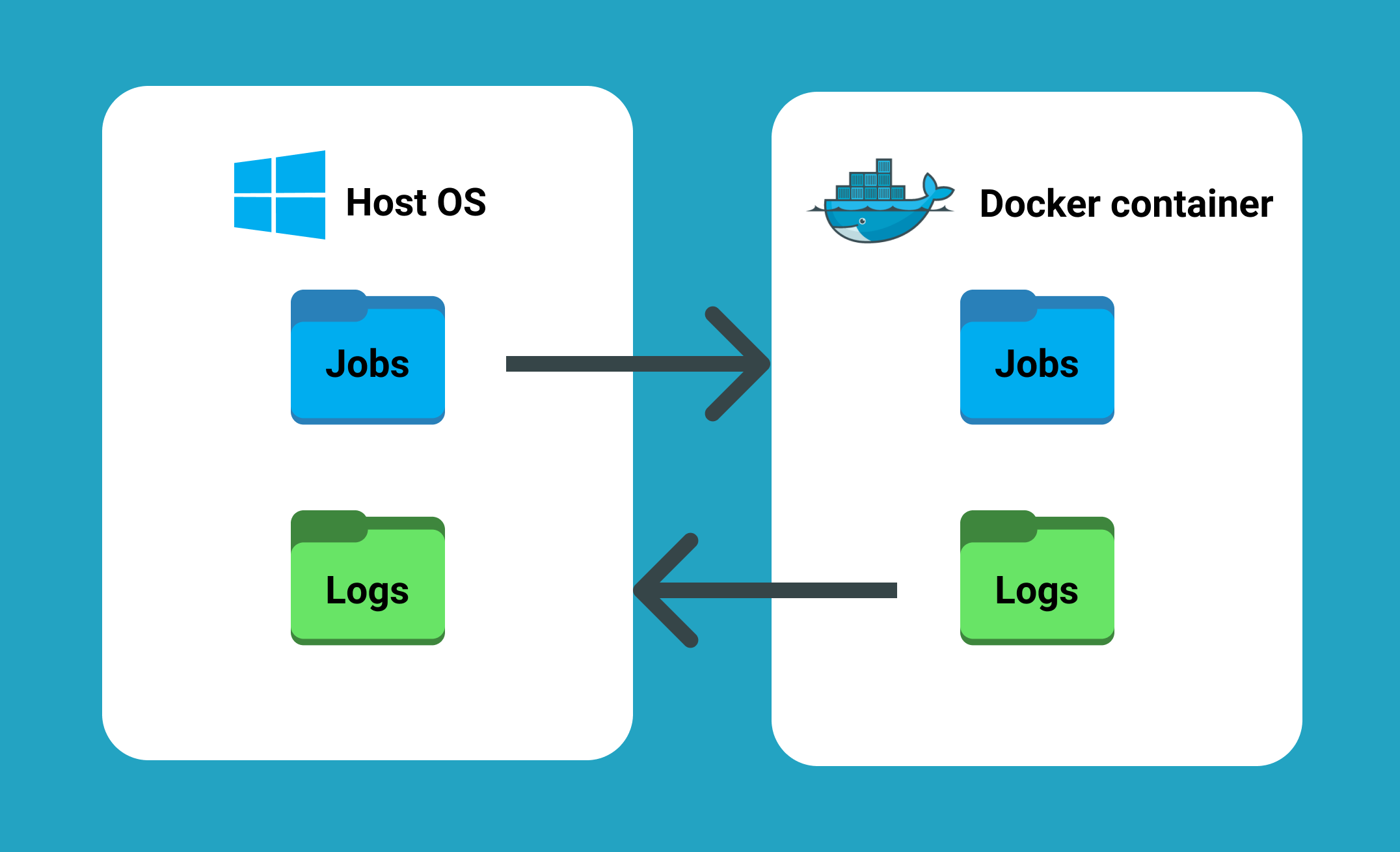
-v flag mounts c:\dbconvert-docker\studio\workSettings directory on the host machine into the folder C:\PROGRAM FILES\DBCONVERT\DBConvert Studio x64\workSettings inside the running container.
- This way we can feed DBConvert Studio with jobs located outside of the container.
- Another advantage of directory binding is that it works and vice versa. When a process completes, a log file is generated. It appears both inside the container directory and on the host computer.
Check out github repository with Dockerfile from this article at https://github.com/slotix/dbconvert-docker
Update: a simpler Docker deployment is now available
This article describes an early approach to running DBConvert Studio inside a Windows container. It remains useful if you need to package an existing Windows desktop application for headless execution.
For new self-hosted database migration and replication deployments, we now recommend DBConvert Streams. It runs on a Linux host with Docker Compose and includes a browser-based UI, REST API, database explorer, one-time migration mode, and continuous CDC replication for MySQL and PostgreSQL.
See the DBConvert Streams Docker deployment guide for the current installation process.
Final thoughts.
Running DBConvert Studio inside a Windows container was not the simplest deployment model, but it was a practical way to reuse an existing Windows application without rebuilding it from scratch.
The approach described in this article is now mostly relevant for legacy workflows and as an example of packaging desktop software for headless execution. For new DBConvert deployments, see the updated recommendation above.