
How to Convert Microsoft Access to MySQL — A 2025 Guide for Developers and IT Teams
Discover how to convert Microsoft Access to MySQL in 2025 with this comprehensive guide. Learn why migrate from Access limitations to MySQL's scalability, compare manual vs automated migration methods, and get step-by-step instructions for reliable database conversion with minimal downtime.

Microsoft Access has served millions of organizations as their entry point into database management, but many growing businesses eventually discover that what started as a simple solution becomes a significant limitation. If your Microsoft Access database is showing signs of strain—frequent corruption, slow performance, or user access conflicts—you're facing a decision that could make or break your application's future.
While Microsoft Access served many organizations well for desktop database needs, the demands of modern business applications require more robust, scalable solutions. MySQL has emerged as the go-to choice for organizations outgrowing Access limitations.
This comprehensive guide walks you through the Access database migration process, comparing manual methods with automated tools, and showing you the most efficient path to convert Microsoft Access to MySQL in 2025.
What You'll Gain from This Migration
Performance Improvements:
- Query response times: From 45+ seconds to under 2 seconds (typical for large datasets)
- User capacity: From limited desktop access to 1,000+ simultaneous connections
- Storage: From restrictive file limits to virtually unlimited database growth
Business Benefits:
- Eliminate frequent database corruption issues
- Enable web and mobile application development
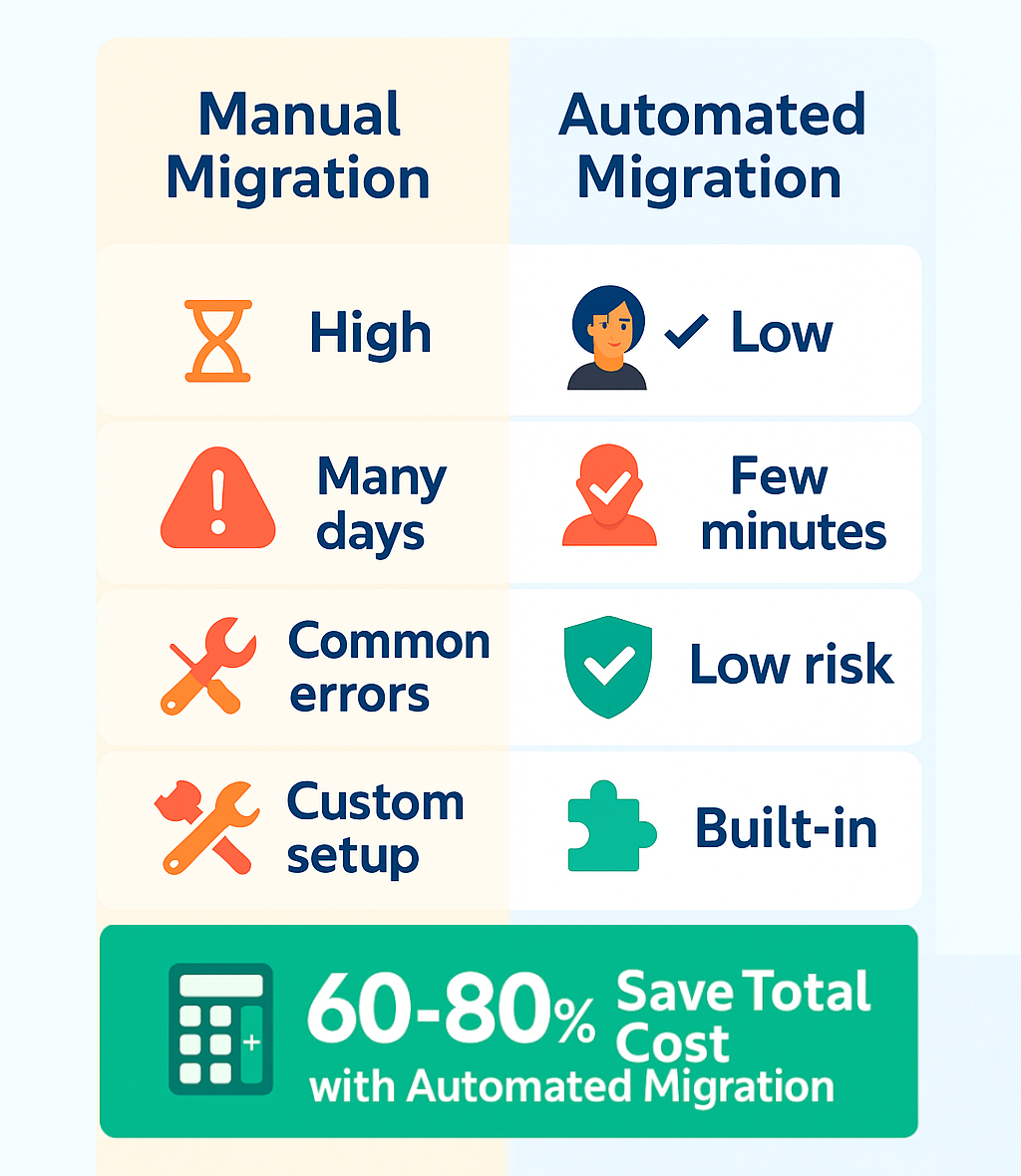
- Reduce IT maintenance overhead by 60-80%
- Achieve cloud platform compatibility
Timeline Expectations:
- Manual migration: 2-4 weeks for complex databases
- Automated migration: 2-8 hours for most databases
- Parallel system operation: Possible during transition
You'll discover why manual migration approaches often fail, how free tools fall short of expectations, and why automated solutions like DBConvert have become essential for reliable database migrations.

Why Move from Microsoft Access to MySQL?
The decision to migrate from Microsoft Access to MySQL typically stems from hitting fundamental limitations that restrict business growth and application performance. In particular, ms access databases often face compatibility and scalability issues when migrating to other platforms like MySQL, making the process challenging for organizations seeking more robust solutions.
File Size and Storage Constraints
Microsoft Access imposes strict storage limitations that become serious bottlenecks for growing businesses. Once your database approaches these limits, you face difficult choices:
- Split data across multiple files
- Implement complex partitioning schemes
- Migrate to a more capable platform
Real-World Impact: A regional healthcare provider discovered their patient records database was causing system freezes during peak hours, forcing them to limit concurrent users to just 8 staff members.
MySQL databases, by contrast, can handle terabytes of data without breaking stride. This scalability means your database can grow alongside your business without requiring architectural overhauls every few years.
Concurrency and User Limitations
Access struggles with multiple simultaneous users, experiencing significant performance degradation as usage increases. Beyond modest user loads, organizations experience: Access databases can support only 10 to 20 concurrent users, making them unsuitable for environments requiring high user concurrency.
- Slow response times (45+ seconds for complex queries)
- Lock conflicts and timeout errors
- Occasional database corruption issues
- Productivity losses during peak usage periods
The file-based architecture wasn't designed for high-concurrency environments.
MySQL handles thousands of simultaneous connections efficiently, making it suitable for web applications, multi-user business systems, and cloud-based solutions that serve global user bases.
Modern Application Integration
Business applications increasingly require web integration, API connectivity, and cloud compatibility. Access databases struggle with these modern requirements, often requiring complex workarounds or middleware solutions that add complexity and maintenance overhead.
Key Integration Challenges:
- Limited REST API support
- Complex cloud deployment requirements
- Incompatibility with modern development frameworks
- Restricted mobile application connectivity
MySQL integrates seamlessly with contemporary development frameworks, supports RESTful APIs natively, and runs efficiently on cloud platforms like AWS RDS, Google Cloud SQL, and Azure Database for MySQL.
Performance and Query Optimization
MySQL delivers significantly improved query performance on large datasets. While Access may handle small data sets adequately, complex queries on substantial data volumes often result in timeouts or system instability. MySQL's query optimizer and indexing capabilities ensure consistent performance as data grows, with many organizations reporting dramatic performance improvements after migration.
Common Migration Concerns Addressed
Before diving into migration methods, let's address the most frequent concerns organizations have:
"What About Our Custom VBA Code?"
VBA code requires manual conversion since it's application logic rather than database structure. However:
- Standard Access queries convert automatically to MySQL views
- Business logic can be reimplemented in modern programming languages
- Most organizations find this an opportunity to improve and modernize their code
"How Much Downtime Should We Expect?"
Automated Migration Approach:
- Initial migration: 2-8 hours depending on database size
- Parallel system operation: Possible with synchronization tools
- Final cutover: 15-30 minutes for DNS/connection changes
Manual Migration Approach:
- 2-4 weeks of development time
- Multiple testing phases
- Higher risk of extended downtime due to issues
"What's the Total Cost Including Hidden Expenses?"
| Cost Category | Manual Migration | Automated Migration |
|---|---|---|
| Primary Costs | ||
| Developer time | $15,000-50,000 | $3,000-8,000 |
| Testing and debugging | $5,000-15,000 | $2,000-5,000 |
| Migration software | Free tools (limited) | $200-2,000 |
| Risk Costs | ||
| Data loss recovery | $10,000+ potential | Minimal risk |
| Timeline overruns | Variable (often high) | Predictable timeline |
| Failed migration restart | 50-100% of initial cost | Rare occurrence |
| Time Investment | ||
| Development effort | 2-4 weeks | 2-8 hours |
| Testing phase | 1-2 weeks | 1-2 days |
| Time savings | Baseline | 80-90% reduction |
| Business Impact | ||
| System downtime | Days to weeks | Hours |
| User productivity loss | High during extended migration | Minimal disruption |
| Opportunity cost | Delayed modernization | Faster time to production |
Before you start: see what the database holds.
To see what an .mdb or .accdb file holds before converting it, open it in the free MDB and ACCDB Viewer: tables with their Access types, relationships as an ER diagram, saved queries and read-only SQL, in the browser, with no upload and no Access installed.
Manual Migration Methods: Exporting Data from Access
Converting your microsoft access database to MySQL manually involves several time-consuming steps that require technical expertise and careful attention to detail.
Manual Migration Process Overview:
- Export Data: Begin by exporting your Access database tables to csv files that contains the data for transfer.
- Create Schema: Manually create the schema in MySQL, ensuring that each mysql table mirrors the structure of the corresponding Access table.
- Select Tables: Retrieve and select the table names you wish to migrate, making sure to include all relevant database objects.
- Import Data: Import the exported data into MySQL. Review and edit column mappings to ensure that data types, default values, and other attributes are correctly transferred.
- Establish Relationships: After importing the necessary tables, configure constraints to maintain data integrity and establish proper relationships between tables.
ODBC Driver Configuration
The traditional approach starts with setting up ODBC drivers and DSN connections between your Access database and target MySQL server. This process involves:
Technical Requirements:
- Installing compatible MySQL ODBC drivers on your Windows system
- Configuring Data Source Names (DSN) with proper connection parameters
- Managing compatibility issues between 32-bit and 64-bit environments
- Troubleshooting connection timeouts and authentication problems
Common Issues:
- Architecture mismatches (32-bit Access with 64-bit drivers)
- Firewall and network connectivity problems
- Authentication failures with cloud-hosted MySQL
- Version compatibility conflicts
Many IT teams struggle with ODBC configuration, especially when dealing with mixed environments or cloud-hosted MySQL instances.
Export and Import Process
Once connectivity is established, the manual migration process typically follows these steps:
- Data Export: Export Access data from individual tables to CSV files.
- Schema Creation: Create the target database schema manually in MySQL.
- Data Import: Import data using MySQL's
LOAD DATA LOCAL INFILEcommand or similar tools. - Index Recreation: Recreate indexes, primary keys, and foreign keys.
- Relationship Establishment: Establish relationships between converted tables.
- Verification: Verify data integrity and resolve any import errors.
Data Type Mapping Challenges
One of the most error-prone aspects of manual migration involves mapping Access data types to MySQL equivalents:
| Access Data Type | MySQL Equivalent | Common Issues |
|---|---|---|
| MEMO | TEXT/LONGTEXT | Size limitations, encoding |
| CURRENCY | DECIMAL(19,4) | Precision loss risks |
| DATE/TIME | DATETIME | Format conversion errors |
| OLE Object | BLOB | Requires special handling |
| AutoNumber | INT AUTO_INCREMENT | Sequence preservation |
Critical Mapping Considerations:
- Converting MEMO fields to appropriate MySQL text types
- Handling CURRENCY data types that don't have direct MySQL equivalents
- Managing date/time formats and default values
- Dealing with OLE Object fields that require special handling
Common Mapping Errors: For example, if a MEMO field in Access is mapped to a MySQL VARCHAR(255), any data exceeding 255 characters will be truncated, leading to data loss. To fix common data type mapping errors, review the field types in both databases and adjust them as needed.
Incorrect mappings can result in data truncation, precision loss, or complete import failures that require time-consuming troubleshooting.
Skip the manual type-mapping work. DBConvert moves the Access schema, data, indexes, and relationships to MySQL automatically, and shows the data-type mapping for review before a single row moves — no MEMO-to-VARCHAR truncation surprises.
Download the free trial →See the Access → MySQL toolTime Investment and Error Risks
Typical Manual Migration Timeline:
- Small database (< 100MB): 3-5 days
- Medium database (100MB - 1GB): 1-2 weeks
- Large database (approaching limits): 2-4 weeks
- Complex relationships: Add 50-100% to timeline
Manual migration projects are susceptible to human error, particularly when recreating relationships and constraints. Missing indexes or improperly configured foreign keys can impact application performance or data integrity.
Popular Free Tools — Bullzip, Workbench, and Their Limitations
Several free tools promise to simplify the Access to MySQL conversion process, but real-world experience reveals significant limitations that often frustrate IT teams. Selecting the right tool for database migration is crucial to ensure efficiency, reliability, and compatibility throughout the process. Bullzip provides a straightforward wizard for basic migrations from Access to MySQL, but it may not handle complex scenarios effectively.
MySQL Workbench Migration Wizard
MySQL Workbench includes a migration wizard designed to convert access databases to MySQL format. While this tool offers a graphical interface that seems user-friendly, it suffers from several critical limitations. The built-in Migration Wizard supports Access-to-MySQL conversion, but its functionality is best suited for simpler databases.
Technical Limitations:
- Requires precise ODBC driver configuration (same setup challenges as manual methods)
- Architecture compatibility issues between 32-bit Access databases and 64-bit systems
- Frequent connection failures or incomplete migrations
- Limited support for complex Access queries and relationships
Functionality Gaps:
- No automated synchronization capabilities
- Unsuitable for phased migrations
- Can't run both systems in parallel during transition
- Limited error reporting and troubleshooting support
The migration wizard works best for simple, straightforward databases but struggles with real-world complexity that most businesses encounter.
Bullzip Access to MySQL
Bullzip Access to MySQL represents another free option that promises simple database conversion. However, user feedback consistently highlights reliability issues:
Known Problems:
- Frequent failures when processing large access databases
- Incomplete transfers that require extensive manual verification
- Limited error reporting that makes troubleshooting difficult
- No support for ongoing synchronization between source and target systems
- Missing Relationship Extraction: Most free tools like Bullzip skip the crucial step of extracting relationship data from Access's
MSysRelationshipstable, leaving users to manually recreate all foreign keys and constraints in MySQL
Critical Limitation - Relationship Handling: Free tools typically export only flat tables without preserving the relational structure that makes databases functional. As noted in Bullzip's own documentation:
"It will convert the table definitions and data, but it does not handle complex relationships or advanced database logic."
This means:
- No foreign key extraction from
MSysRelationships - No referential integrity preservation
- Manual recreation of all table relationships required
- Loss of critical business logic embedded in database structure
User experiences consistently confirm this limitation:
"Most tools I tried just dumped the tables — I had to recreate the relationships manually in MySQL Workbench"
(Stack Overflow user feedback).
Critical Update Status: The latest release of Bullzip Access to MySQL is version 5.4.0.282, dated November 7, 2017. This means the tool has not been updated for over 7 years and may lack compatibility with:
- Access 2019 and newer versions
- MySQL 8.0+ features
- Modern Windows security requirements
- Current cloud platform integrations
Comparison: Free Tools vs Professional Solutions
| Feature | Free Tools | Professional Tools |
|---|---|---|
| Complete migration | ❌ Partial | ✅ Comprehensive |
| Error handling | ❌ Limited | ✅ Detailed reporting |
| Ongoing support | ❌ None | ✅ Active development |
| Cloud compatibility | ❌ Limited | ✅ Full support |
| Data integrity | ❌ Basic | ✅ Verified |
| Synchronization | ❌ None | ✅ Real-time options |
Common Problems with Free Tools
Free migration tools share fundamental limitations making them unsuitable for business-critical migrations:
- No relationship extraction - Export only flat tables, requiring manual recreation of foreign keys
- Poor maintenance - Tools like Bullzip haven't been updated since 2017
- Limited compatibility - Struggle with cloud instances and modern security requirements
- Minimal support - No recourse when issues arise with newer software versions
A professional MySQL migration tool avoids these problems and ensures reliable database transfers.
The Better Way: Automated Access to MySQL Migration with DBConvert
Professional database migration requires tools designed specifically for reliability, completeness, and efficiency. DBConvert addresses the fundamental limitations of manual methods and free tools through comprehensive automation and enterprise-grade features, including support for linked tables during the migration process.
Comprehensive Schema Conversion
DBConvert automatically handles the complete conversion process, including: Once the data transfer is completed, a report is generated summarizing how much data was transferred, providing users with a clear overview of the migration's success.
Database Objects:
- Tables with all data types and constraints
- Linked tables migration from Access to MySQL
- Indexes and performance optimizations
- Primary and foreign key relationships
- Data integrity constraints
- Check constraints and validation rules
Advanced Features:
- Automatic data type mapping with precision preservation
- Foreign keys and referential integrity constraint recreation
- Index optimization for MySQL performance characteristics
- Constraint validation and error reporting
The tool maps Access data types to appropriate MySQL equivalents while preserving data precision and handling edge cases that commonly cause manual migrations to fail.
Flexible Migration Options
DBConvert supports both one-time migration and ongoing synchronization between your source access database and target mysql server. This flexibility enables phased migration strategies where you can:
Migration Strategies:
- Parallel Systems: Run Access and MySQL simultaneously during testing and user training
- Incremental Sync: Synchronize data changes between systems during transition
- Gradual Cutover: Implement phased migration processes that minimize business disruption
- Backup Systems: Maintain contingency systems for risk mitigation
Synchronization Options:
- Access to MySQL: Keep MySQL updated with Access changes during testing
- MySQL to Access: Update Access with MySQL changes for legacy support
- Scheduled synchronization: Daily, weekly, or custom intervals
- Real-time synchronization: For critical applications requiring immediate updates
Cloud Platform Compatibility
The tool provides native support for cloud-hosted MySQL platforms, eliminating complex networking and security configuration:
Supported Cloud Platforms:
- Amazon Web Services (AWS RDS)
- Google Cloud SQL
- Microsoft Azure Database for MySQL
- DigitalOcean Managed Databases
- Other standard MySQL cloud implementations
Cloud-Specific Features:
- SSL/TLS encrypted connections
- VPC and security group integration
- Multi-region deployment support
- Backup and disaster recovery compatibility
Direct Connection Architecture
DBConvert operates without requiring ODBC drivers or complex DSN configuration. The tool connects directly to both Access and MySQL databases, eliminating the compatibility and setup issues that plague traditional migration approaches.
Technical Advantages:
- No driver installation or configuration required
- Eliminates 32-bit/64-bit compatibility issues
- Direct file access for optimal performance
- Simplified network configuration
Comprehensive Error Reporting
When issues occur during migration, DBConvert provides detailed logs and error reports that help identify and resolve problems quickly:
Error Reporting Features:
- Real-time progress monitoring
- Detailed error logs with specific table and record information
- Data validation reports
The tool validates data integrity throughout the conversion process and provides verification reports to confirm successful migration.
Step-by-Step: Converting Access to MySQL Using DBConvert
The automated migration process with DBConvert follows a straightforward workflow that minimizes technical complexity while ensuring comprehensive data transfer.
Installation and Initial Setup
- Download and Install: Begin by downloading DBConvert from the official website and installing it on a system with access to both your source Access database and target MySQL server
- System Requirements: Ensure your system meets minimum requirements (Windows 10+, 4GB RAM, 1GB disk space)
- Network Access: Verify connectivity to your MySQL server (on-premises or cloud-hosted)
The installation process requires no additional driver configuration or complex setup procedures.
Configure Database Connections
Launch DBConvert and configure connections to your source and target databases:
Source Connection Setup:
- Browse to your MS Access database file (.MDB or .ACCDB format)
- Verify file accessibility and permissions
- Test connection to ensure database isn't corrupted

Destination Connection Setup:
- Enter MySQL server connection parameters:
- Hostname or IP address
- Port (typically 3306)
- Username and password
- Target database name
- Configure SSL settings for secure connections
- Select the appropriate character set (e.g., UTF-8, cp1252, or Japanese) to ensure correct data encoding and prevent issues with text display or data integrity during migration
- Connection settings can be saved for reuse in future migrations, streamlining the process and avoiding the need to re-enter parameters. Be sure to save your connection settings to further streamline and automate future migrations.

Cloud Connection Examples:
- AWS RDS:
mydb.cluster-xyz.us-east-1.rds.amazonaws.com - Google Cloud:
10.x.x.x(private IP) or public IP with SSL - Azure:
myserver.mysql.database.azure.com
Test Connections: Verify connectivity to both databases before proceeding. This step prevents issues during the actual migration process.
Select Migration Scope
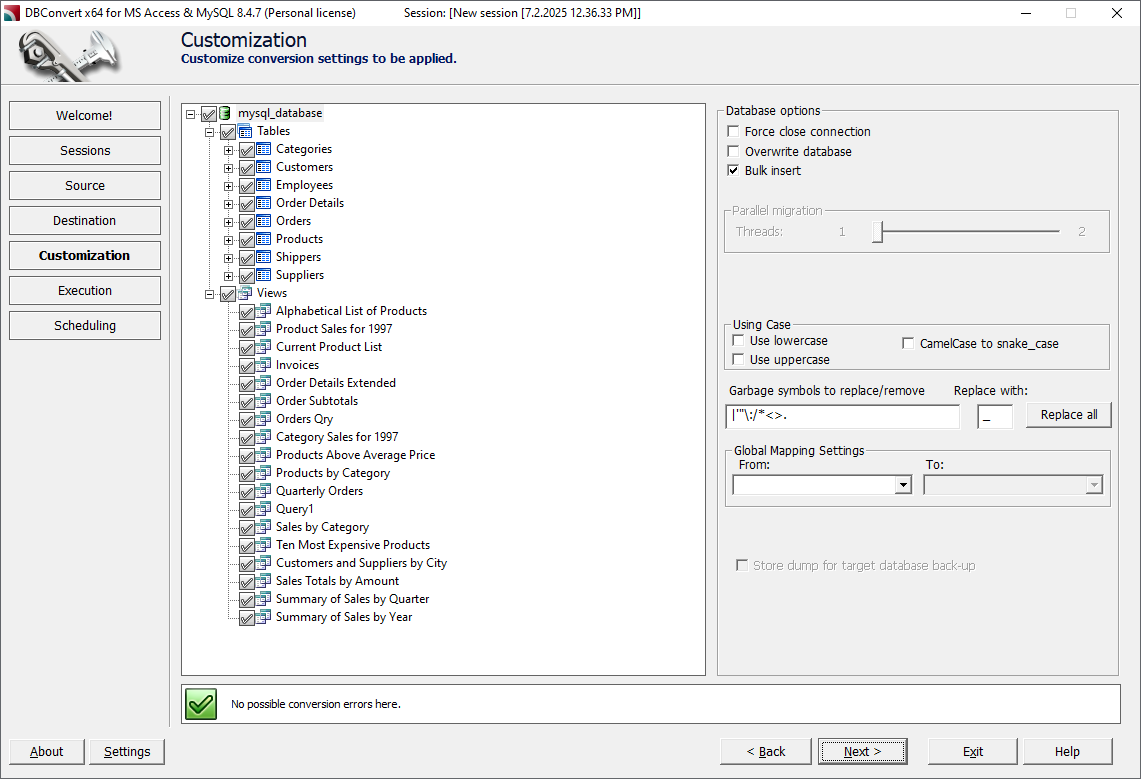
Choose which database objects to migrate based on your specific requirements:
Migration Options:
- All Tables: Migrate the entire database structure and data
- Selected Tables: Choose specific tables for partial migration
- Related Tables: Automatically include tables connected by foreign key relationships
- Schema Only: Transfer structure without data for testing purposes
Advanced Selections:
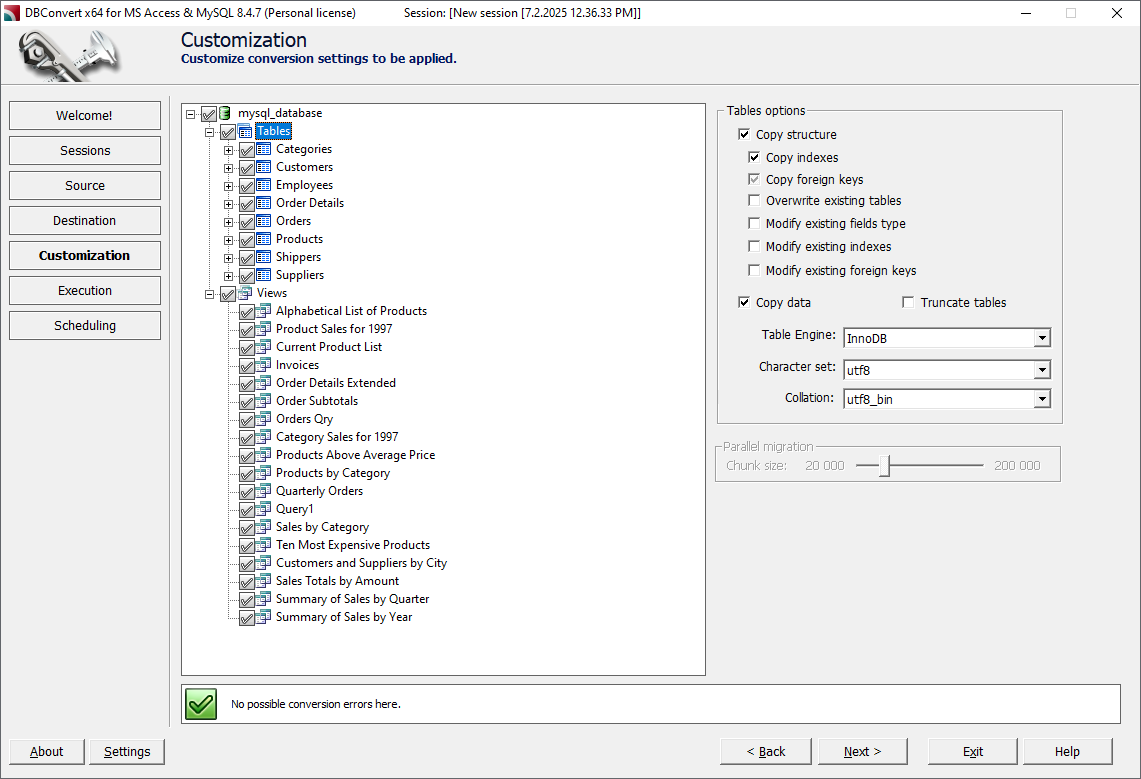
- Indexes and Constraints: Preserve database optimization and integrity features
- Table Mapping: Rename tables or modify structure during migration
- Data Filters: Apply WHERE clauses to migrate subset of records
Configure Data Type Mapping
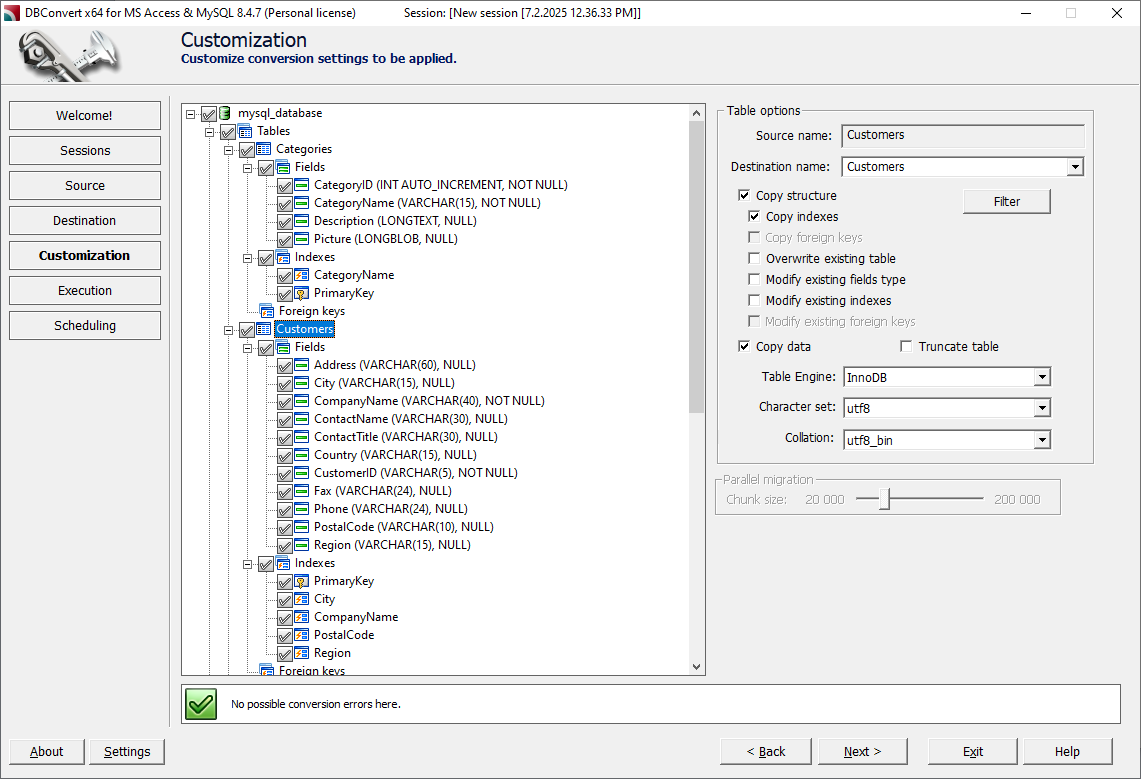
Review and customize the automatic data type mappings between Access and MySQL:
Automatic Mappings:
- MEMO fields → MySQL TEXT/LONGTEXT types
- CURRENCY → DECIMAL(19,4) with precision preservation
- DATE/TIME → DATETIME with timezone handling
- AutoNumber → INT with AUTO_INCREMENT
Customization Options:
- Adjust numeric precision for financial data
- Set character encoding for international character support
- Configure timestamp handling and default values
- Handle special data types specific to your application
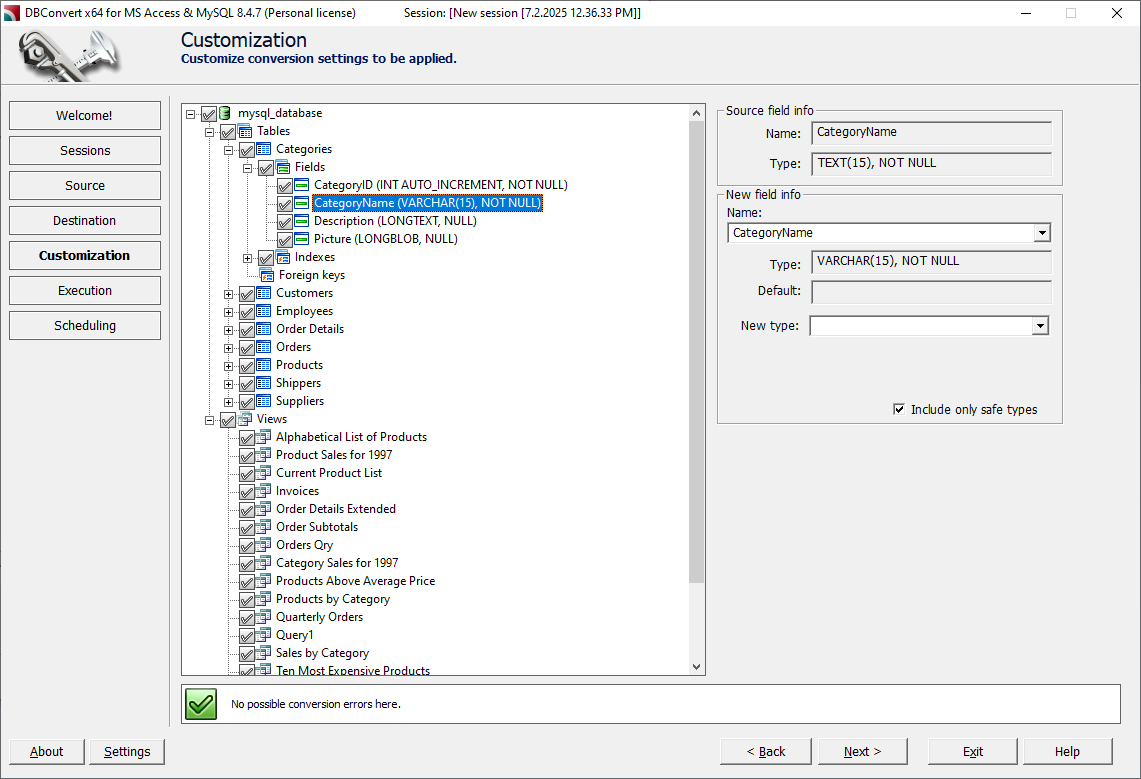
Best Practice Recommendations:
- Review all CURRENCY field mappings for financial accuracy
- Verify date/time formats match application expectations
- Ensure text field sizes accommodate largest expected values
Execute Migration
Start the migration process and monitor progress through the real-time status display:
Progress Monitoring:
- Table-by-table progress indicators with estimated completion times
- Record count verification for each table showing source vs. migrated counts
- Real-time error reporting for any issues encountered
- Memory and performance metrics
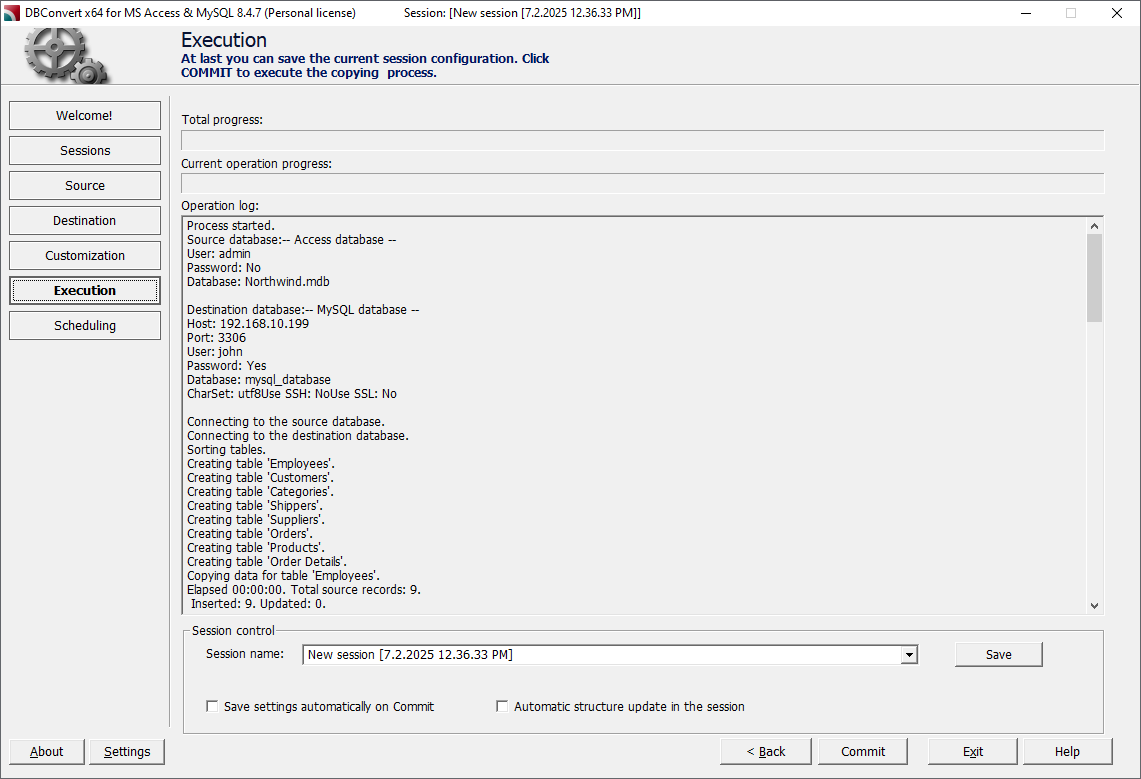
Migration Phases:
- Schema Creation: Database structure, tables, and indexes
- Data Transfer: Records with validation and error checking
- Constraint Creation: Foreign keys and relationships
- Index Optimization: Performance tuning for MySQL
- Final Validation: Integrity checks and verification
- Saved Jobs: Migration jobs can be saved for future use, allowing you to quickly reuse configurations without re-entering parameters each time.

Performance Optimization:
- Batch processing for large tables
- Parallel processing where possible
- Memory-efficient streaming for large datasets
- Automatic retry for temporary network issues
Configure Ongoing Synchronization
For phased migrations or parallel system operation, set up synchronization between your access databases and MySQL using DBSync for Access & MySQL, a specialized synchronization tool designed for ongoing data consistency.
Understanding Database Synchronization Types: Database synchronization ensures data consistency between databases through different mechanisms. Learn more about what is database synchronization and its various types:
- Insert Sync: Copies new records from source to target when no matching primary key exists
- Update Sync: Replaces changed records in target database to maintain data consistency
- Drop Sync: Removes obsolete records from target that no longer exist in source
- Mixed Sync: Combines all three types for complete database synchronization
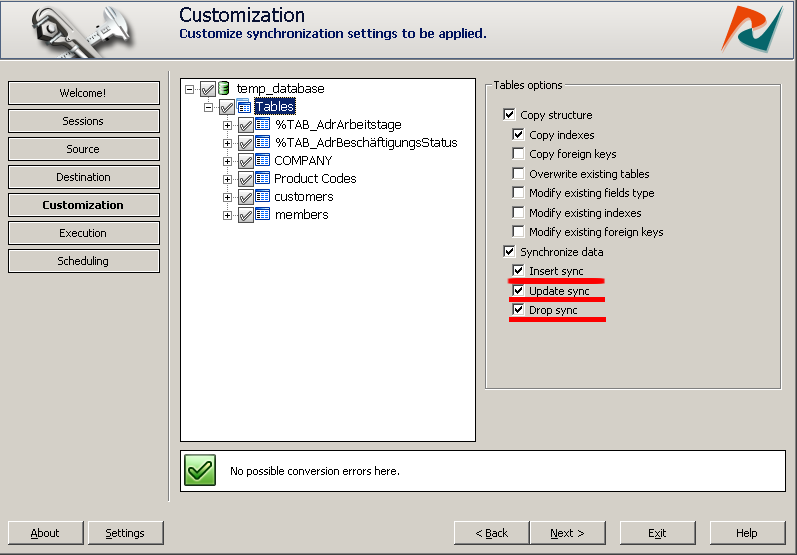
Synchronization Configuration:
- Access to MySQL: One-way sync from Access to MySQL
- MySQL to Access: One-way sync from MySQL to Access
- Schedule Options: Configure daily, weekly, or custom sync intervals
- Data Filters: Sync only specific tables or record types
DBSync Features:
- Real-time data synchronization capabilities
- Advanced conflict resolution mechanisms
- Automated scheduling and monitoring
- Support for complex data transformation during sync
Monitoring and Maintenance:
- Automated sync status reporting
- Error notification and alerting
- Performance monitoring and optimization
- Regular validation checks
Verify Migration Results
After migration completes, perform comprehensive verification to ensure the database has been successfully migrated:
Data Integrity Checks:
- Record Counts: Compare row counts between source and target tables
- Sample Data Verification: Spot-check critical records for accuracy
- Relationship Validation: Confirm foreign key relationships transferred correctly
- Data Type Verification: Ensure no data truncation or precision loss
Run test queries and check data integrity to confirm the database was successfully migrated and all data is accurate.
Performance Testing:
- Index Functionality: Verify indexes were created and are functioning
- Query Performance: Test critical queries against the migrated database
- Connection Testing: Validate application connectivity to new database
Migration Report Review:
- Summary of migrated objects (tables, indexes, constraints)
- Error log analysis and resolution
- Performance metrics and optimization recommendations
- Data validation results
Who Uses This? Common Use Cases and Success Stories
Access to MySQL migrations serve diverse organizational needs across industries and company sizes. Understanding common use cases helps identify the best migration strategy for your specific situation.
Development Teams Modernizing Applications
Many development teams inherit legacy applications built around Microsoft Access databases. As these applications require web interfaces, mobile compatibility, or API integration, the underlying database often becomes the limiting factor.
Case Study - Inventory Management System: A manufacturing company's desktop inventory application started as a simple Access system but grew to require:
- Web-based access for remote employees across 3 locations
- Integration with e-commerce platforms for real-time stock updates
- Mobile applications for warehouse staff using tablets
- API connectivity for supplier integration and automated ordering
Migration Results:
✅ Query performance improved from 30+ seconds to under 3 seconds
✅ Supported 150 concurrent users (previously limited to 15)
✅ Enabled 24/7 operations across multiple time zones
✅ Reduced IT support tickets by 75%
Converting the access database to MySQL enabled developers to implement these features using modern frameworks while preserving existing business logic and data relationships.
Small Business Database Consolidation
Small and medium businesses often accumulate multiple access databases over time, creating data silos that hinder reporting and analysis. IT departments frequently need to consolidate these distributed databases into centralized MySQL systems.
Case Study - Retail Business Consolidation: A regional retail chain operated separate Access databases for:
- Customer relationship management (45,000 customer records)
- Inventory tracking across 12 locations
- Financial reporting and accounting integration
- Employee scheduling and payroll processing
Migration Benefits:
✅ Unified reporting eliminated manual data consolidation
✅ Real-time inventory visibility across all locations
✅ Centralized customer data improved marketing effectiveness
✅ Reduced data entry errors by 60%
Technical Results:
✅ Database consolidation: From 4 separate files to single MySQL database
✅ Performance: Query times reduced from minutes to seconds
✅ Reliability: Eliminated weekly database corruption issues
Cloud Migration Projects
Organizations moving infrastructure to cloud platforms often discover that Access databases create compatibility and performance bottlenecks. Cloud-hosted MySQL instances provide better scalability, automated backups, and integration with other cloud services.
Case Study - Healthcare Provider Cloud Migration: A regional healthcare network needed to move their patient management system to AWS for:
- HIPAA compliance and security requirements
- Integration with electronic health record (EHR) systems
- Support for telemedicine applications
- Automated backup and disaster recovery
Migration Process:
- Source: Large Access database with 15 years of patient records
- Target: AWS RDS MySQL instance with Multi-AZ deployment
- Timeline: 6-hour migration window during scheduled maintenance
Results:
✅ 99.9% uptime improvement over file-based Access system
✅ Sub-second query response for patient lookup
✅ HIPAA-compliant encryption and audit logging
✅ Automated daily backups with point-in-time recovery
Multi-User Application Requirements
Businesses experiencing growth often hit Access concurrency limitations that impact productivity. When more than 20 users need simultaneous database access, performance degradation becomes noticeable and frustrating.
Case Study - Professional Services Firm: A consulting firm with 85 employees needed to support:
- Project management and time tracking for 200+ active projects
- Client relationship management with detailed interaction history
- Resource allocation and capacity planning
- Financial reporting and billing integration
Pre-Migration Challenges:
- Database locks during peak hours (9-11 AM, 2-4 PM)
- 15-20 second response times for complex project reports
- Frequent corruption requiring daily database repairs
- Performance issues with moderate user loads
Post-Migration Results:
✅ 85 concurrent users with no performance degradation
✅ Project reports generated in under 2 seconds
✅ Zero database corruption incidents in 18 months post-migration
✅ 40% improvement in employee productivity metrics
Compliance and Security Initiatives
Industries with strict compliance requirements often find that Access databases don't meet security or auditability standards. Healthcare organizations subject to HIPAA regulations or financial institutions following SOX requirements typically need more robust database platforms.
Case Study - Financial Services Compliance: A credit union needed to upgrade their loan management system to meet enhanced regulatory requirements:
Compliance Requirements:
- SOX compliance for financial reporting
- Enhanced audit logging and access controls
- Data encryption at rest and in transit
- Role-based access with detailed permissions
MySQL Implementation Benefits:
- Comprehensive audit logging of all database operations
- Encryption at rest using AES-256
- SSL/TLS encryption for all client connections
- Role-based access controls with granular permissions
- Integration with enterprise authentication systems (Active Directory)
Compliance Results:
✅ Passed regulatory audit with zero database-related findings
✅ Reduced compliance preparation time by 70%
✅ Enhanced security posture with detailed access monitoring
✅ Automated compliance reporting capabilities
Alternative Database Options Brief Comparison
While this guide focuses on MySQL migration, it's worth briefly considering other database platforms for completeness:
PostgreSQL
Strengths: Advanced features, excellent SQL compliance, strong for complex queries
Considerations: Steeper learning curve, more complex administration
Best For: Applications requiring advanced SQL features or complex data types Migration Option: DBConvert Access to PostgreSQL
Microsoft SQL Server
Strengths: Seamless integration with Microsoft ecosystem, familiar to Access users
Considerations: Higher licensing costs, Windows-centric architecture
Best For: Organizations heavily invested in Microsoft technologies
Migration Option: DBConvert Access to SQL Server
All-in-One Migration Solution
For organizations needing to migrate between multiple database platforms, DBConvert Studio provides a comprehensive all-in-one solution supporting migrations between Access, MySQL, PostgreSQL, SQL Server, and many other database systems.

MySQL Advantages for Access Migration
- Compatibility: Easier data type mapping from Access
- Cost-Effective: Open source with excellent commercial support options
- Cloud Support: Native support across all major cloud platforms
- Performance: Optimized for web applications and high concurrency
- Community: Large ecosystem of tools and expertise
FAQ – Common Questions About Access to MySQL Migration
Organizations considering database migration often have similar concerns about compatibility, data integrity, and migration complexity. These frequently asked questions address the most common technical and business concerns.
Q: How can I back up or export my database before migration?
A: Create a complete backup copy of your .MDB/.ACCDB file to a separate location. You can also export individual tables to CSV files for additional backup purposes. This ensures you have multiple recovery options if issues arise during migration.
Q: Will my data types be compatible after migration?
A: To ensure correct data transfer, review and edit column mappings during the migration process. This helps match data types, default values, and other attributes between source and target databases.
Q: How do I prevent data corruption due to encoding issues?
A: Select the appropriate character set during migration to avoid data corruption or garbled text, especially when transferring data from sources like Microsoft Access.
Q: What should I do if I encounter errors during migration?
A: Common migration errors can often be fixed by addressing issues such as character set mismatches, primary key or foreign key problems, and data type incompatibilities. Follow step-by-step solutions to resolve these issues.
Q: Does the migration tool support all database features?
A: Migration tools primarily support tables, queries (converted to MySQL views), relationships, and indexes. Access forms and VBA code require manual conversion since they represent application logic rather than database structure. Access queries can be automatically converted to MySQL views, while more complex business logic may need to be reimplemented as stored procedures or application-level code.
Q: Does DBConvert Support Both MDB and ACCDB File Formats?
A: Yes, DBConvert fully supports both legacy .MDB files (Access 97-2003 format) and modern .ACCDB files (Access 2007 and later). The tool automatically detects the file format and applies appropriate conversion logic for each format's specific features.
Supported Versions:
- Access 97, 2000, 2002/XP, 2003 (.MDB format)
- Access 2007, 2010, 2013, 2016, 2019, 2021 (.ACCDB format)
- Access for Microsoft 365 (current versions)
This comprehensive format support eliminates concerns about Access version compatibility and ensures that organizations can migrate databases regardless of when they were created or last updated.
Q: How Are Access Relationships and Foreign Keys Preserved?
A: DBConvert automatically analyzes and recreates referential integrity constraints during migration. Primary keys, foreign keys, and table relationships transfer to MySQL with equivalent functionality, preserving data integrity rules embedded in your original database design.
Relationship Mapping:
- Primary Keys: Direct conversion with AUTO_INCREMENT support
- Foreign Keys: Full referential integrity preservation
- Cascade Rules: Delete and update cascade actions maintained
- Required Fields: NOT NULL constraints preserved
- Unique Constraints: Index-based uniqueness enforcement
The tool maps Access relationship properties to appropriate MySQL constraint definitions, including cascade delete and update rules, required field constraints, unique key constraints, and check constraints where supported.
Q: Can I Migrate Selected Tables Rather Than the Entire Database?
A: Absolutely. DBConvert provides granular control over migration scope, allowing you to:
Selection Options:
- Individual Tables: Choose specific tables manually by retrieving and selecting their table names
- Related Tables: Automatically include tables connected by foreign keys
- Schema-Only Migration: Transfer structure without data for testing
- Data-Only Migration: Update existing MySQL tables with Access data
- Filtered Data: Apply WHERE conditions to migrate subset of records
Use Cases for Partial Migration:
- Testing migration process with non-critical tables
- Phased migration approach for large databases
- Migrating only updated tables in ongoing synchronization
- Creating development/testing environments with subset data
This flexibility supports phased migration strategies and enables testing with subset data before migrating complete databases.
Q: What Happens to Access Forms and Reports?
A: Forms and Reports: Access forms and VBA code require manual conversion since they represent application logic rather than database structure. However, this often presents an opportunity to modernize applications with web-based interfaces.
VBA Code Considerations:
- Custom functions need rewriting in your target programming language
- Business logic can be moved to application tier for better architecture
- Most VBA functionality has equivalent implementations in modern languages
Q: How Do I Handle Data Type Compatibility Issues?
A: DBConvert includes intelligent data type mapping that handles most common scenarios automatically: Proactively validating each step of the migration process can help avoid import failures or partial transfers, ensuring a smooth transition to the new database system.
Custom Mapping Options:
- Override automatic mappings for specific business requirements
- Adjust precision and scale for numeric fields
- Configure character encoding for international data
- Handle special cases like OLE Objects (flagged for manual review)
Q: Can I Maintain Both Systems in Parallel During Transition?
A: Yes, DBConvert's synchronization capabilities enable parallel operation of Access and MySQL systems during transition periods, including the ability to synchronize linked tables between Access and MySQL for seamless data consistency:
This capability minimizes business disruption and enables comprehensive testing before final cutover.
Q: What About Database Size Limitations During Migration?
A: Unlike Access with its 2GB file size limit, MySQL can handle databases of virtually any size.
MySQL Capacity:
- Maximum Database Size: Limited only by available storage
- Maximum Table Size: 256TB (with MyISAM) or effectively unlimited (InnoDB)
- Maximum Row Size: 65,535 bytes
- Maximum Columns: 4,096 per table
DBConvert Performance with Large Databases:
- Streaming Transfer: Minimizes memory usage during migration
- Batch Processing: Optimal performance for large data volumes
- Progress Monitoring: Real-time status for long-running migrations
Organizations routinely migrate large Access databases without encountering the size-related limitations that plague file-based systems.
Q: How Long Should I Expect the Migration to Take?
A: Migration time depends on several factors:
- Number of Tables: More tables = longer migration time
- Relationships: Complex foreign key structures add processing time
- Data Types: Special handling for MEMO, OLE, and CURRENCY fields
- Network Speed: Critical for cloud-hosted MySQL destinations
Optimization Tips:
- Run migration during off-hours for better network performance
- Use dedicated network connections for large cloud migrations
- Consider migration in batches for very large databases
- Test with subset data first to estimate full migration time
Q: What Support Is Available During Migration?
A: DBConvert Support:
- Comprehensive documentation and user guides
- Technical support options
- Email support for technical questions
Best Practices for Support:
- Test migration process with backup/copy of production database
- Document any custom requirements or special configurations
- Plan migration during low-usage periods
- Have rollback plan ready in case of unexpected issues
Professional Services:
- Migration consulting for complex databases
- Custom script development for special requirements
- On-site assistance for critical business systems
- Post-migration optimization and performance tuning
Migration Checklist and Best Practices
Use this comprehensive checklist to ensure a successful migration:
Pre-Migration Preparation
- [ ] Backup Creation: Create complete backup of Access database
- [ ] Network Testing: Verify MySQL server connectivity and performance
- [ ] Permission Validation: Ensure adequate database privileges for migration
- [ ] Dependency Analysis: Identify applications and reports using the database
- [ ] Downtime Planning: Schedule migration during low-usage periods
During Migration
- [ ] Progress Monitoring: Watch for errors or performance issues
- [ ] Error Log Review: Address any issues immediately
- [ ] Resource Monitoring: Ensure adequate system resources
- [ ] Network Stability: Monitor connection quality for cloud migrations
Post-Migration Validation
- [ ] Data Integrity: Verify record counts and sample data accuracy
- [ ] Application Testing: Test all dependent applications thoroughly
- [ ] Performance Validation: Confirm query performance meets expectations
- [ ] User Access: Verify user accounts and permissions
- [ ] Backup Strategy: Implement MySQL backup procedures
Resource Section
Essential Documentation Links
MySQL Official Resources:
- MySQL 8.0 Reference Manual - Comprehensive database documentation
- MySQL Tutorial - Getting started guide for new users
Cloud Platform Guides
Amazon Web Services:
- Amazon RDS for MySQL User Guide - Cloud database setup and management
- AWS Database Migration Service - Managed migration service option
Google Cloud Platform:
- Cloud SQL for MySQL Documentation - Google's managed MySQL service
- Database Migration Guide - GCP-specific migration procedures
Microsoft Azure:
- Azure Database for MySQL Documentation - Azure's MySQL offering
- Azure Database Migration Service - Microsoft's migration tools
Conclusion.
Converting Microsoft Access to MySQL represents a critical step in modernizing your database infrastructure for 2025 and beyond. The limitations of Microsoft Access – including restrictive storage, poor concurrency handling, and limited cloud integration – make migration inevitable for growing organizations. Professional-grade tools are designed for businesses moving from desktop Access databases to scalable MySQL server solutions, ensuring a seamless transition.
Key Takeaways
Why Migration Is Essential:
- Performance improvements of 80-90% for large datasets
- Support for massive user loads vs. Access's limited capacity
- Unlimited database growth potential vs. restrictive file limits
- Modern application integration and cloud compatibility
Migration Approach Matters:
- Manual migration: 2-4 weeks, high error risk, limited support
- Free tools: Partial functionality, compatibility issues, no ongoing support
- Professional tools: Complete migration, error handling, ongoing synchronization
Real Business Impact: Organizations that successfully migrate from Access to MySQL typically see:
- 60-80% reduction in database-related IT support tickets
- Elimination of database corruption issues that plagued file-based systems
- Enable modern web and mobile application development
- Achieve regulatory compliance requirements (HIPAA, SOX, GDPR)
Start Your Migration Today
Don't let outdated database limitations hold back your business growth. Professional migration tools like DBConvert eliminate the technical hurdles and reliability concerns that plague manual migration approaches.
Over 10,000+ businesses worldwide trust DBConvert for their database migrations. Join organizations that have successfully modernized their database infrastructure and unlocked the scalability and performance their applications deserve.
Questions about your specific migration requirements? Contact our migration specialists for a free consultation and custom migration assessment. Our team can analyze your Access database and provide detailed migration recommendations tailored to your business needs.
Start your Access to MySQL migration today and experience the difference that professional database infrastructure makes for your business operations and future growth.
Ready to move it now? DBConvert migrates Access to MySQL with reviewed type mapping, preserved relationships, repeatable saved jobs, and optional ongoing sync — no ODBC wrangling.
Download the free trial →See the Access → MySQL toolWould rather not run it yourself? Our engineers do the migration as a scoped project, quoted before it starts — Migration services.