For the generic source-and-destination workflow, see Source and destination connections. This page covers PostgreSQL-specific setup.
- Local PostgreSQL server
- Amazon Aurora PostgreSQL
- Heroku Postgres
- Google Cloud SQL for PostgreSQL
- Other managed PostgreSQL services
Local PostgreSQL server
To accept connections from DBConvert, edit pg_hba.conf on the PostgreSQL server and allow the IP of the machine where DBConvert runs.
Add a line of the form:
| TYPE | DATABASE | USER | CIDR-ADDRESS | METHOD |
|---|---|---|---|---|
| host | all | all | 127.0.0.1/32 | trust |
| host | all | all | 192.168.1.0/24 | trust |
Use md5 instead of trust if a password should be required. Reload PostgreSQL after editing the file.


Amazon Aurora PostgreSQL
Aurora PostgreSQL connects exactly like a regular PostgreSQL endpoint. Get the endpoint and port from the AWS console.
- Log in to the AWS console and open RDS → Databases.
- Select your Aurora PostgreSQL cluster.
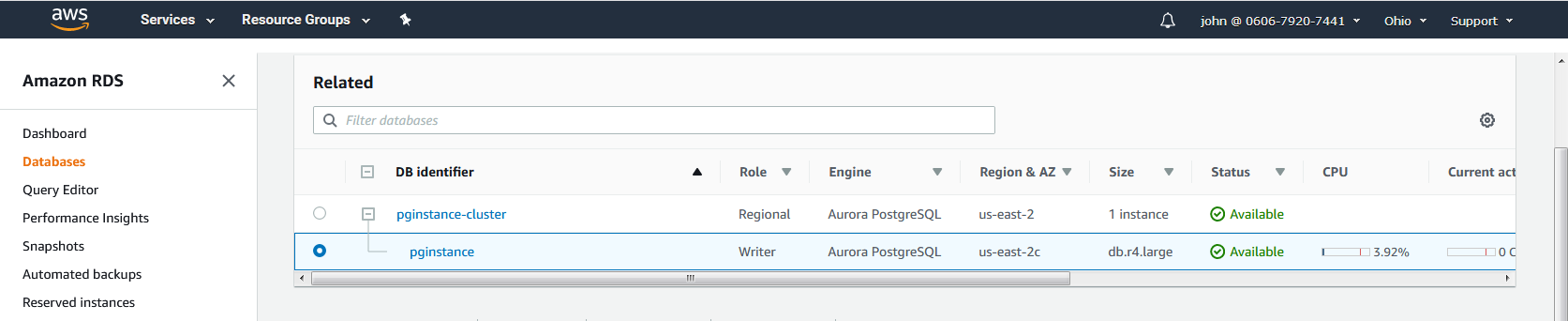
- Copy the Endpoint and Port from the connection details.
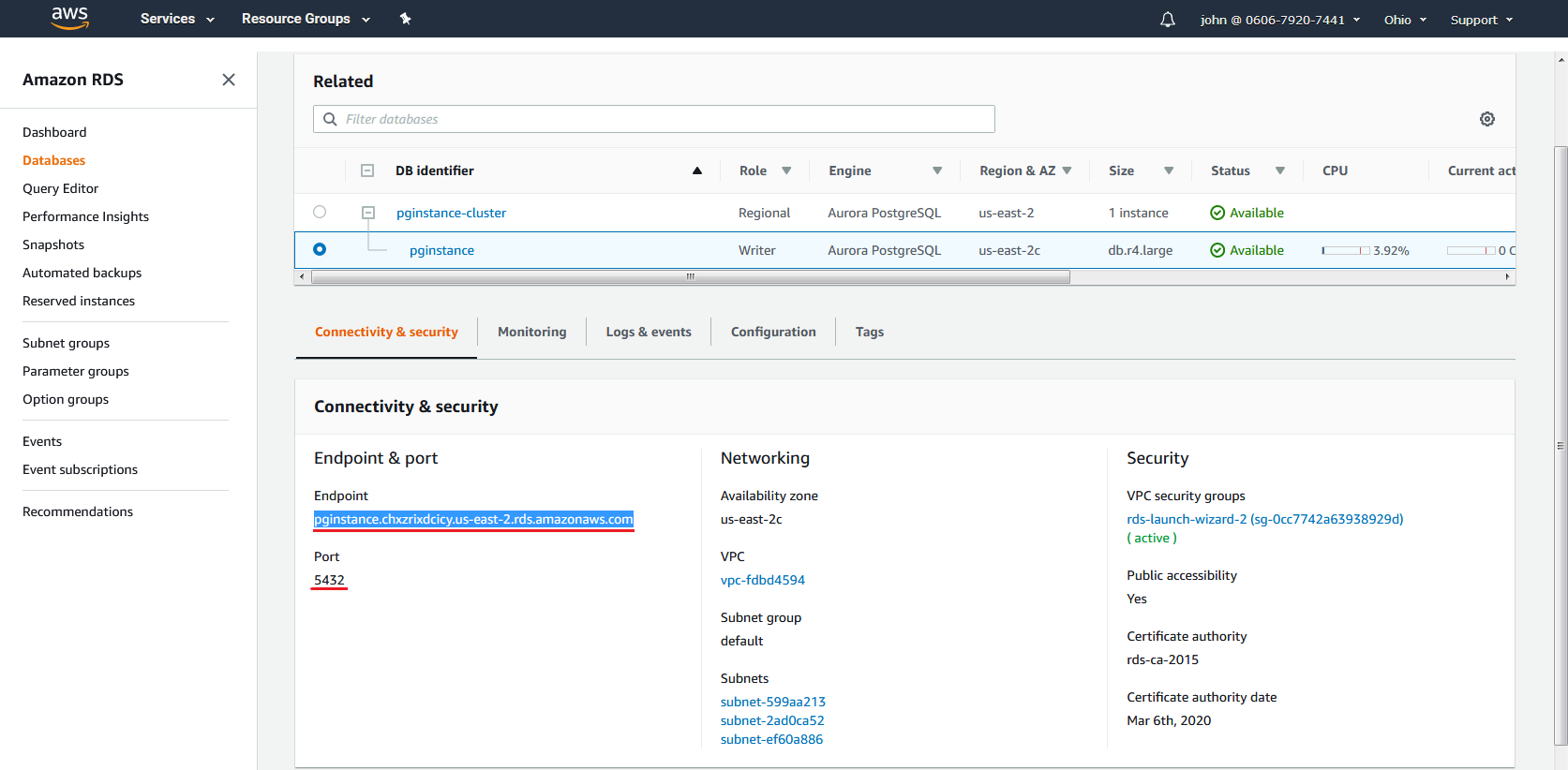
- In DBConvert, paste the endpoint into Hostname, port into Port, enter the DB user and password, and click Test connection.
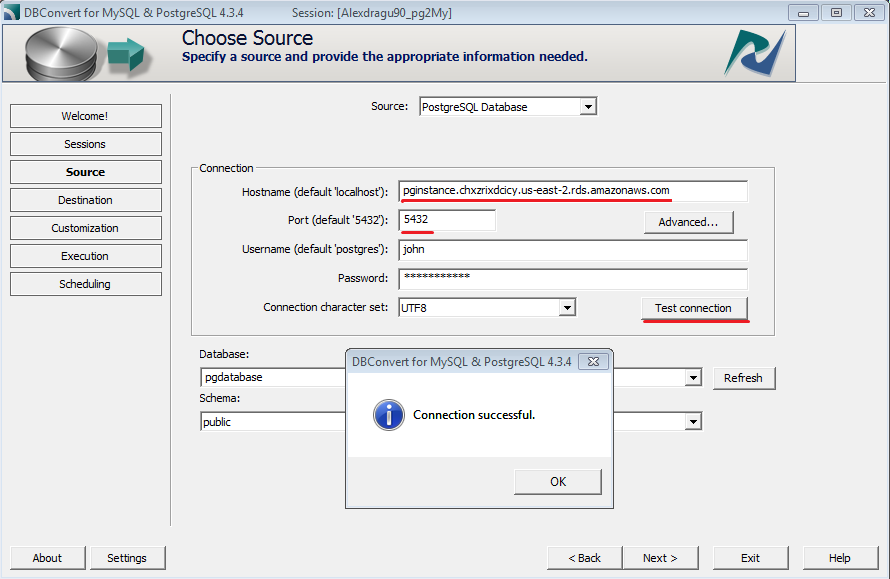
- Click Refresh next to Database, pick the database, then pick the schema.
For non-Aurora RDS endpoints, see Amazon RDS configuration.
Heroku Postgres
Heroku exposes a host, username, password, and database name for every Heroku Postgres add-on.
- Open the Heroku Postgres dashboard for your app and copy Host, Database, User, and Password.
- In DBConvert, paste those into the corresponding fields.
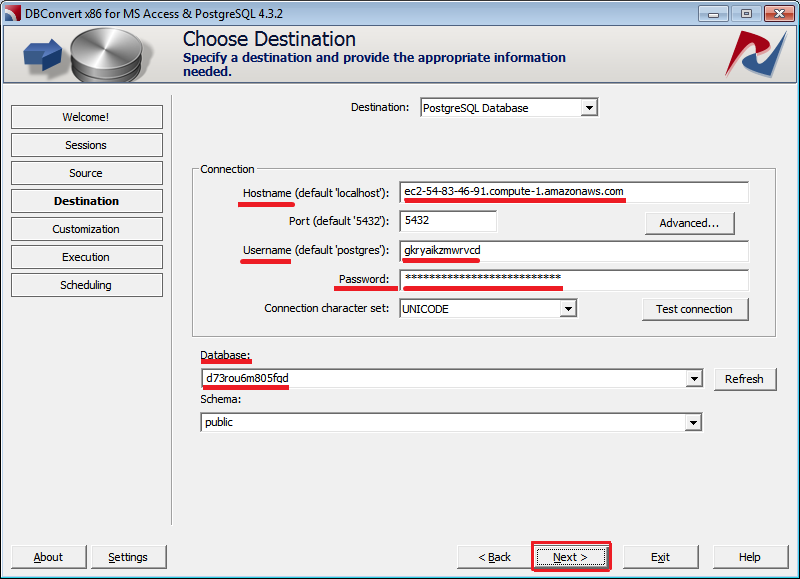
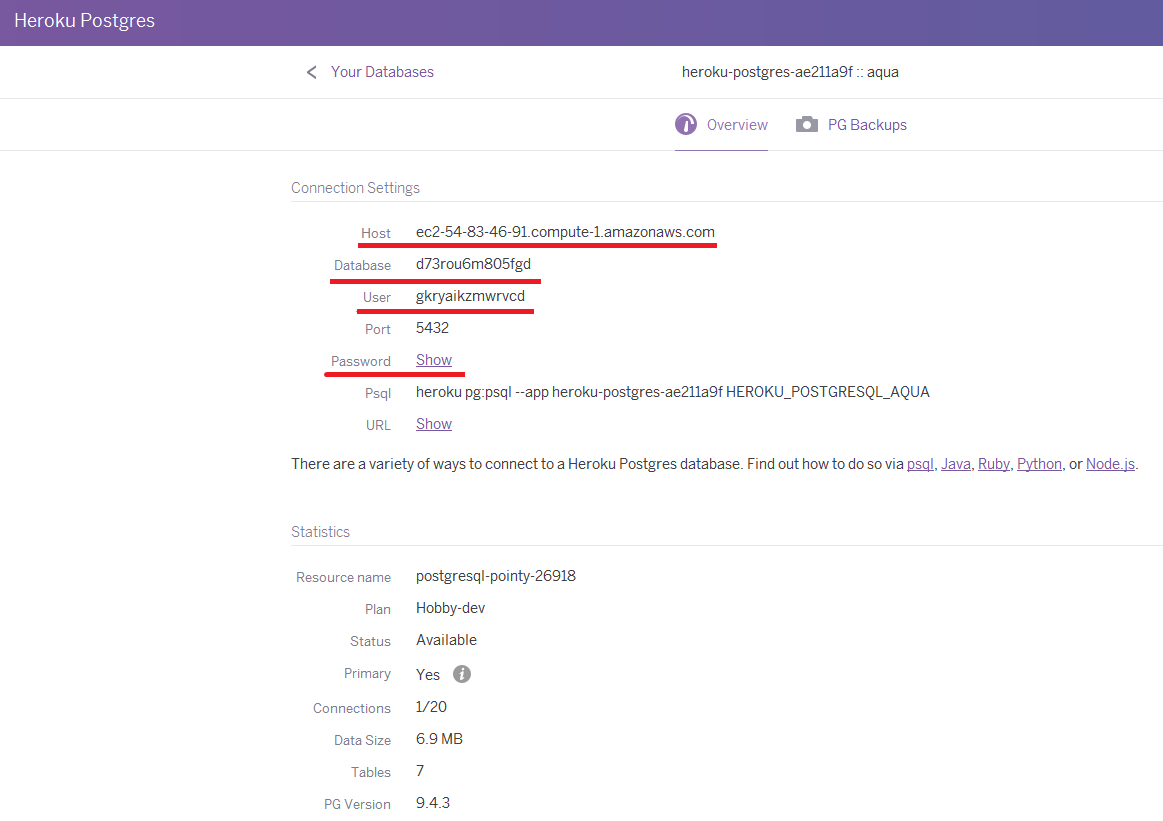
- Click Test connection and then Next.
Google Cloud SQL for PostgreSQL
Cloud SQL exposes a PostgreSQL endpoint behind an authorized-network rule.
1. Create the instance
In the Cloud Console, open SQL and click Create instance. Pick PostgreSQL.
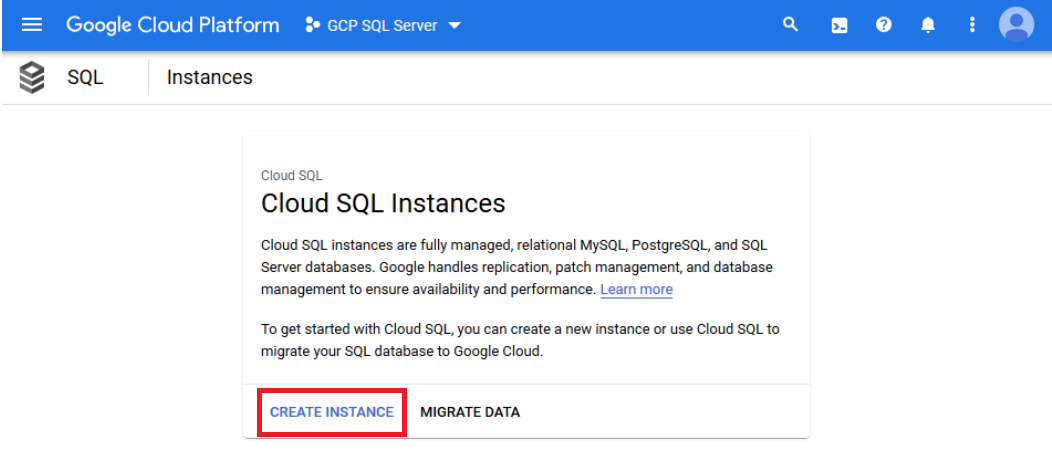
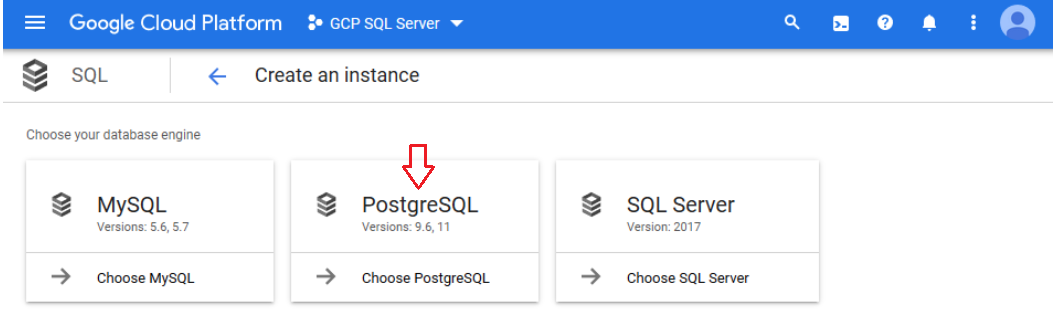
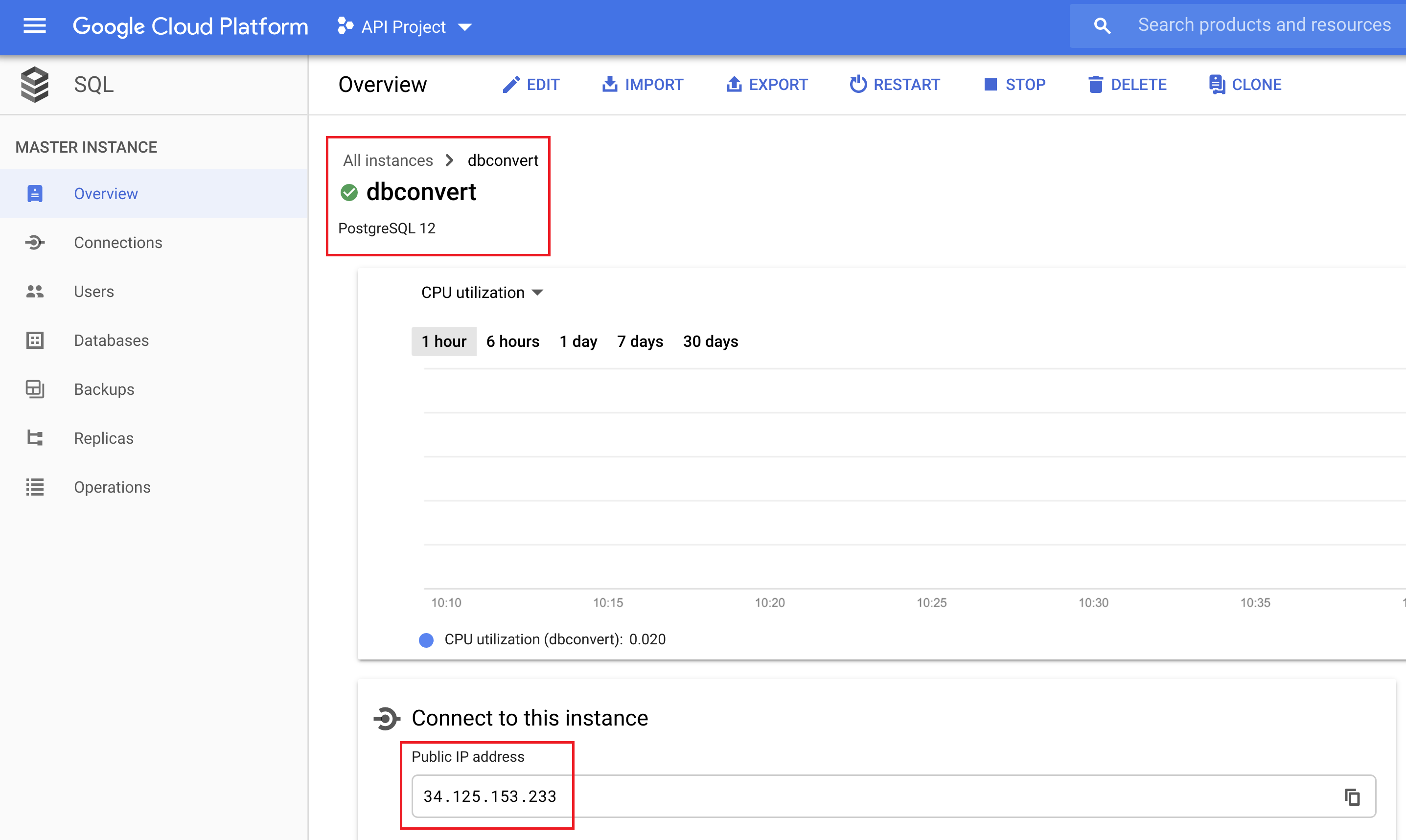
After the instance starts, note its public IP from the Overview page - you will use it as the hostname.
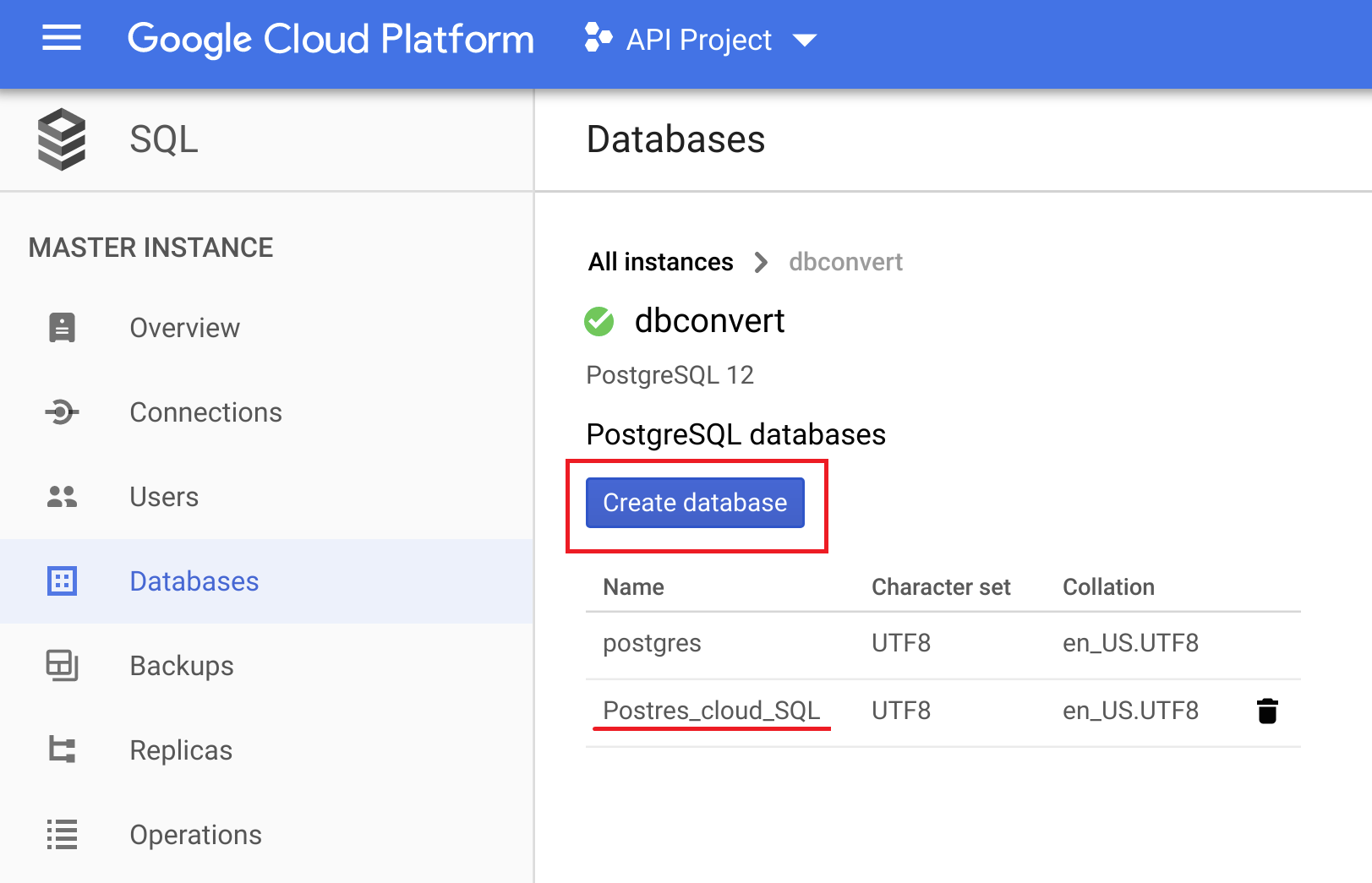
2. Create a database
On the Databases page click Create database and enter a name.
3. Enable remote access
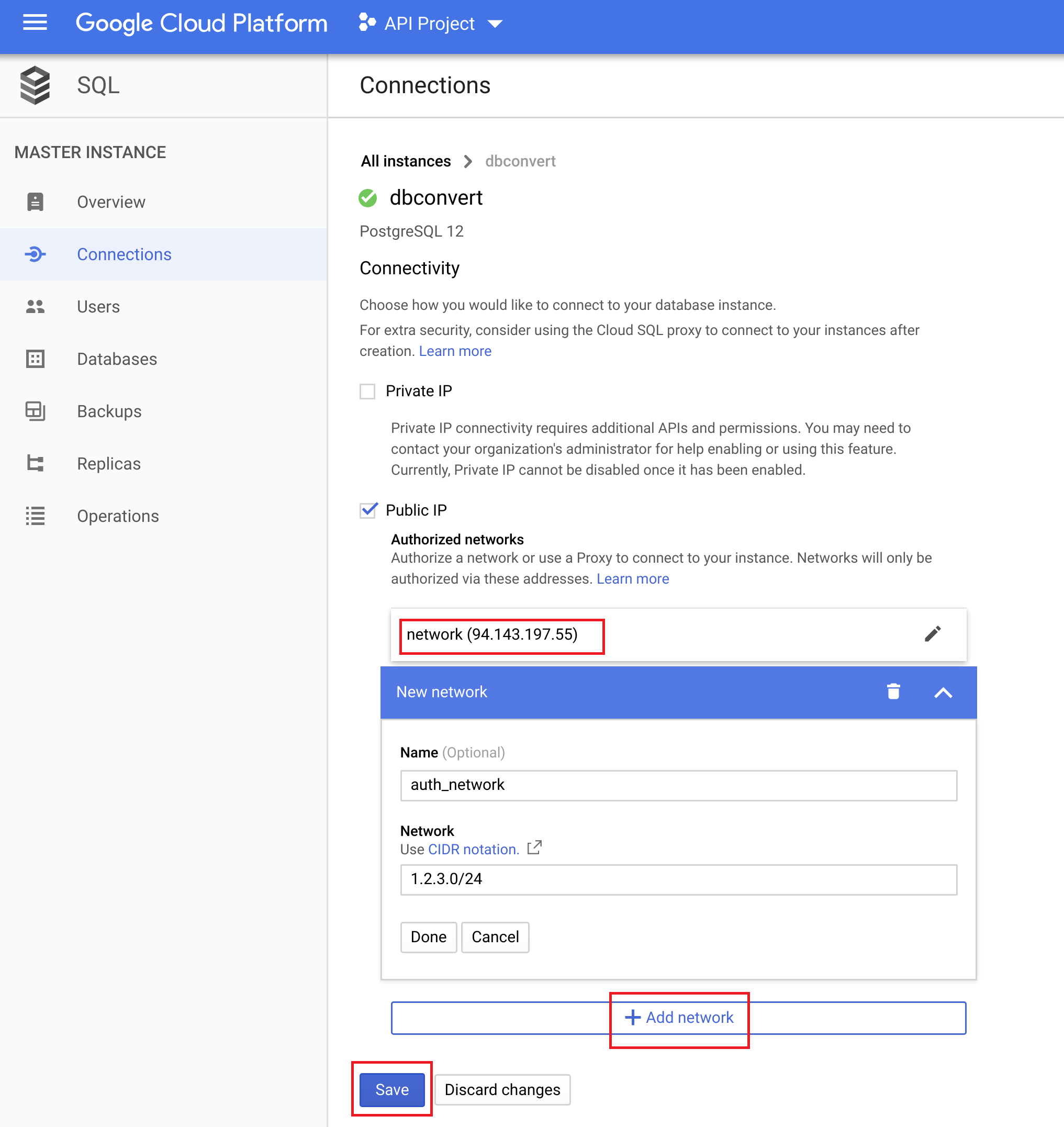
Open Connections for the instance, enable Public IP, then click + Add network and add the IP of the machine running DBConvert. Save.
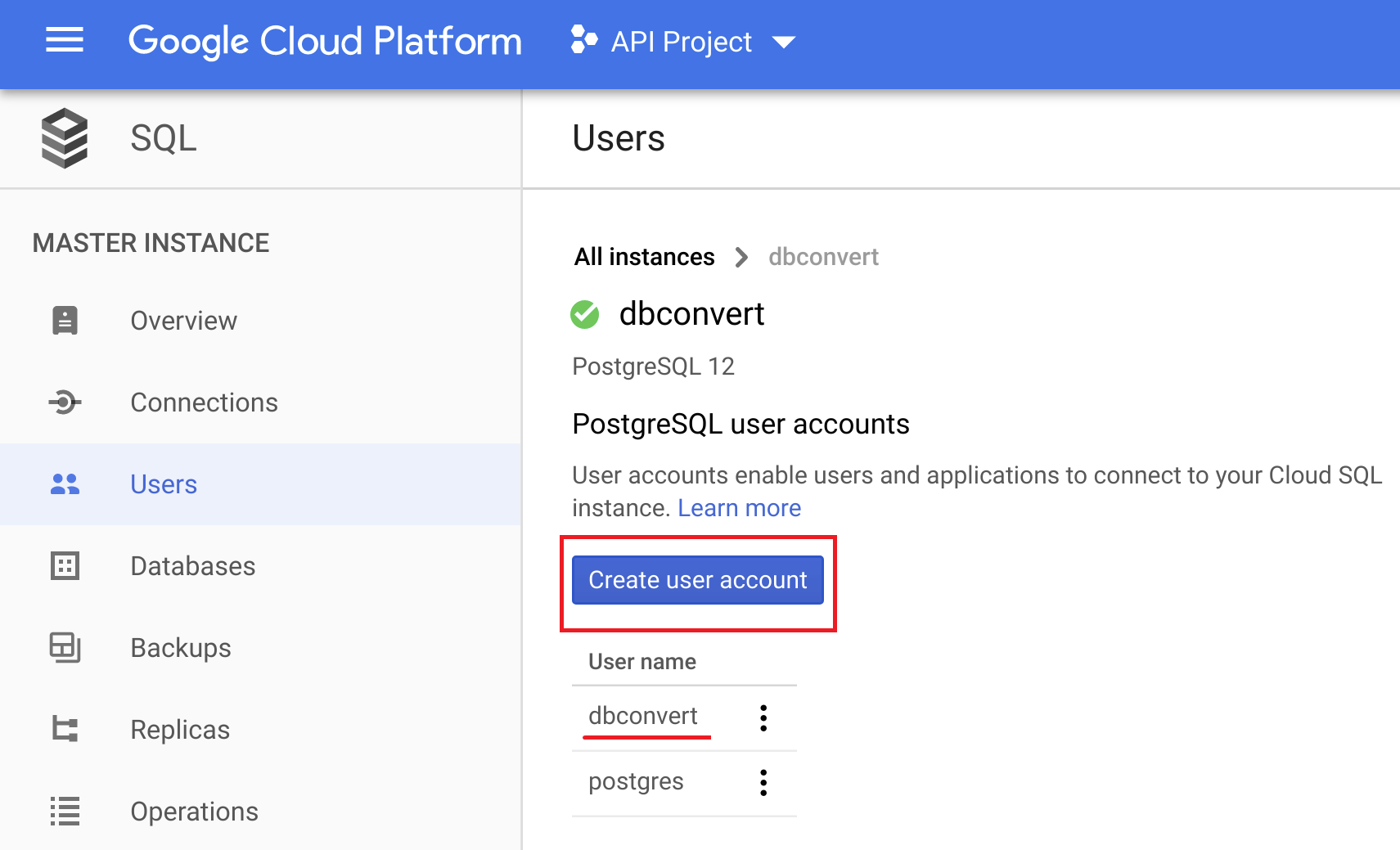
On the Users page, create a user for DBConvert and remember the password.
4. Connect from DBConvert
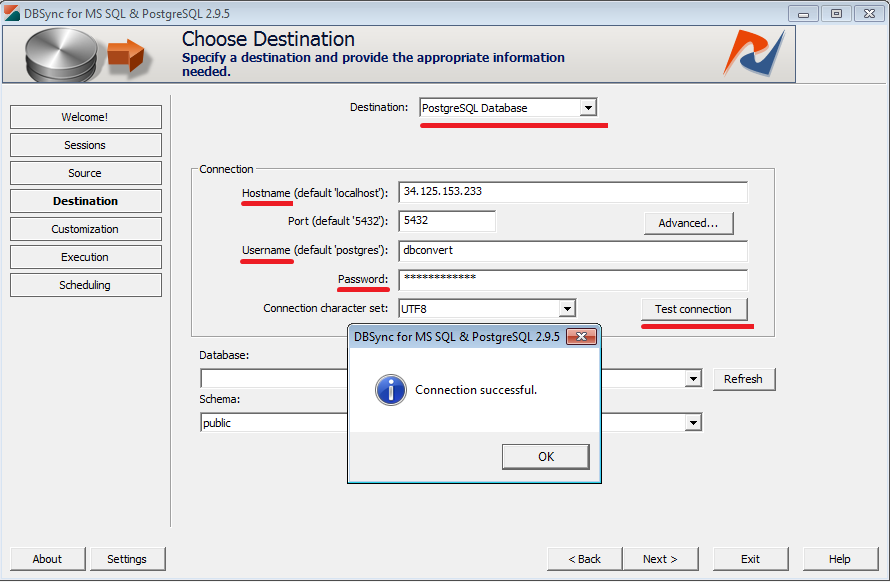
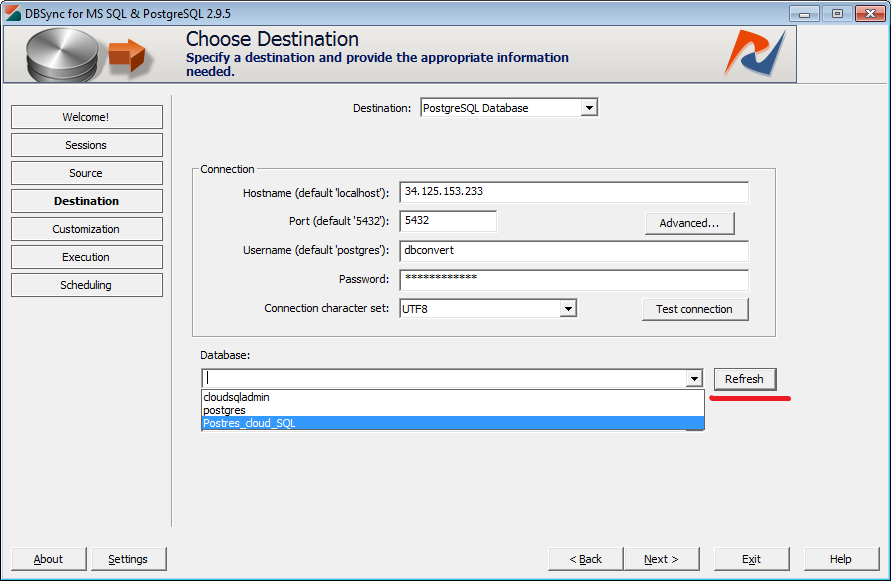
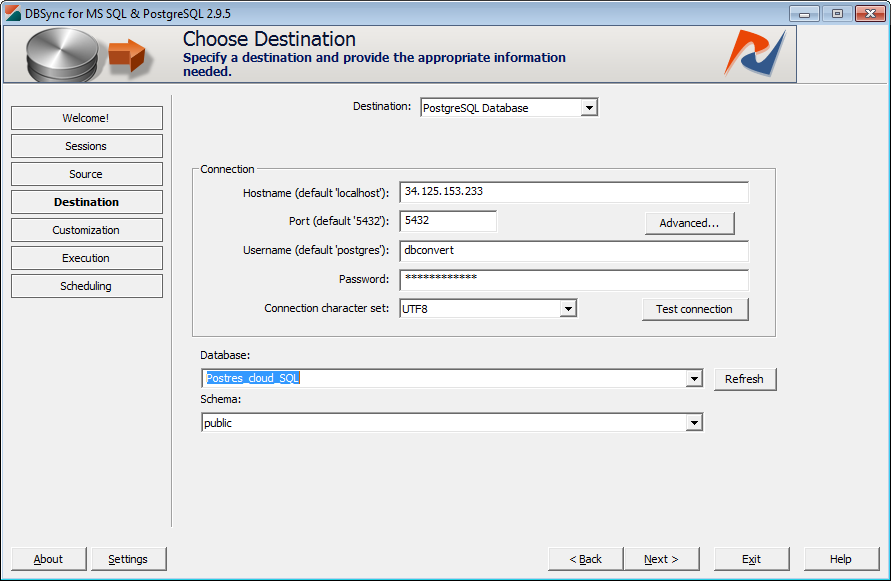
Paste the instance's public IP into Hostname, enter the user and password, and click Test connection. Then click Refresh next to Database and pick the database you created.
Other managed PostgreSQL services
Most managed PostgreSQL platforms - Supabase, Neon, DigitalOcean, CockroachDB, Azure Database for PostgreSQL, and others - expose a standard PostgreSQL endpoint. There is no special connector: connect them like any PostgreSQL server using the host, port, database, user, and password from the provider's dashboard, and enable SSL if the service requires it.