For the generic source-and-destination workflow, see Source and destination connections. This page covers the MySQL-specific setup steps.
Local MySQL server
DBConvert connects as a regular MySQL user. The user needs SELECT on the source and the usual write privileges on the target. The example below uses phpMyAdmin to create that user.
1. In phpMyAdmin, open the Privileges tab.

2. Click Add user.

Set the host to % to allow connections from any IP, or to a specific IP of the machine where DBConvert is installed.
3. Grant the privileges shown below and save.

If the user is for synchronization rather than one-shot conversion, also grant CREATE, DROP, and TRIGGER - needed for trigger-based sync.
Amazon Aurora MySQL
Aurora MySQL connects exactly like a regular MySQL endpoint. The only specific step is getting the endpoint and port from the AWS console.
- Log in to the AWS console and open RDS → Databases.
- Select your Aurora MySQL cluster.
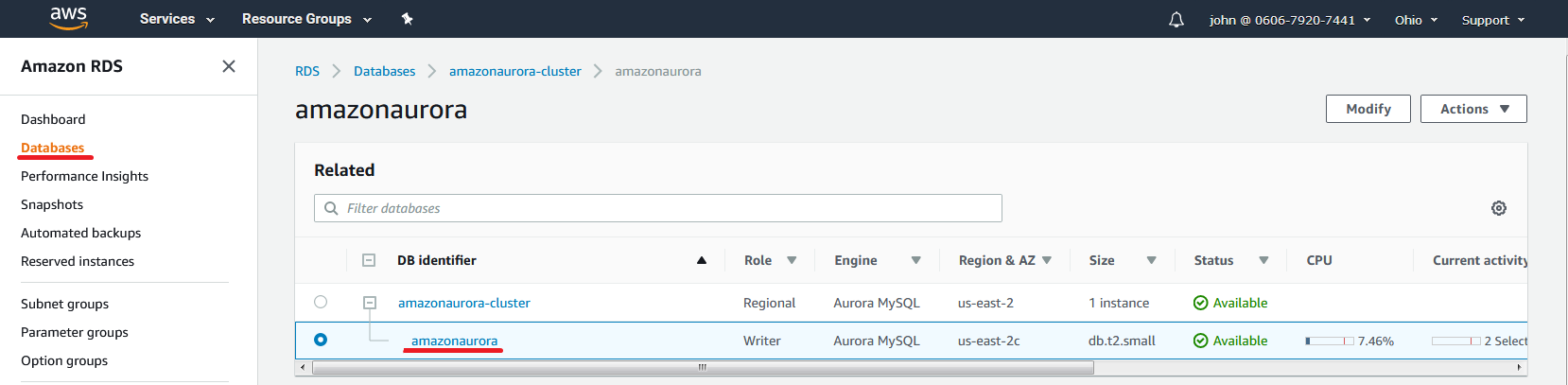
- Copy the Endpoint and Port from the connection details.
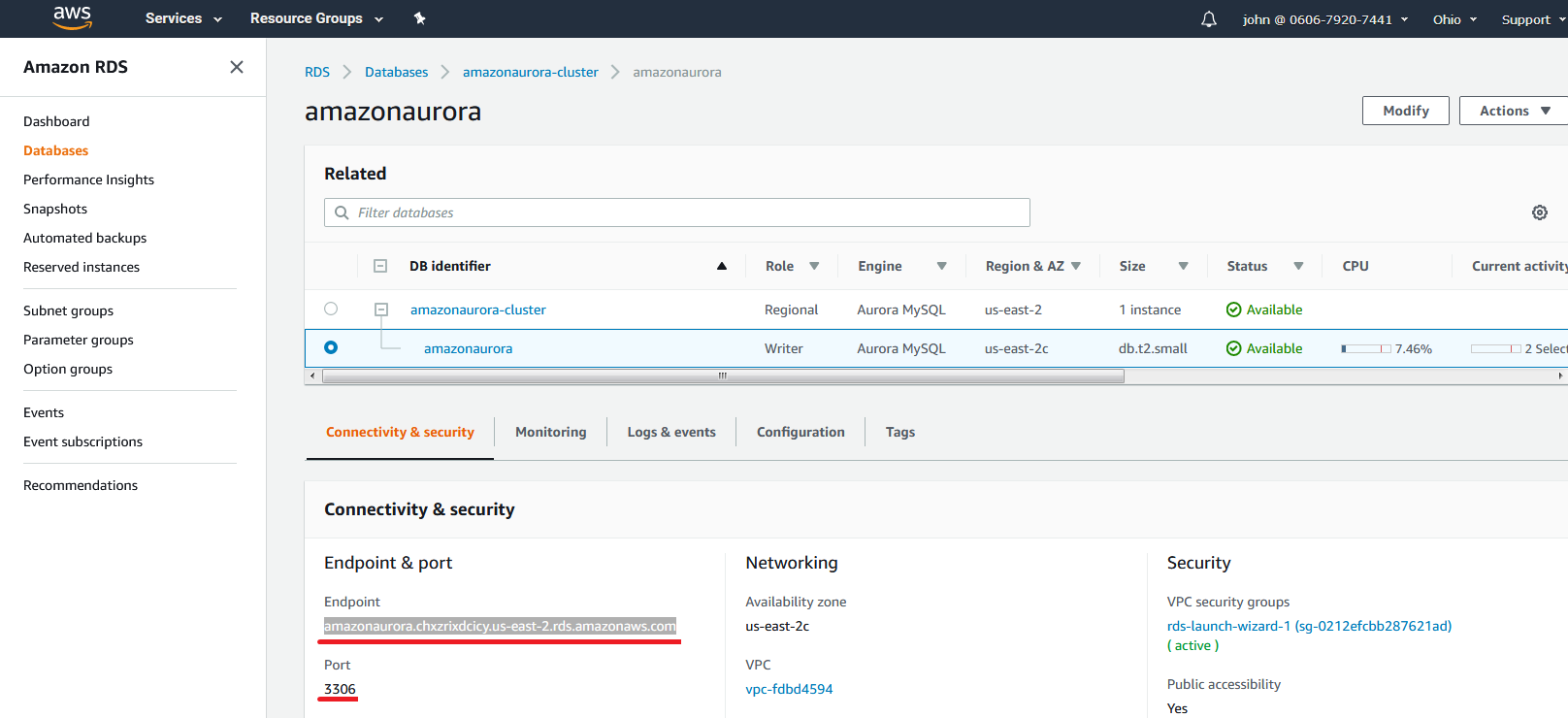
- In DBConvert, paste the endpoint into Hostname, port into Port, then enter the DB user and password. Click Test connection.

- Click Refresh next to Database to list databases on the cluster, pick one, and continue.
For RDS endpoints that are not Aurora-specific, see Amazon RDS configuration.
Google Cloud SQL for MySQL
Cloud SQL exposes a MySQL endpoint behind an authorized-network rule.
- In the Cloud SQL console, open the instance and copy its IPv4 address.
- Under Connections → Authorized networks, add the IP of the machine where DBConvert runs.
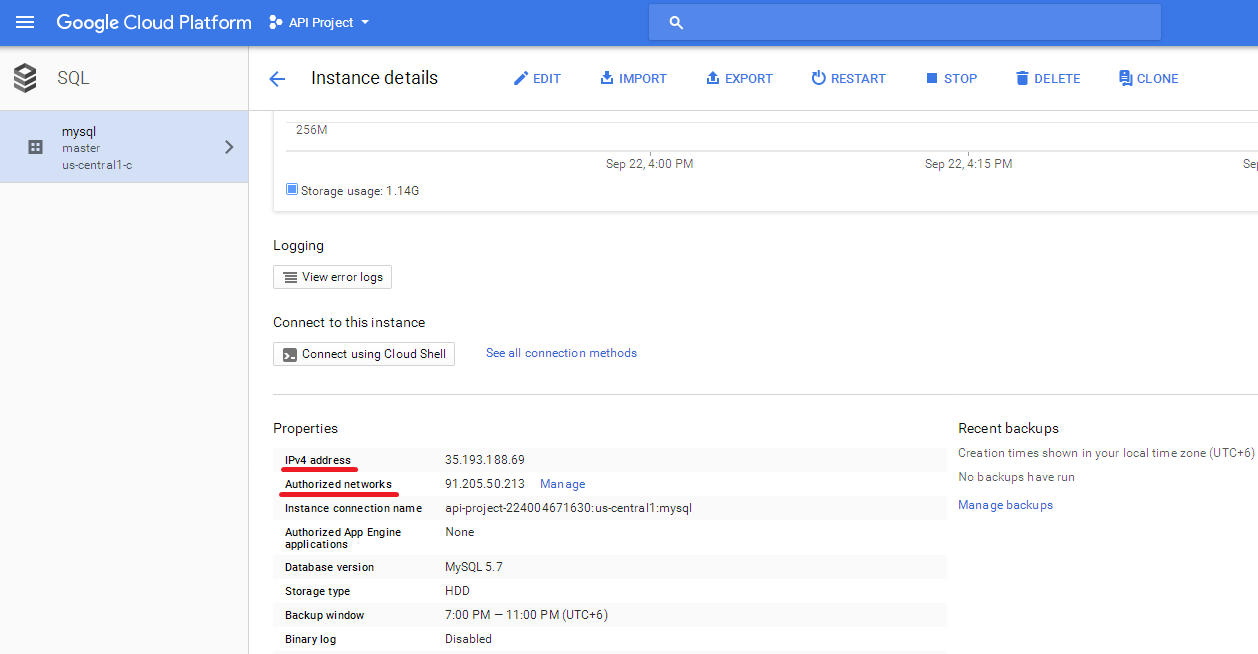
- In DBConvert, enter the IPv4 address as Hostname, the standard MySQL port, and the DB user.

- Click Test connection.