For the generic source-and-destination workflow, see Source and destination connections. This page covers SQL Server-specific setup.
SQL Server Express
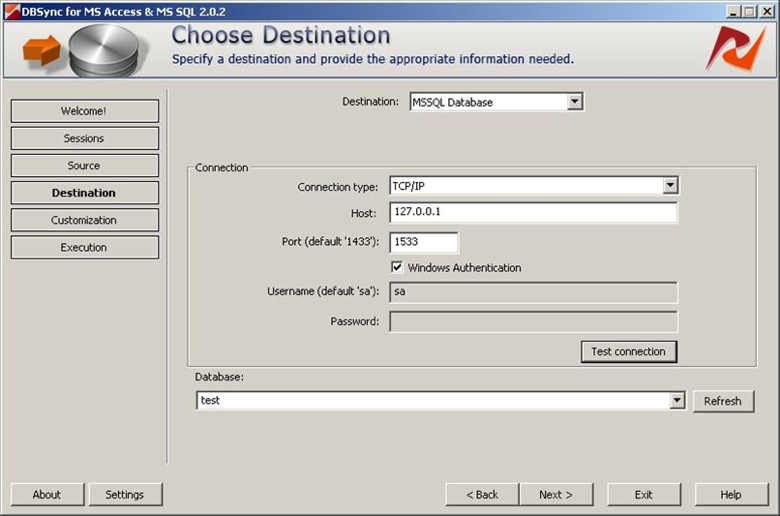
SQL Server supports three connection protocols: TCP/IP, Named Pipes, and IPX/SPX. DBConvert uses TCP/IP by default. Enable the protocol through SQL Server Configuration Manager before connecting.
All Express editions (2005, 2008, 2008 R2, 2012, 2014, and later) work as a source or as a target.
Open SQL Server Configuration Manager and verify TCP/IP is enabled.
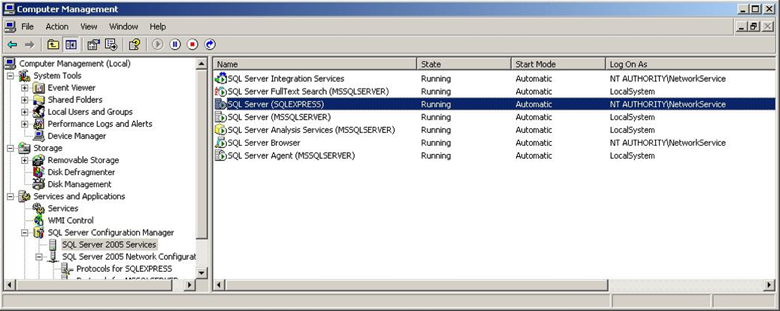
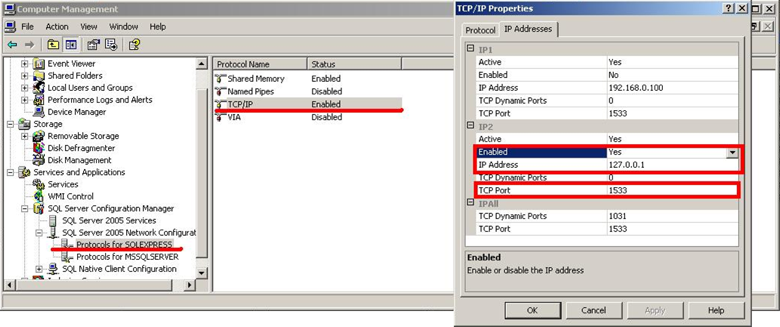
Restart the SQL Server (Express) service after changing the protocol. In DBConvert, click Refresh next to Database to list databases on the server.
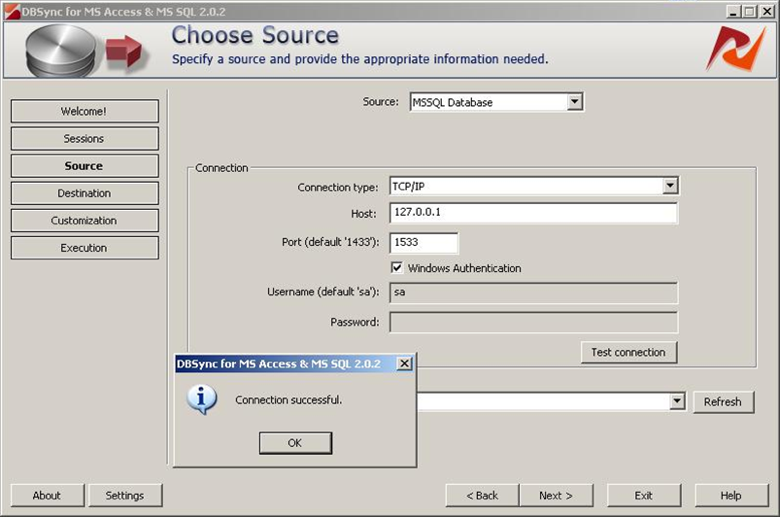
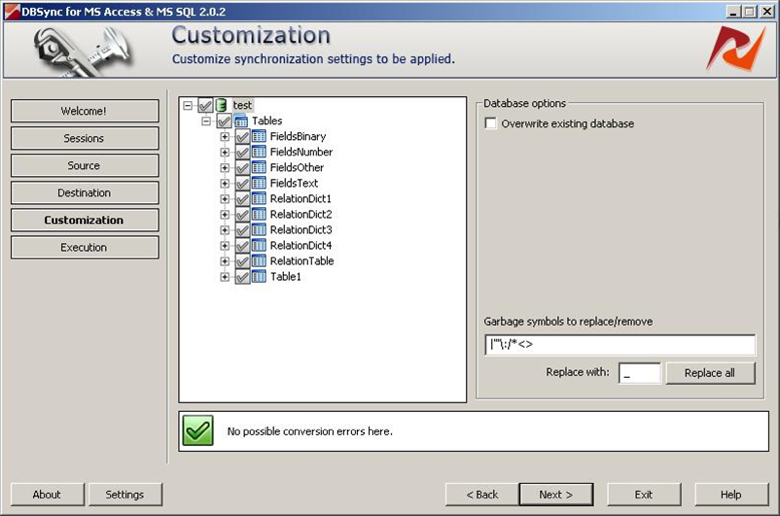
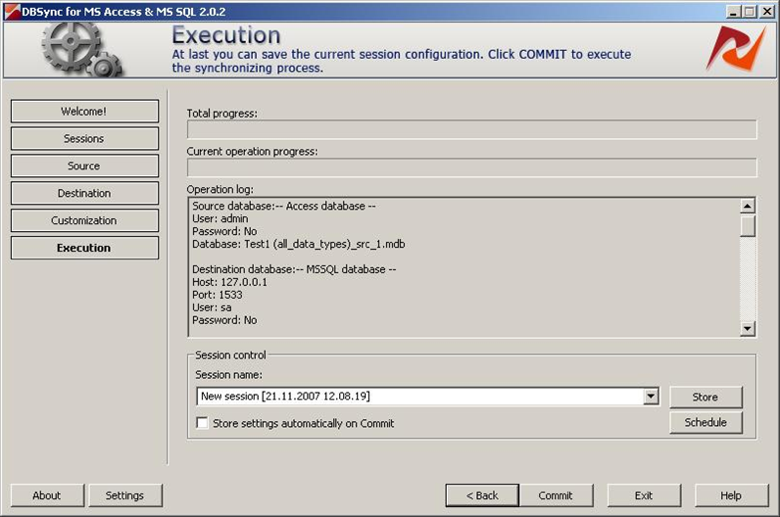
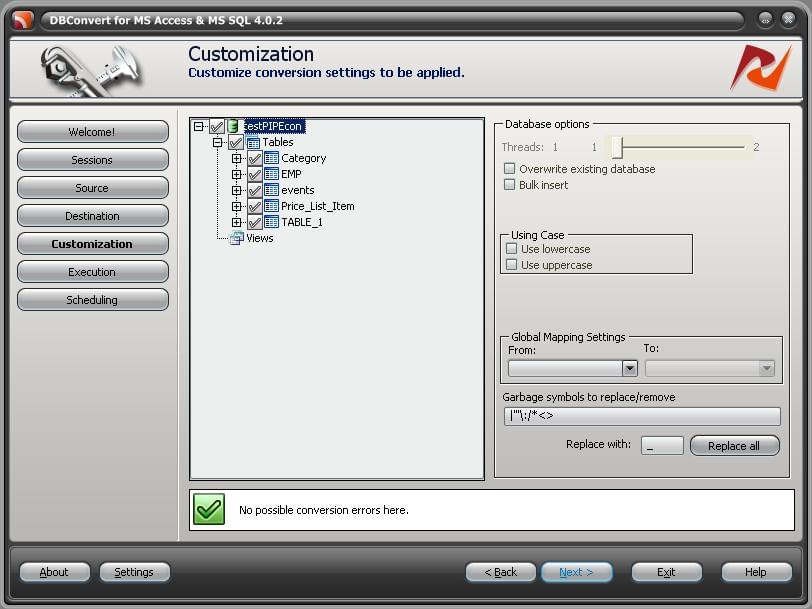
Pick the source database, then the destination database, configure customization, and run the job.
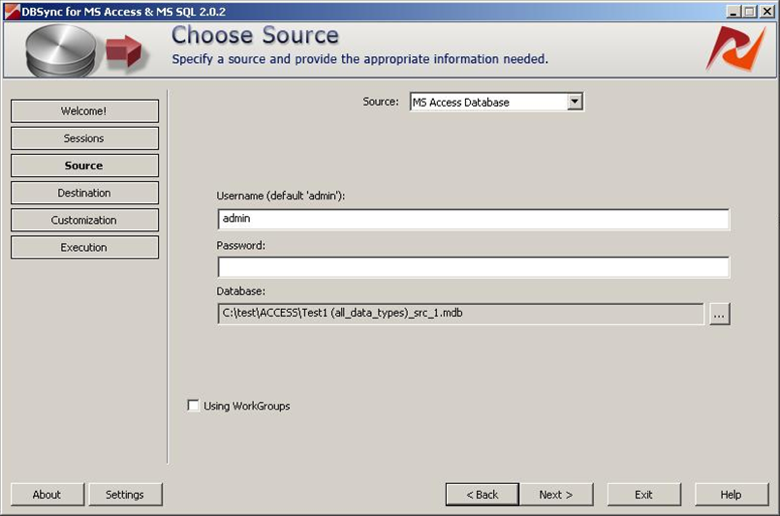
When TCP/IP does not connect - use Named Pipes
For named SQL Server instances, Named Pipes is often more reliable than TCP/IP. Enable Pipes in SQL Server Configuration Manager and select PIPE as the connection type in DBConvert.
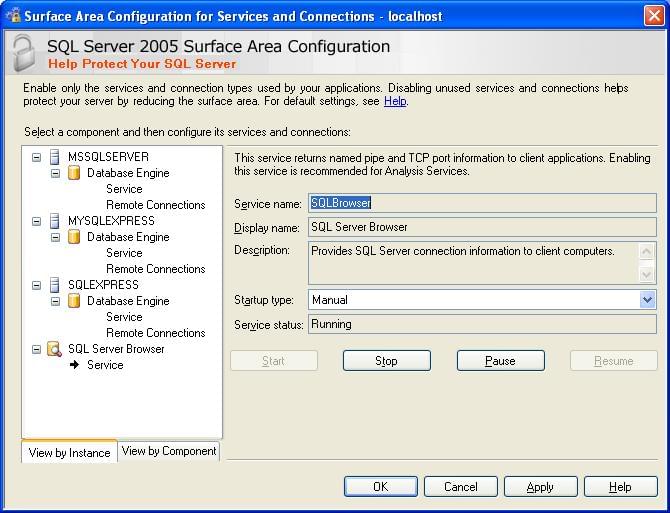
Make sure SQL Server Browser service is running, then enable Named Pipes on the instance and test the connection.
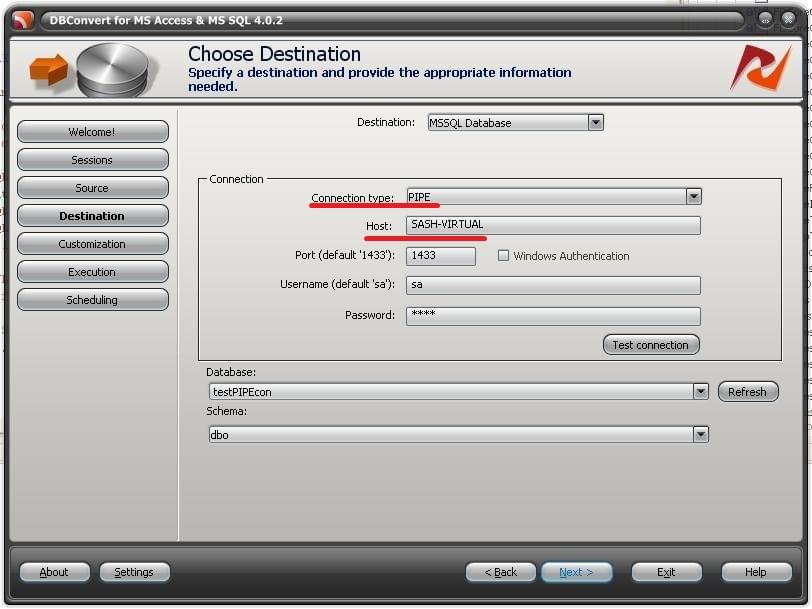
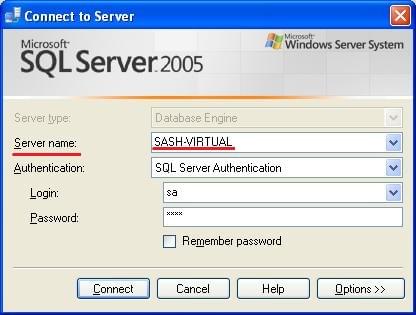
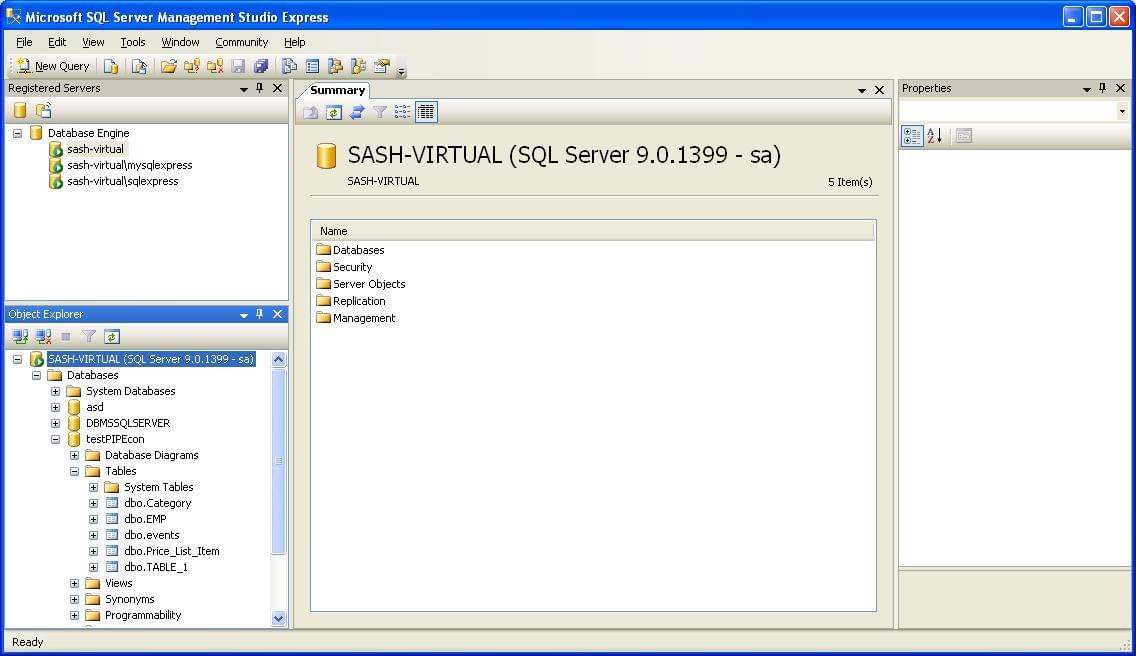
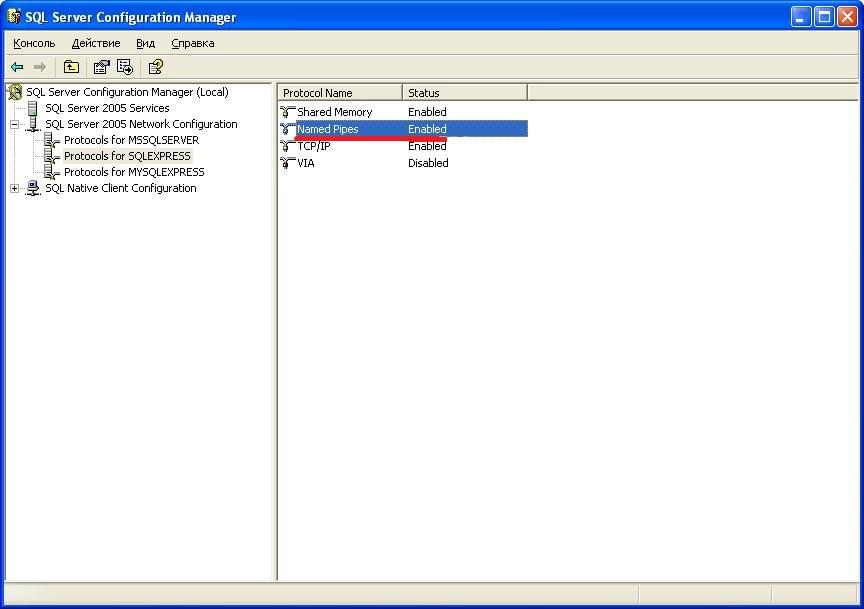
If the firewall blocks the SQL Server port, confirm the rules with the DBA before falling back to Named Pipes. If you log in as sa, leave the password field empty when the account has no password set.
Azure SQL
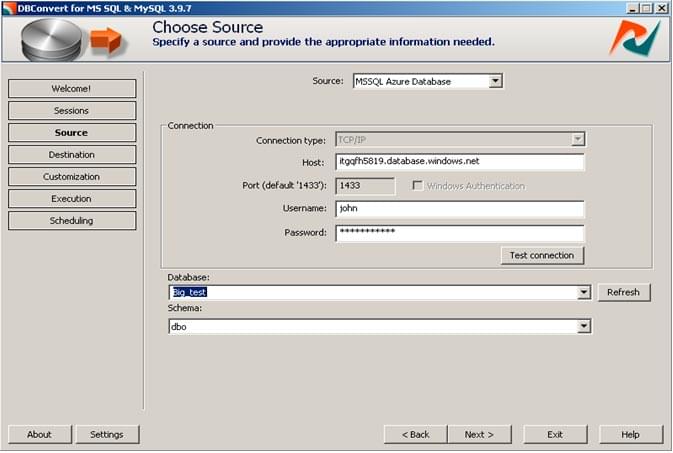
Azure SQL is a cloud database service based on SQL Server. It only supports SQL Server authentication and requires an SSL connection on port 1433.
Create an account at azure.microsoft.com and a database in the portal. Then in DBConvert:
- Pick MS Windows Azure as the connection.
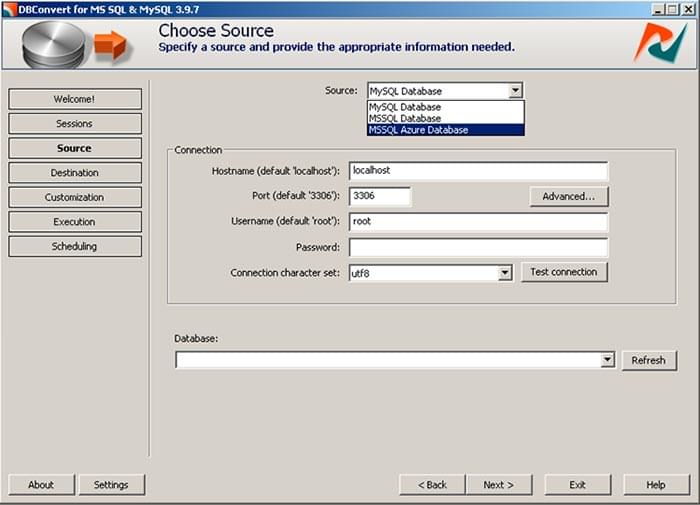
- Enter the server hostname, port 1433, and the SQL login. SSL is required.
Note on heap tables. Azure SQL requires every table to have a clustered index. Tables without a clustered index can be created, but inserts fail at runtime with an error.
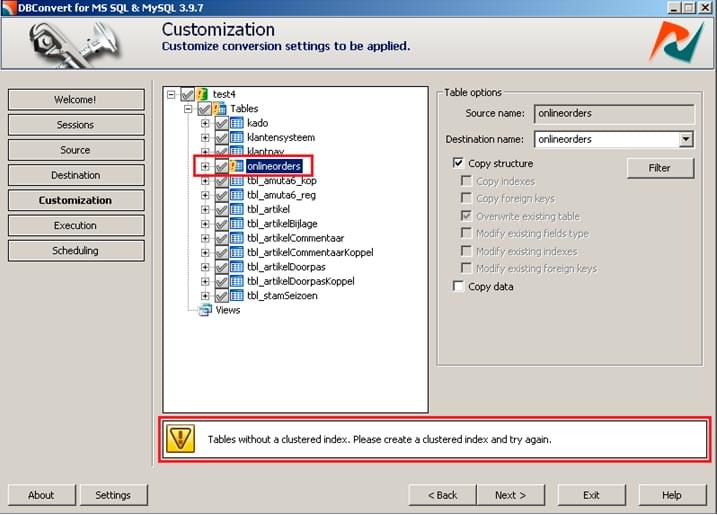
Make sure every table in your migration has a clustered index, or enable index/key conversion at the customization stage.